Welcome to Ludoya! This guide walks you through setting up your account and getting ready for your first game night.
Creating Your Account
You can join Ludoya with just a few clicks using one of two methods:
Email Sign-Up
- Visit the Ludoya homepage and click Sign Up
- Enter your email address and create a password
- Check your email for a confirmation link and click it
- You're ready to go!
Google Sign-In
- Click Sign In with Google on the sign-up page
- Authorize Ludoya to access your Google account
- You'll be logged in immediately
Choosing Your Account Type
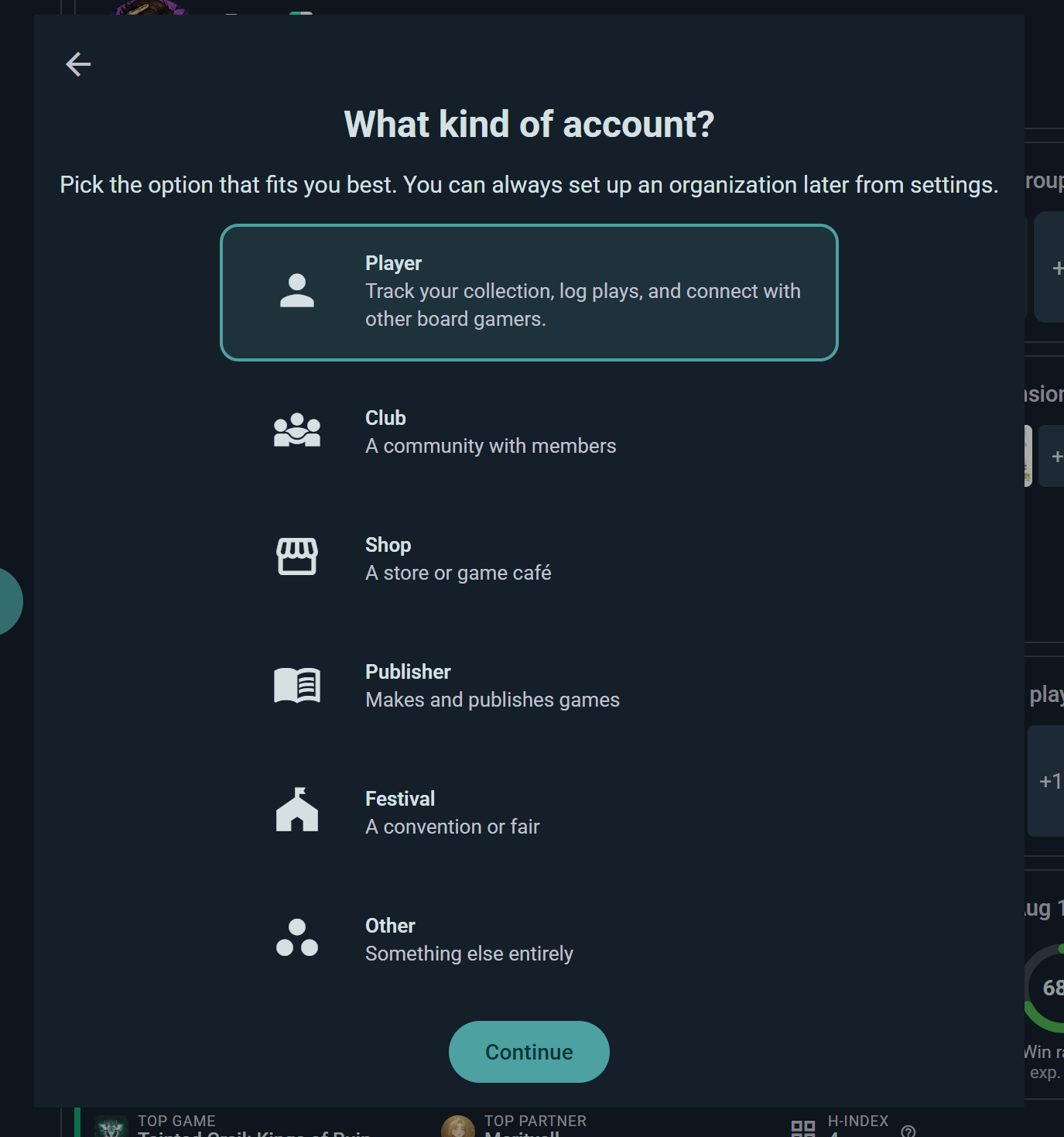
Once you're in, Ludoya asks what kind of account you want. Most people pick Player. If you run a club, a store, a festival, or you publish games, pick that instead and you'll get an organization account with its own profile and premium options. Nothing is locked in — you can set one up later from settings.
First-Login Setup
On your first login, a short wizard sets you up. It's six screens and takes about a minute.
- Upload an avatar — a picture so people recognize you. Skippable, and skipped automatically if your account already has one
- Pick a username — how other players find, mention, and link to you
- Terms of service — review and accept
- What kind of account? — see below
- How will you use Ludoya? — see below. Skippable
- Welcome! — you land on your home dashboard
You can step back at any point before the last screen. If you close the wizard partway through, you'll pick up again at How will you use Ludoya? next time rather than starting over.
What Kind of Account?
Six options, and you can change your mind later:
| Player | Track your collection, log plays, and connect with other board gamers |
| Club | A community with members |
| Shop | A store or game café |
| Publisher | Makes and publishes games |
| Festival | A convention or fair |
| Other | Something else entirely |
Everything except Player creates an organization — an account that represents a community rather than a person. It's not a different kind of account, just a different shape of the same one, and a personal account can become an organization at any time from Settings → Account Information.
How Will You Use Ludoya?
If you picked Player, this is where you tell Ludoya what you're here for. Select as many as apply — Social starts selected:
- Social — join groups, discover events near you, and connect with other board gamers
- Collection — track your owned games, manage wishlists, and buy or sell on the marketplace
- Play Companion — log your plays, track scores, and explore your gaming statistics
Your picks decide which widgets appear on your home screen, your game pages and your profile, and which first steps Ludoya suggests. Nothing is locked away — a Collection person can still log plays — it just means the app leads with what you actually care about. You can rearrange any of it later in each page's edit mode.
If You Picked an Organization Type
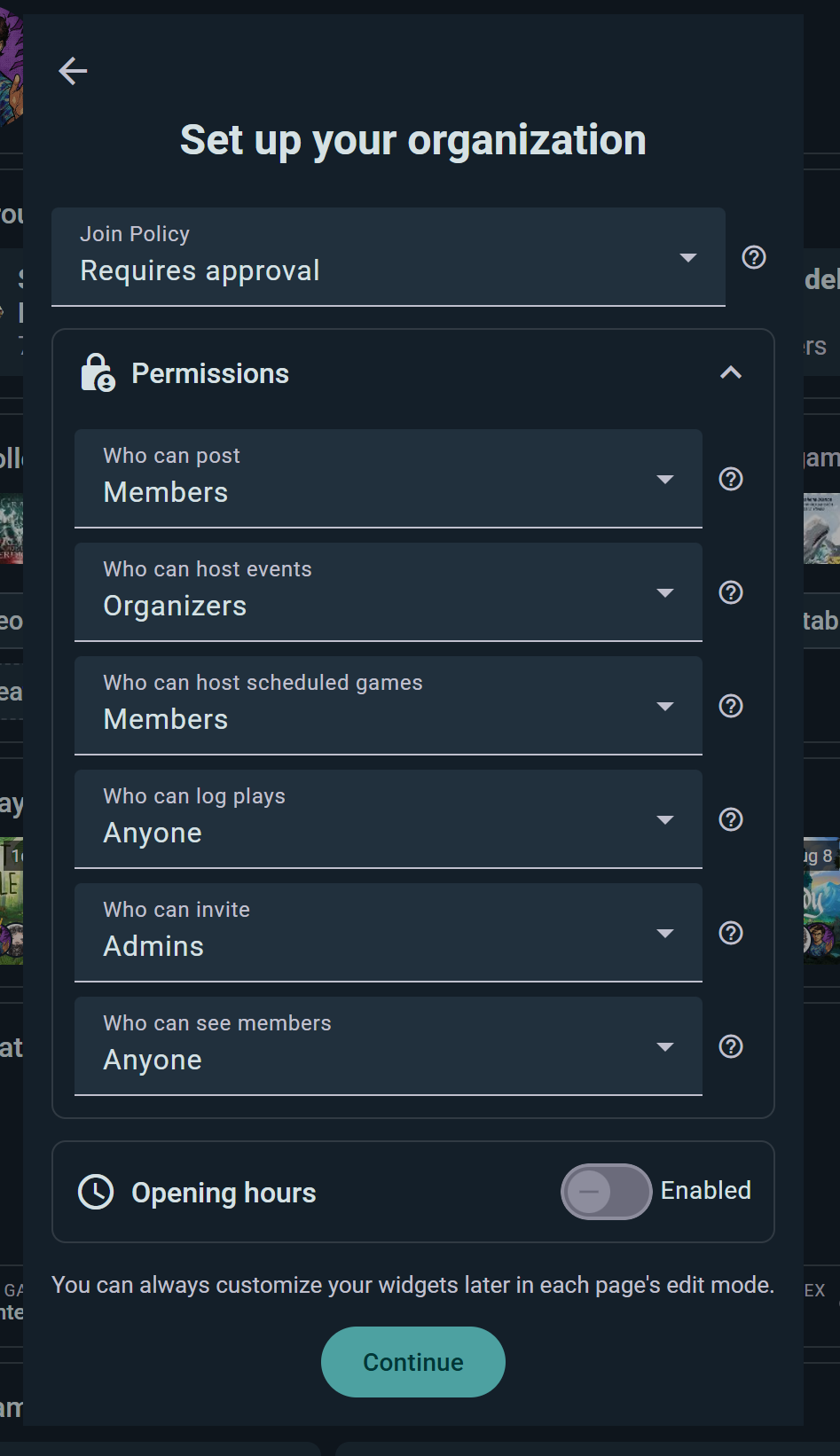
Organizations skip the question — the type you chose answers it. Instead you go straight to Set up your organization, where you name it and give it an avatar, and Ludoya applies the widgets that fit:
| Type | Set up for |
|---|---|
| Club, Other | Events, inventory and play stats |
| Shop | Events and inventory |
| Publisher, Festival | Events |
As with everything here, it's a starting point, not a cage — rearrange it whenever you like.
Your Home Dashboard
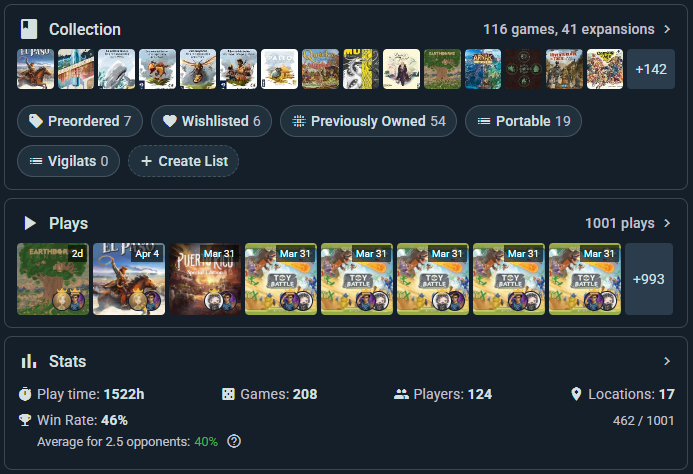
Your dashboard is your personal command center. It displays customizable widgets showing:
- Groups — Your gaming groups at a glance
- Events — Game nights and events you're attending
- Collection — Featured games from your library
- Plays — Games you've played lately
- Statistics — Quick wins, play counts, favorite genres
- Marketplace — New listings and items you're watching
- Game Kits — Score sheets and play aids you use
- Campaigns — Your ongoing multi-session games
At the beginning it will all be empty, but you'll start adding content to it as you play — widgets stay out of the way until they have something to show.
Three Pages, Same Controls
Your home dashboard, every game page and your profile are all built from widgets, and all three work the same way — drag to reorder, toggle to hide, each with its own arrangement. Learn it once here and you know it everywhere.
Reordering & Toggling Widgets
Click the gear icon in the top right corner to trigger the widget editing mode. Here each widget will become:
- Draggable move it anywhere on the dashboard
- Toggleable if you don't use it, you can hide it
Organize your dashboard to match how you play.
The Getting Started Card
Above your widgets sits a Getting Started card with a progress counter, tailored to how you said you'd use Ludoya.
On a personal account it can include: set up your profile · import from BGG · start your first play · share your plays · add your first game · share your collection · browse the marketplace · find a group near you · join an event · follow someone · start a campaign.
On an organization you get a different list entirely, aimed at getting a community off the ground: set up your group profile · create your first event · invite members · log a group play.
Two things that look like bugs but aren't:
- The list grows as you go. "Share your plays" only appears once you've logged one, and "share your collection" once you've added a game — steps that depend on something else stay hidden until it exists.
- Skipping optional items costs you nothing. Anything marked Optional or Premium only counts toward the total once you've completed it, so ignoring them can't drag your progress down.
Dismiss the card whenever you're settled in. Once dismissed — or once every required step is done — it's gone for good and won't come back.
Setting Your Location
Ludoya shows you events and communities near you based on your location. To set it:
- Go to Explore and pick the Events or Communities tab
- Use the location chooser in the toolbar above the results
- Enter your city, neighborhood, or coordinates
- Set your distance filter (e.g., show events within 10 km)
- The list refreshes instantly to show what's nearby
You can also switch to the map and drag it somewhere else entirely, then tap Search in this area.
Building Your Collection
Your game collection is the heart of Ludoya. Start adding your games using one of these methods:
Speed Add
The fastest way in. Go to Settings → Speed Add for a filterable list of games with a checkbox beside each one — tick a game and it's in your collection immediately, no dialog per title. You can also reach it from Collection → Add Game → "Add multiple games at once".
Import from BoardGameGeek
- In Collection, choose Sync with BGG. You can reach the same screen from Settings → BoardGameGeek integration.
- Enter your BoardGameGeek username
- Ludoya will import all games from your BGG collection
- Review and adjust ownership types if needed
Importing is a great way to get started quickly if you already catalog your games elsewhere.
Import from Board Game Arena
- In Settings, go to Board Game Arena Integration
- Enter your BGA username
- Ludoya will sync your account
- Your BGA collection appears in Ludoya
Following People & Groups
Building your network helps you discover games and events:
Finding People
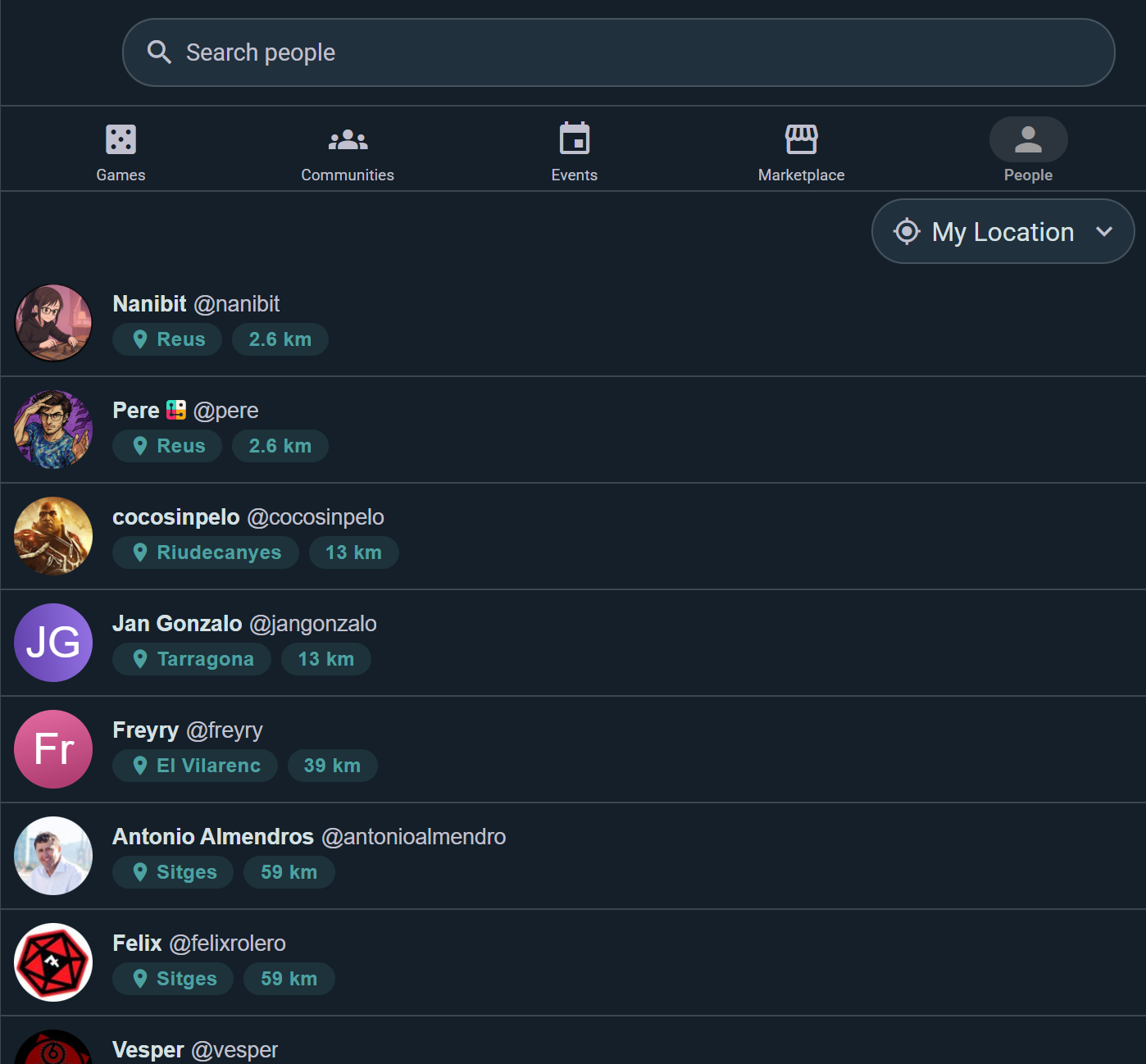
- Go to Explore and pick the People tab
- Search by name or username — or just browse who's nearby
- Click a profile to view their collection and reviews
- Click Follow to see their activity in your feed
Finding Communities
- Go to Explore and pick the Communities tab
- Search by name, filter by distance, or explore the map
- Click a community to see its members and upcoming events
- Click Join to become a member
Your feed will now show reviews, plays, and events from people and groups you follow.
Personalizing Your Settings
Open Settings from your profile menu:
- Account information — your email, account details, and Convert into Organization if you ever want one
- Manage premium — your plan, or Learn about premium if you're on the free one
- Privacy — who can see your collection, plays and stats, and who can message you
- Connected apps — sites you've signed into with your Ludoya account
- Notifications — pick a delivery channel for each kind of alert
- Language — your app language, and Languages I understand, which controls what gets auto-translated in your feed
- Change password — or Set password, if you signed up with Google and never had one
- Players — the people you log plays with who aren't on Ludoya
- Locations — where you play
- BoardGameGeek and Board Game Arena — collection and play syncing
- Speed Add — the fastest way to build a collection, covered above
Theme is the moon icon at the top of the settings screen. It switches between light and dark; there's no follow-my-system option.
See Privacy & Visibility for the full detail on the privacy settings.
First Game Night Checklist
You're almost ready! Before your first game night, make sure you've:
- Created your account and completed setup
- Set your location in Explore
- Added your first game to your collection
- Imported from BoardGameGeek, if you catalog your games there
- Followed at least one player or community
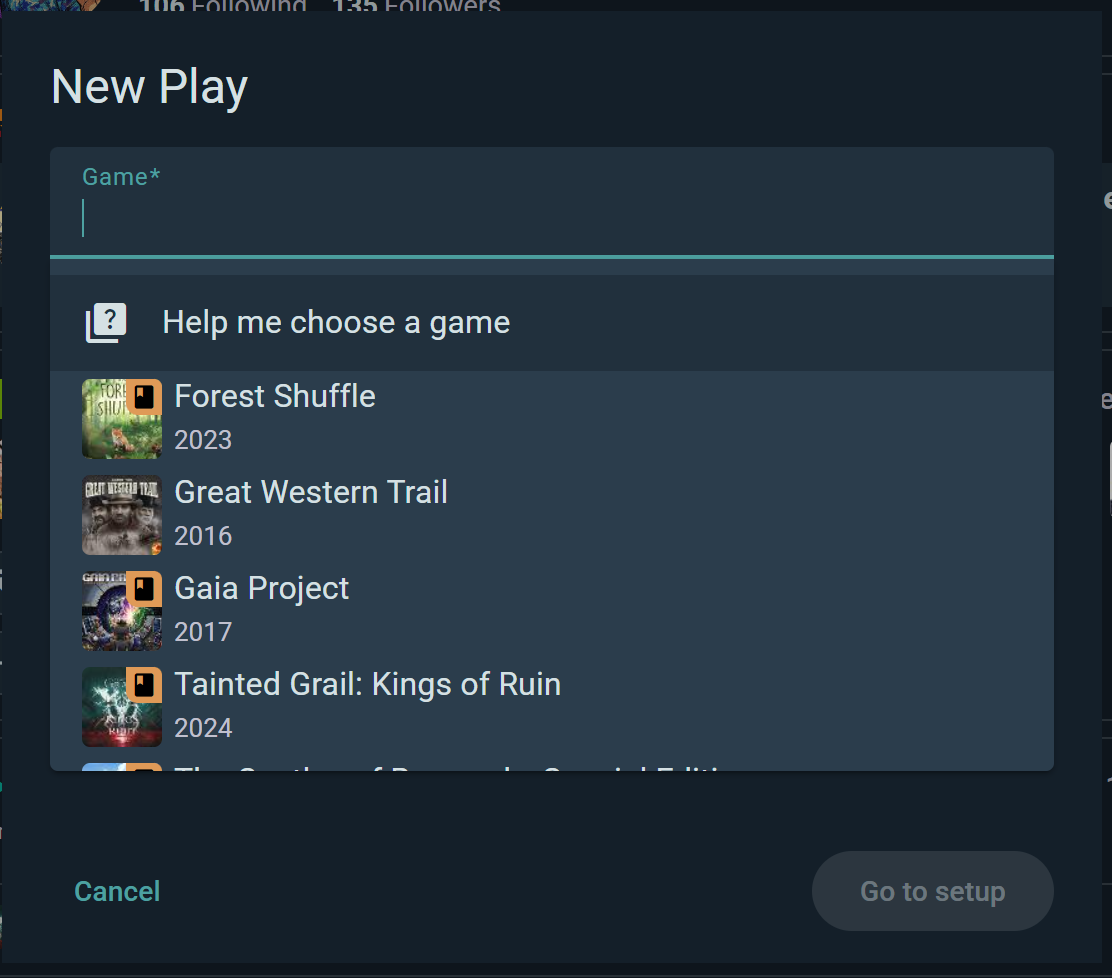
- Logged or started your first play
- Joined an event, or created your own
The Getting Started card on your home screen tracks most of this for you, and ticks items off as you go.
What's Next?
Pick the guide that fits you
These walk you through Ludoya from a specific angle, end to end. Start with the one that best matches how you'll use the app:
- Players — you mainly want to find game nights, log your plays, and track your gaming life
- Collectors — you want to catalog, rate, and review your game library (and maybe sell or trade)
- Clubs & Organizers — you run a group or club and need to schedule events, manage members, and announce to your community
- Stores & Venues — you operate a venue (store, café, convention) and need professional event operations
Or dive into a specific topic
- Ready to find a game night? Check out Events
- Want to learn more about your collection? See Collection
- Curious about discovering new games? Visit Search & Discovery
- Want to connect your BoardGameGeek account? Read Integrations
- Need privacy controls? Explore Privacy & Visibility
Welcome to the Ludoya community. Have fun!