
Get your club running in four steps. Everything else is optional depth you can come back to.
Get Your Club Running — 4 Steps
1. Create a Group
Go to Communities and create a Group. Set the name, description, avatar, and location. For join policy, Open works for most clubs — anyone can join, and you can tighten it later.
2. Invite Your People
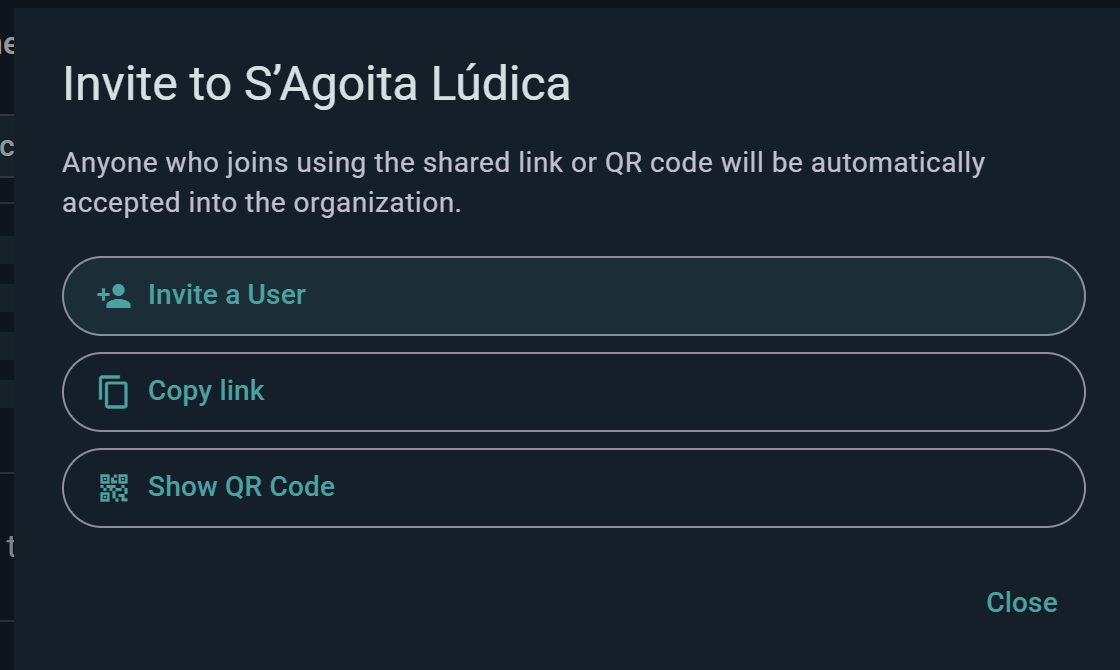
From your group page, generate a shareable invite link or QR code. Send it to your group chat, print it for your venue, or post it anywhere your people are. Anyone who taps it can join immediately (if the group is Open) or request to join.
3. Create an Event
From your group, create an Event. Set the title, date, time, and location.
An event is a gathering. It can be standalone — just a time, place, and attendee list — or it can hold scheduled games (sign-up tables for specific titles) and, for organizations on the Club tier or above, sub-events (separate tracks or rooms under one roof). You can also create scheduled games directly in your group without a parent event, which is handy when you just want to find players for a specific title without organizing a full night around it.
4. Share It
From the event page, copy the event link or grab the QR code. Share it wherever your members are. Members can also tap Add to calendar to drop your game night into their own calendar, as a download or straight into Google Calendar.
That's it. Your club exists, your people are in, and your game nights repeat automatically.
Once Your Club Is Up and Running
Everything below is optional. Return to it when you need it.
Build Out Your Events
Recurring events (Player tier) — set your event to repeat every week, every two weeks, or any number of weeks, on the weekdays you choose. Future occurrences generate automatically and members RSVP to individual sessions. You can also have new occurrences created as drafts, so you get a final look before each one goes live.
Add scheduled games to give your members a structured lineup. Each scheduled game has its own game, time slot, seat count and waitlist, and seats can be marked as a Demonstrator (someone who'll teach the game) or a Game Master — one or the other, not both. Members browse the lineup and sign up for specific tables, noting their own experience level as they join.
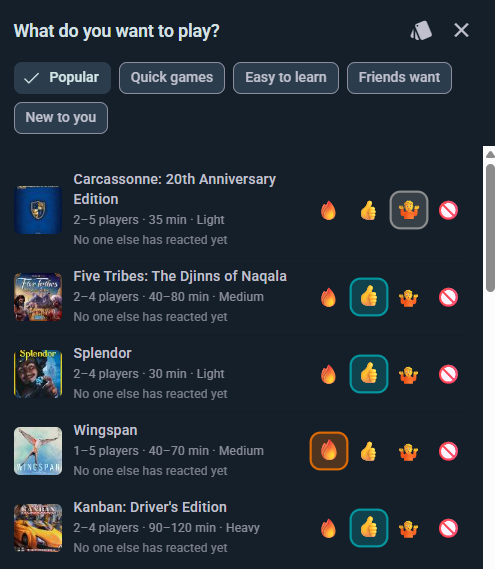
Games at the Event — a shared list of what's in the room. Anyone attending can say they'll bring a title, and as an organizer you can bulk-add straight from your group's collection rather than one game at a time. Each copy is marked free to play or owner present, and you can flag the ones your club provides as official. Attendees swipe through the lineup reacting from "Need to play" down to "Pass", and you see the demand aggregated — the quickest way to decide which tables are worth scheduling.
Play booths — for open-table nights where you don't want to plan a lineup at all. Offer tables across time slots, let members tick when they're free, and Ludoya forms games as availability overlaps — automatically, or as suggestions you approve with one tap. Free for any group.
Capacity — cap your event, and set a minimum so the page shows "3 more needed" until the night is viable. Note a full event simply reads Full and the join button stops working; there's no queue to join, so reserve spots yourself for anyone you want to squeeze in.
One exception worth knowing: if someone joins while there are still seats but brings more companions than you have left, the extras land on a wait list instead of being refused, and Ludoya warns them how many before they confirm.
Manage Your Community
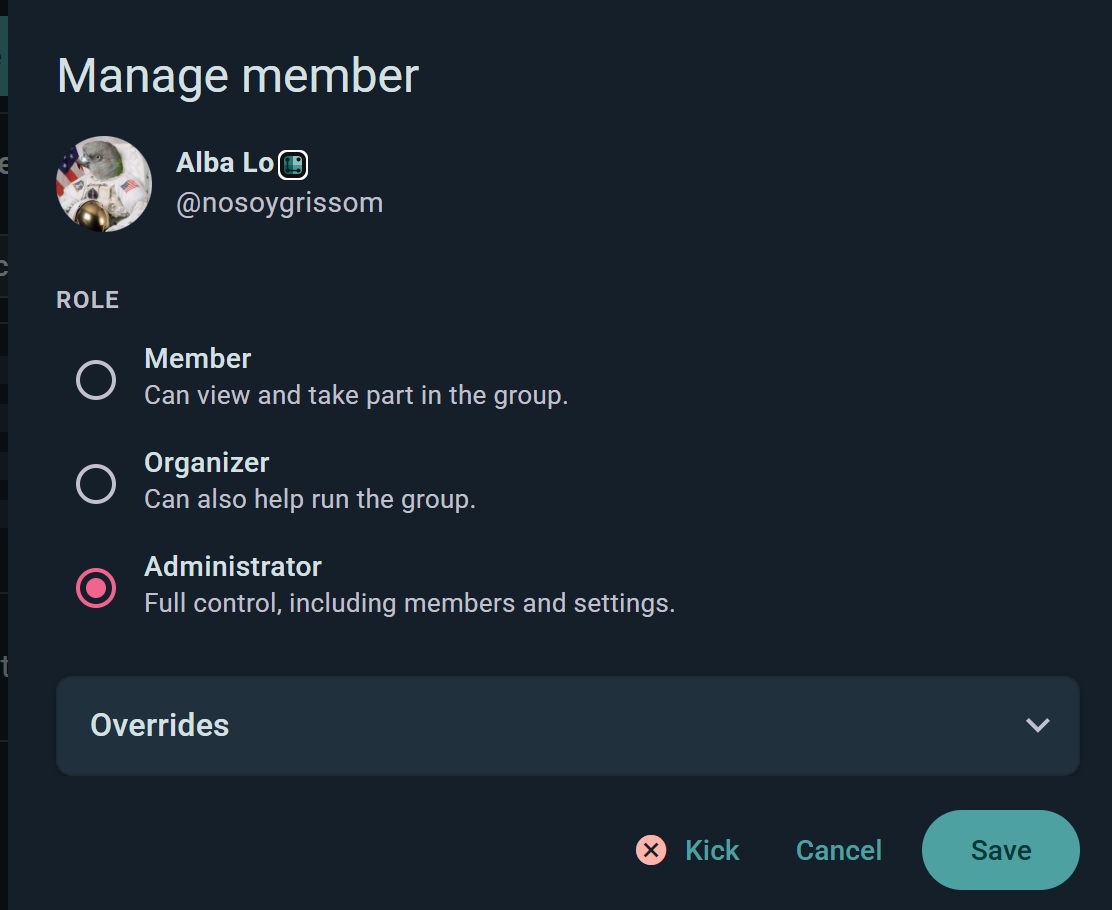
Roles — you start as Administrator. Promote members to Organizer to help run the group, or keep them as Member. Add as many organizers as you need. Any admin can change any other member's role, including fellow admins.
Customizable permissions — for each action (posting, hosting events, scheduling games, logging plays, inviting people, seeing the member list) choose the minimum audience: Anyone, Members, Organizers or Admins.
Per-member overrides — beyond roles, you can allow or deny hosting events and scheduling games for one specific person, and mark someone as always tentative so their RSVPs register as provisional.
Pin a post — keep one announcement, the house rules, or the next big event at the top of your group profile. Pinning another replaces it, so it always points at what matters now.
Know Your Community
Group collection — see all games owned by all members in one searchable view. Great for answering "Does anyone own this?" instantly.
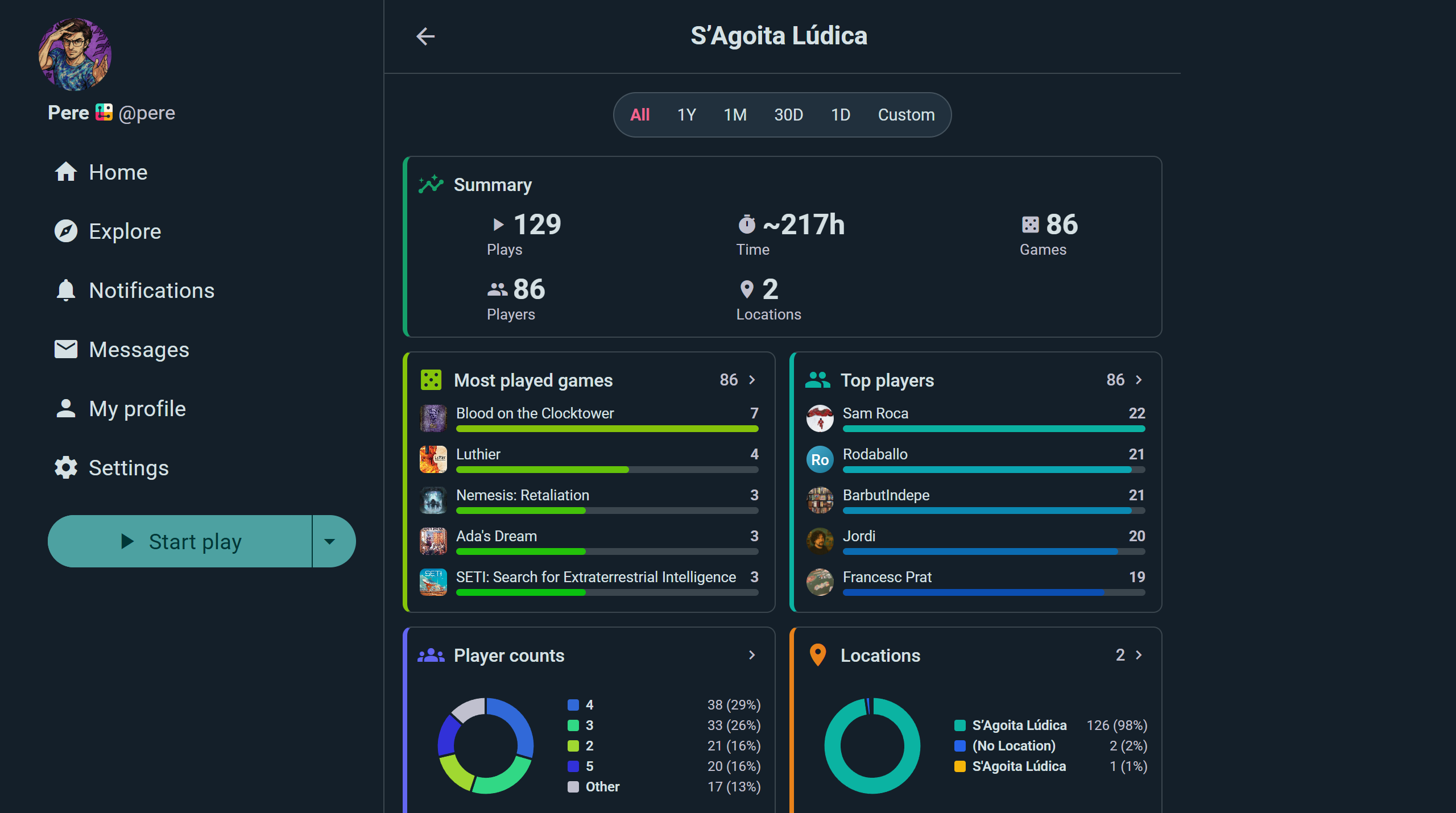
Statistics — total plays and hours, a most-played-games table with plays, time, average length and win rates per title, and a top-players leaderboard ranking members by plays, hours, or wins. Filter by period to see what your club actually enjoys, then plan future events around it.
Group Replay — an animated recap of your community's year (or month) that you can share with members. Individual events get their own Replay too, which makes a nice send-off after a convention or a big game day.
Promote Your Events
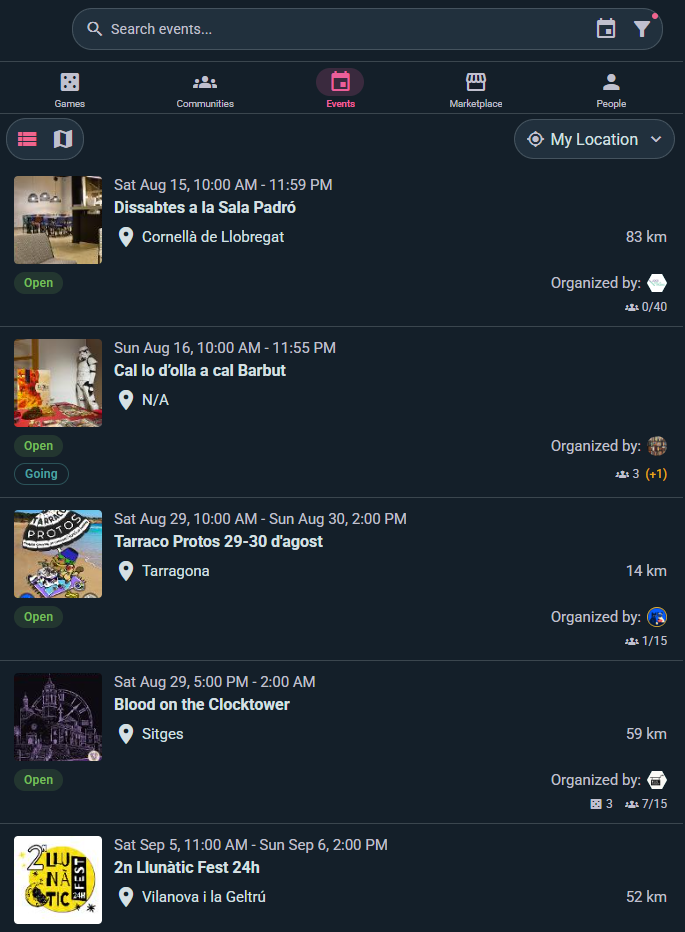
Image exports and QR codes — create shareable visuals of your events, group stats, or game lineups. Post on Discord, Instagram, or print for your venue.
Calendar exports — members add your events to their personal calendars in a tap, as an iCalendar file or a Google Calendar link.
Organic reach — when members RSVP, the event appears in their followers' feeds, spreading the word naturally.
Embeddable widgets — put your group's collection, plays, or upcoming events straight on your own website or forum. The collection has a Create Web Embed button that writes the snippet for you; see Integrations for the plays and events addresses.
Run Tournaments
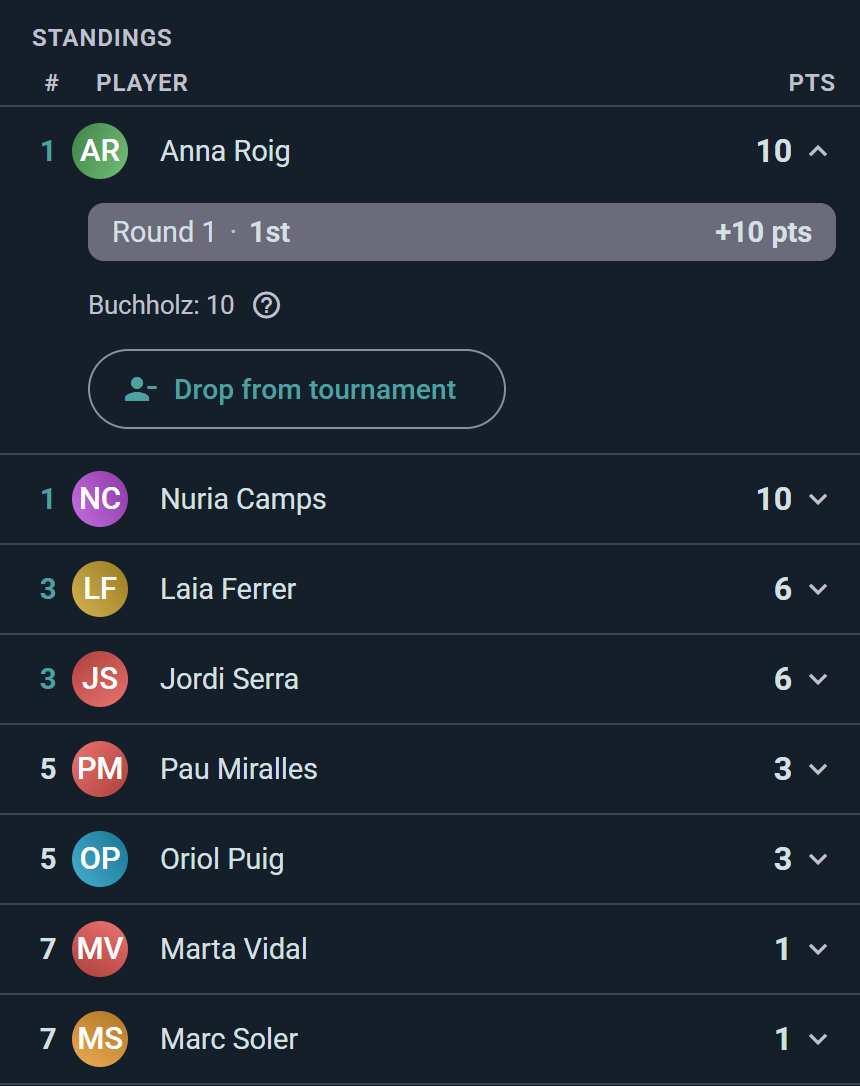
From your group page choose Organize Tournament (Club tier — requires an organization account). Pick a format — Swiss, mixer, or single/double elimination — and Ludoya generates each round's pairings, keeps live standings with tiebreakers, and draws the bracket as matches resolve.
Every pairing becomes a scheduled game your players report like any other, and byes advance automatically. Great for league nights, store championships, and knockout brackets alike.
Operations and Data
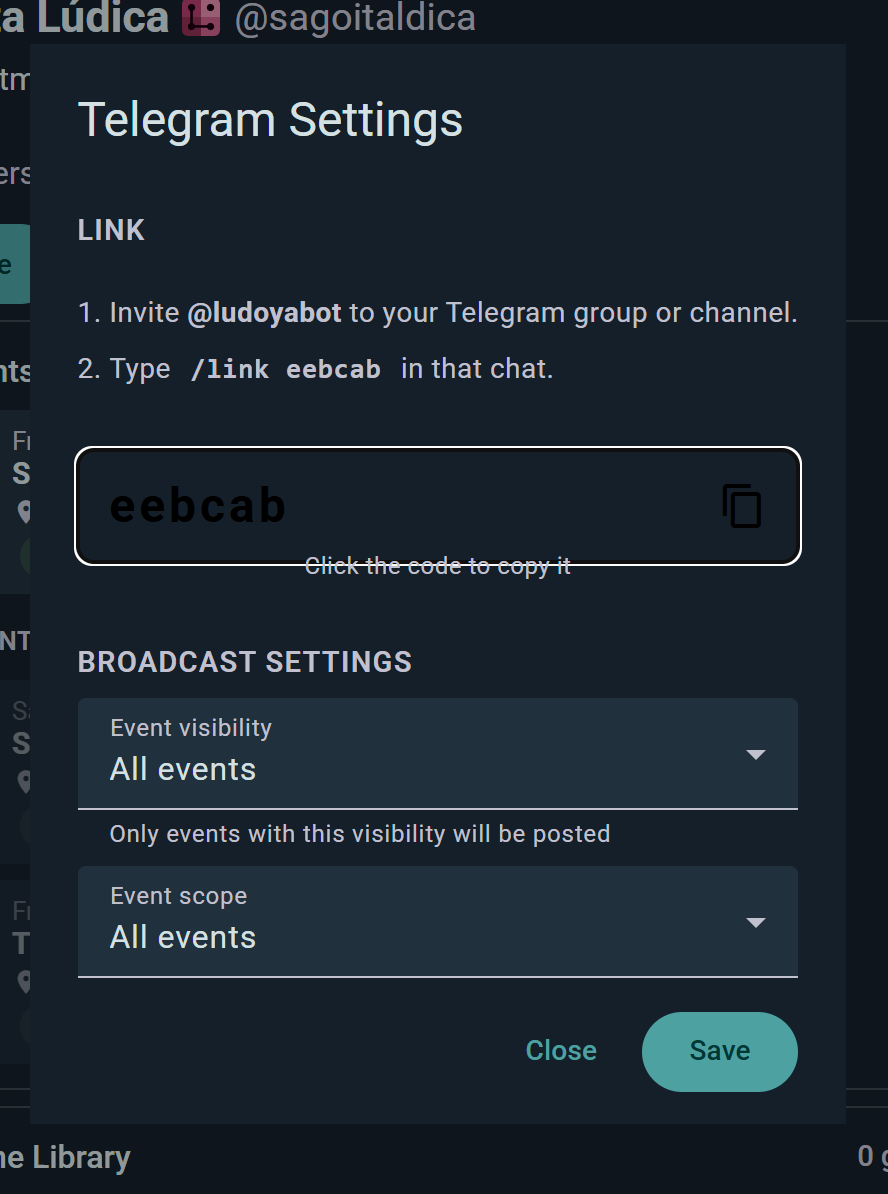
Telegram integration (Club tier) — connect your Telegram channel or group chat. Ludoya auto-posts event announcements when you publish a new event.
Custom attendance forms (Business tier) — ask members questions when they RSVP: "Will you bring snacks?", "What's your experience level?" See Event Operations.
Attendee data export (Business tier) — download RSVP lists and form responses as CSV.
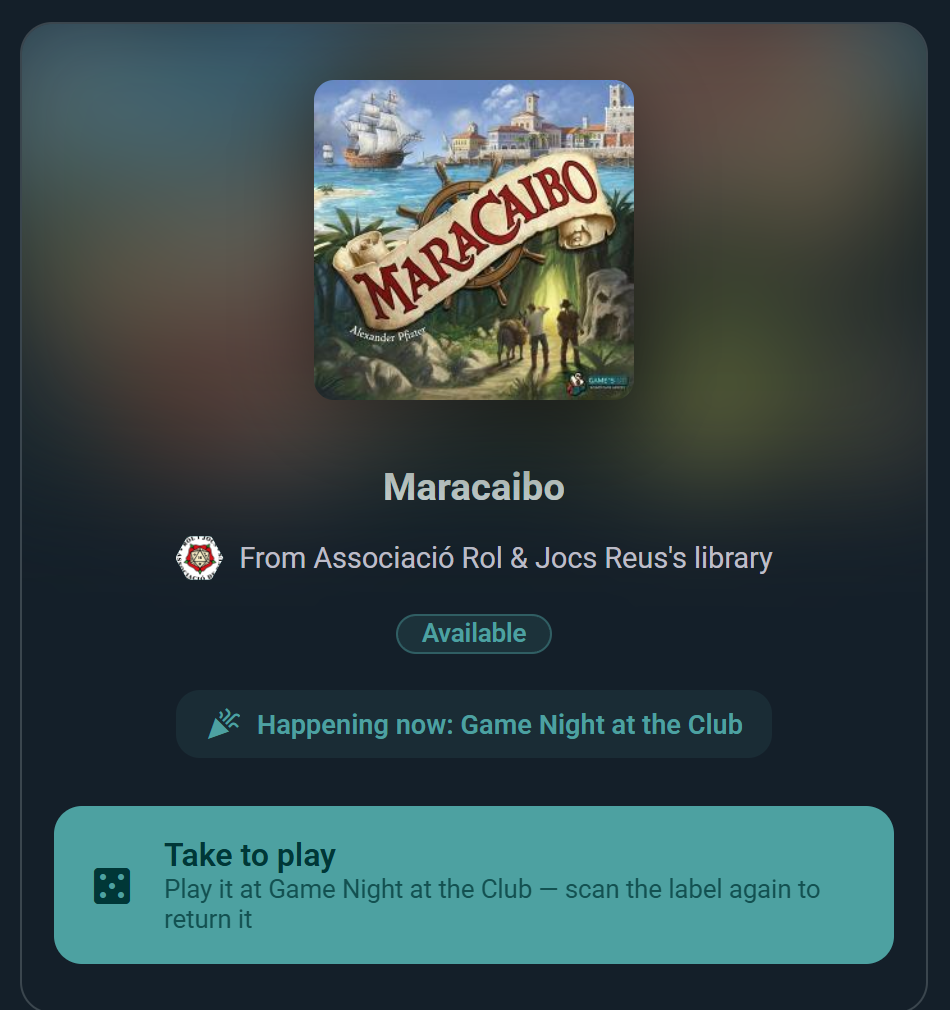
Game copy QR labels (Business tier) — print a QR label for every copy in your club's library. Members scan a box to borrow it self-service, attendees at your events take and return games right at the table, and every loan is tracked automatically — no librarian on duty required.
Upgrade to an Organization
Start as a group — no decisions needed up front. When your club grows and you want more, you can promote your group to an Organization at any time. Members, roles, events, and history all carry over; nothing is lost in the conversion.
An organization is essentially a user account for your club: it gets its own login, its own game collection (separate from any member's personal collection), BGG sync, a profile page, and access to premium features. The one difference from a personal account is that the organization itself can't be logged as a player in plays or take a seat in a scheduled game — the real people running the club still do that from their own personal accounts.
The Club and Business tiers are available to organization accounts. Subscriptions are bought here on the website — head to the Premium page and pick the plan for your organization.
One to note: recurring events sit on the Player tier, not Club. If the weekly game night is the main thing you want automated, that's the plan you need.
Club Tier — tournaments (Swiss, mixer, and elimination brackets), prize raffles, sub-events, co-hosted events with other groups, Telegram auto-posting, and per-event availability heatmaps.
Scheduled event games with seats, roles and waitlists are free — every group can build a lineup table by table, on any plan.
Business Tier — everything in Club, plus Ludoya Tickets for paid admission, QR entry verification at the door, interactive venue floor plans, custom attendance forms, attendee data export, automatic open/close of registration, and a public API.
See the Premium page for the full breakdown.
Event Day Checklists
Before the event: Create the event and add scheduled games. Invite organizers. Pin announcements. Share the event link, QR code, and calendar export. Check the Games at the Event list and the aggregated wishes to plan which games to highlight.
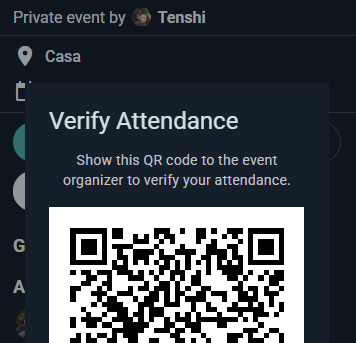
During the event: Have organizers start live sessions as games begin. Scan attendees' QR codes at the door if you're on Business tier. Answer questions in the event's social thread. Update tournament scores as results come in.
After the event: Review play summaries and group stats. Thank attendees in the feed. Plan the next event based on what worked.