
Your collection is your personal board game library in Ludoya. It's where you track what you own, play, and want to own—and it's the foundation for discovering events, finding players, and managing trades.
Viewing Your Collection
Your collection appears in a flexible layout that suits your browsing style.
Grid View
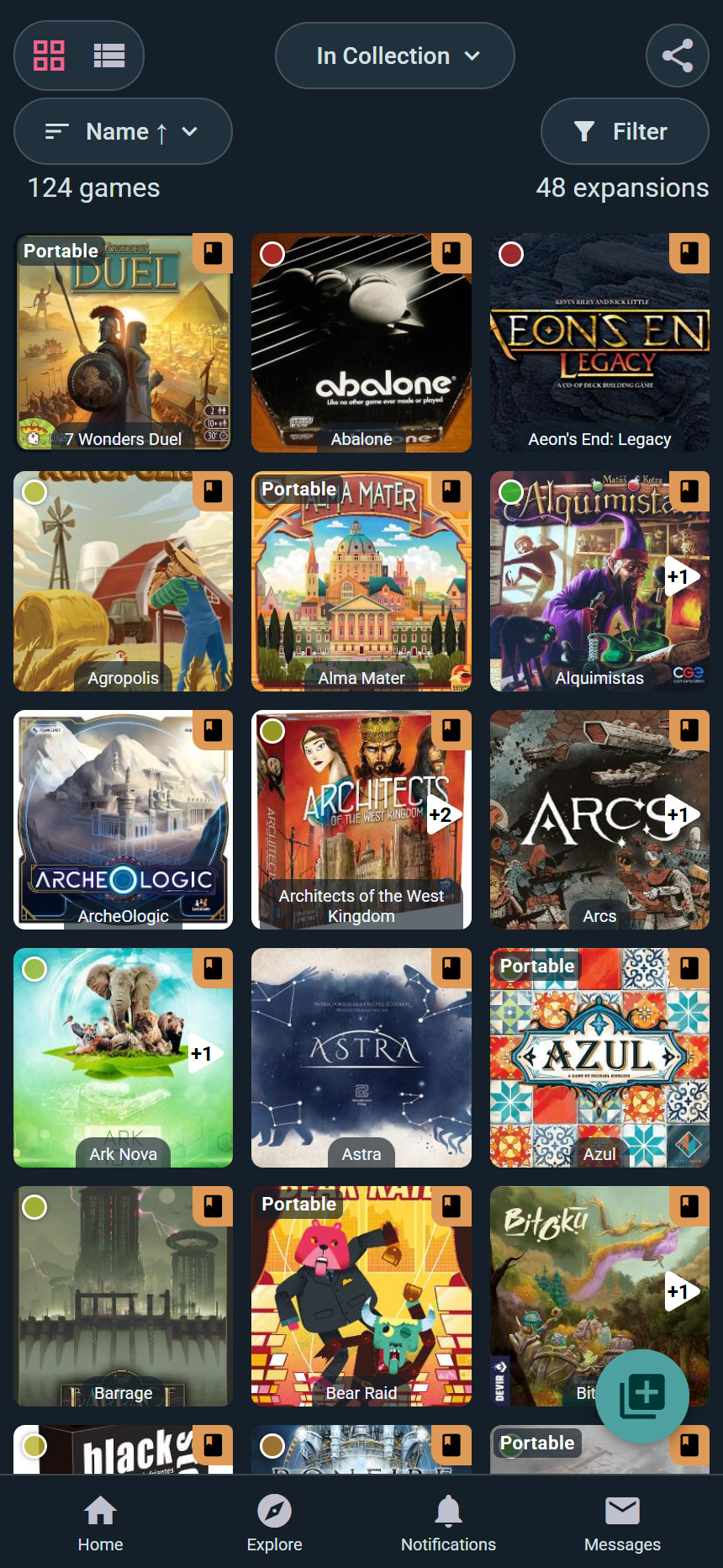
- See game box art in a tile layout
- Great for visual browsing
- Scroll infinitely to explore your full library
- Click any game to see full details
List View
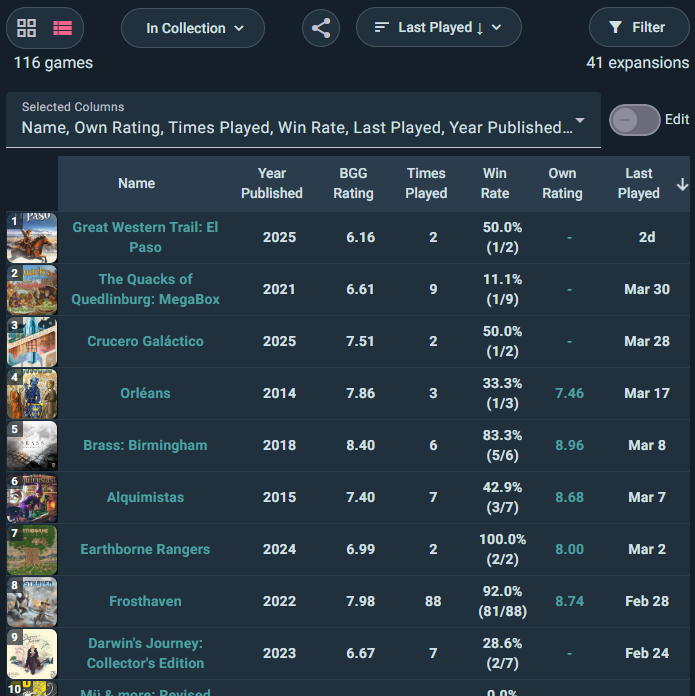
- Shows games with additional info in a table format
- Includes columns like times played, last played, or acquisition price
- Ideal for quickly finding a specific game
- More details visible at a glance
Switching Views
Toggle between grid and list at the top of your collection. Your preference is remembered.
Sorting Your Collection
Over twenty ways to order your shelves — including some you won't find elsewhere, like Cost per Play, Lent / Return, Acquired From, Inventory Location and Want to Play:
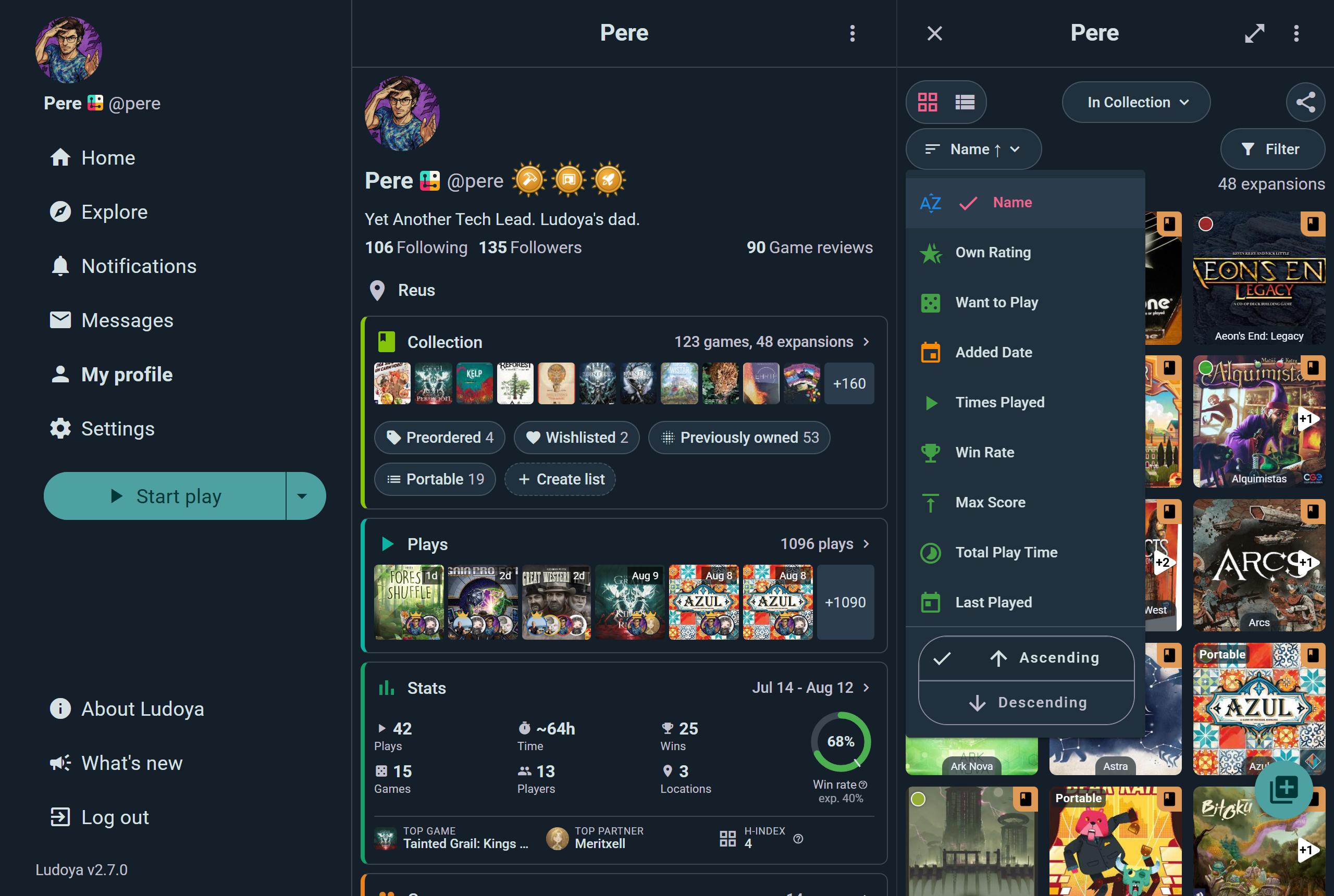
Tap the sort button to pick one, then Ascending or Descending at the bottom of the same menu.
Play Statistics
- Times Played — Most to least played games
- Win Rate — Highest to lowest win percentage
- Max Score — Your highest personal scores
- Total Play Time — Most cumulative hours to least
Every sort runs in either direction, so "haven't played in ages" is just the reverse of Last Played.
Recency & Dates
- Last Played — Most recent plays first
- Added Date — Newest additions to your collection
Cost Metrics
- Acquisition Price — What you paid for each game
- Cost Per Play — Average cost per play (great metric for value)
- Sell Price — What you'd ask for it, if you noted a price on the copy
Your Opinions
- Own Rating — Your own scores, best first
- Want to Play — How badly you want it on the table
- BGG Rating — The BoardGameGeek community score
Shelf Logistics
- Inventory Location — Group by where the box actually lives
- Acquired From — Who you got it from
- Lent / Return — What's out on loan, and when it's due back
Game Attributes
- Alphabetical — A to Z or Z to A
- Year Published — Newest or oldest first
- Playing Time — Quick games to long epics
- Complexity — Light to heavy
- Player Count — Solo to large group games
Custom Sorting
Your selected sort persists as you navigate away and return to your collection.
Collection Tabs
Ludoya organizes your games into tabs for different ownership states:
In Collection
Games you currently own and actively have.
Preordered
Games you've ordered but haven't received yet. These won't count toward your stats until you mark them as received.
Wishlisted
Games you want to own. Your wishlist is visible to friends on the game page (see privacy settings to control this).
Previously Owned
Games you've sold, traded, or given away. Keep this list to remember your gaming history or to track what you've played before.
Everything
All games across all tabs in one view.
Custom Lists
Create your own thematic lists to organize games:
- "Best Party Games" — Games for large groups
- "Solo Games" — Games for solo play
- "Gateway Games" — Games for teaching newcomers
- Create as many as you want and assign games to multiple lists
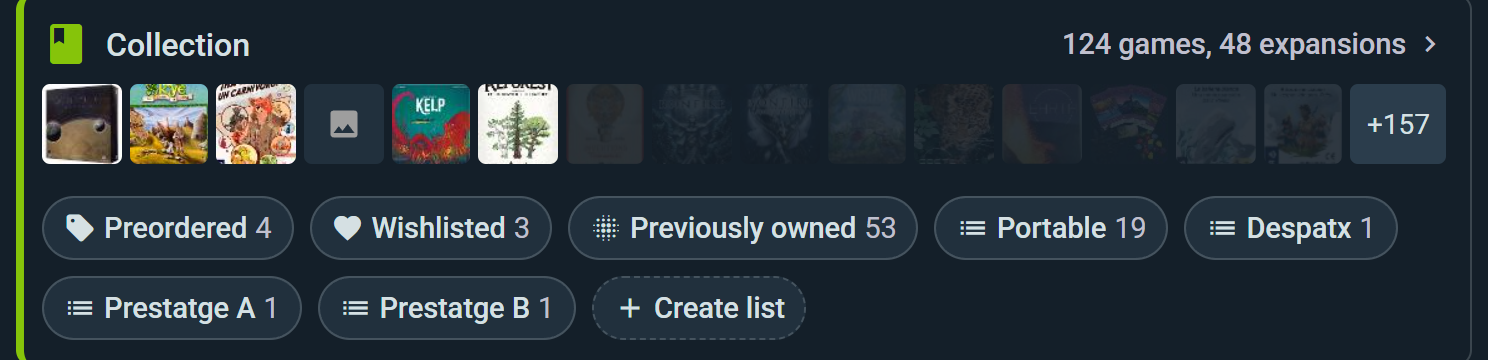
Click on any tab to filter your collection instantly.
Filtering Your Collection
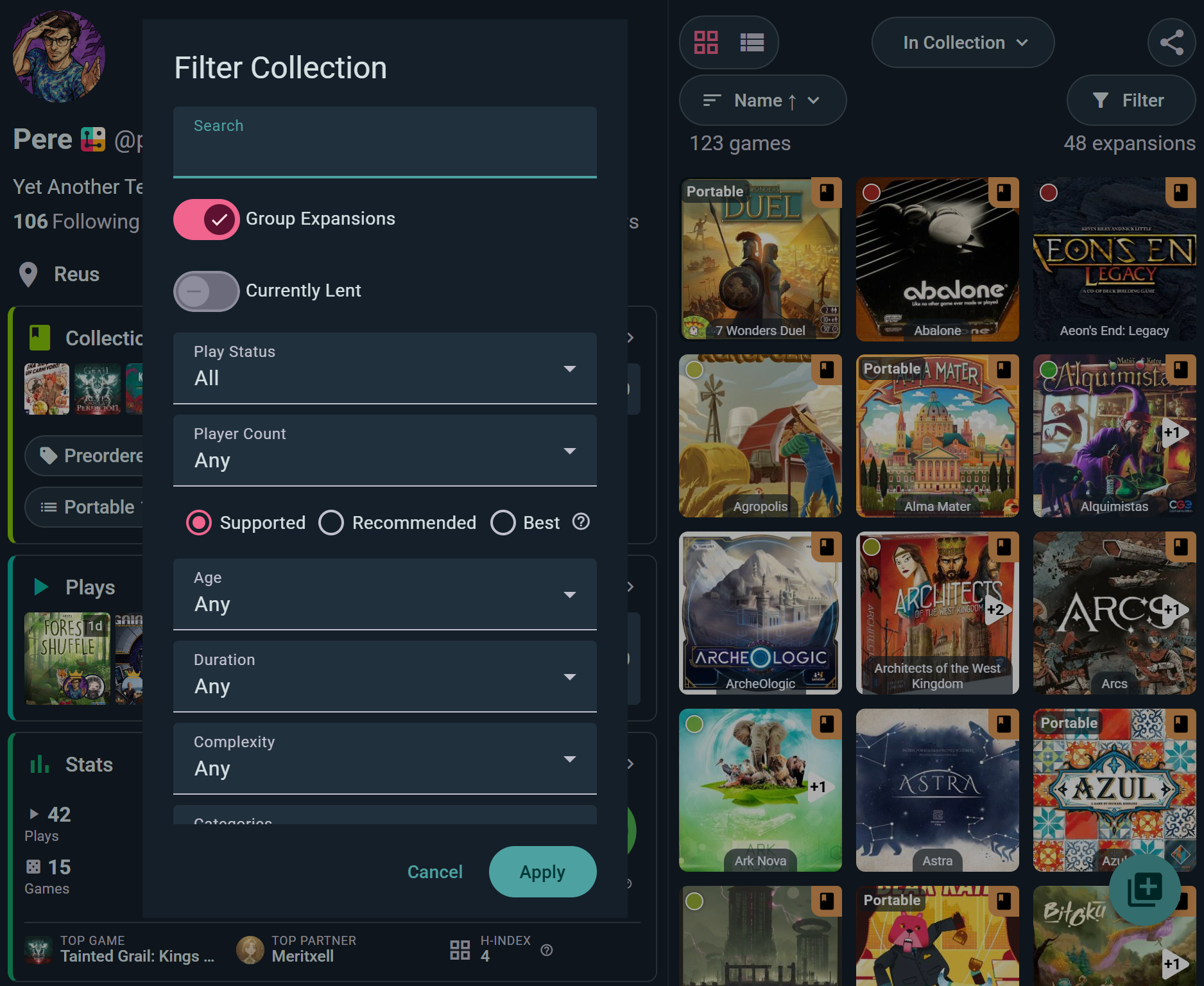
Beyond sorting, you can filter to find exactly what you're looking for. Tap Filter to open the sheet — every control below lives there, and Apply puts them all to work at once:
Player Count
- Filter games that support specific player counts
- Shows games that officially play at your selected count
Game Attributes
- Age, Duration, and Complexity — narrow to what fits tonight's table
- Categories and Mechanics — pick as many tags as you like
Group Expansions
Turn this on to tuck each expansion under its base game, or off to list every box separately.
Custom Lists
- Filter to show games in a specific custom list
- Useful for quick access to themed collections
Currently Lent (Player tier)
Show only the games that are out on loan right now, so you know what to chase up. Part of the game lending tracker.
Played / Unplayed
- Played — Games you've logged at least one play for
- Unplayed — Games you own but haven't tried yet
- All — Show both
Supported Player Count Tiers
- Supported — Game officially supports this count
- Recommended — Community agrees this count works well
- Best — This is the ideal player count
Multiple filters work together to narrow your results.
Adding Games to Your Collection
Add One Game
- Tap the + button and choose Add Game
- Search for the game by name
- Pick the edition that matches your copy, if the game has several
- Add it — it appears in your library instantly
Speed Add
Got a whole shelf to enter? Choose Add multiple games at once from the same dialog (or Kickstart your collection when your library is still empty). You get a filterable list of games with a checkbox beside each one — tick a game and it's added on the spot. It's by far the fastest way to enter a real collection.
Sync with BoardGameGeek (BGG)
If you already track your games on BoardGameGeek:
- From your collection menu choose Sync with BGG, or go to Settings → BoardGameGeek integration
- Enter your BGG username and choose what to sync — your collection, your plays, or both
- Hit Sync now
The sync runs both ways: bring your BGG library and play history into Ludoya, and push what you log here back to BGG. You can leave it on so the two stay in step, and there's a tool to clean up duplicate entries on the BGG side.
Import from Board Game Arena (BGA)
Go to Settings → Board Game Arena integration and connect your BGA account to import the games you've played online. Note this brings in plays, not games you own — your BGA history lands in your play log, not your collection.
Add from Play Log
When you log a play session with a game that's not in your collection:
- You'll be prompted to add it
- Quickly confirm the game and version
- It's added to your collection for future reference
Adding Missing Games to the Catalog (Player tier)
Can't find a game in the Ludoya catalog? Player-tier subscribers can submit new games directly, along with all the metadata needed for the rest of the community to find and log them:
- Name, player counts, age rating, play time, and complexity
- Cover image and additional artwork
- Designer, artist, and publisher credits
- Description, theme, and any other catalog fields
- A short explanation of the submission (sources, links, personal copy photos, anything that helps reviewers verify)
Submissions go through a moderation review before the game appears in the public catalog. Once approved, the game is searchable, can be added to collections, and starts accumulating plays, reviews, and community stats like any other title. The same workflow handles corrections to existing games — see Request Changes below.
The Game Page
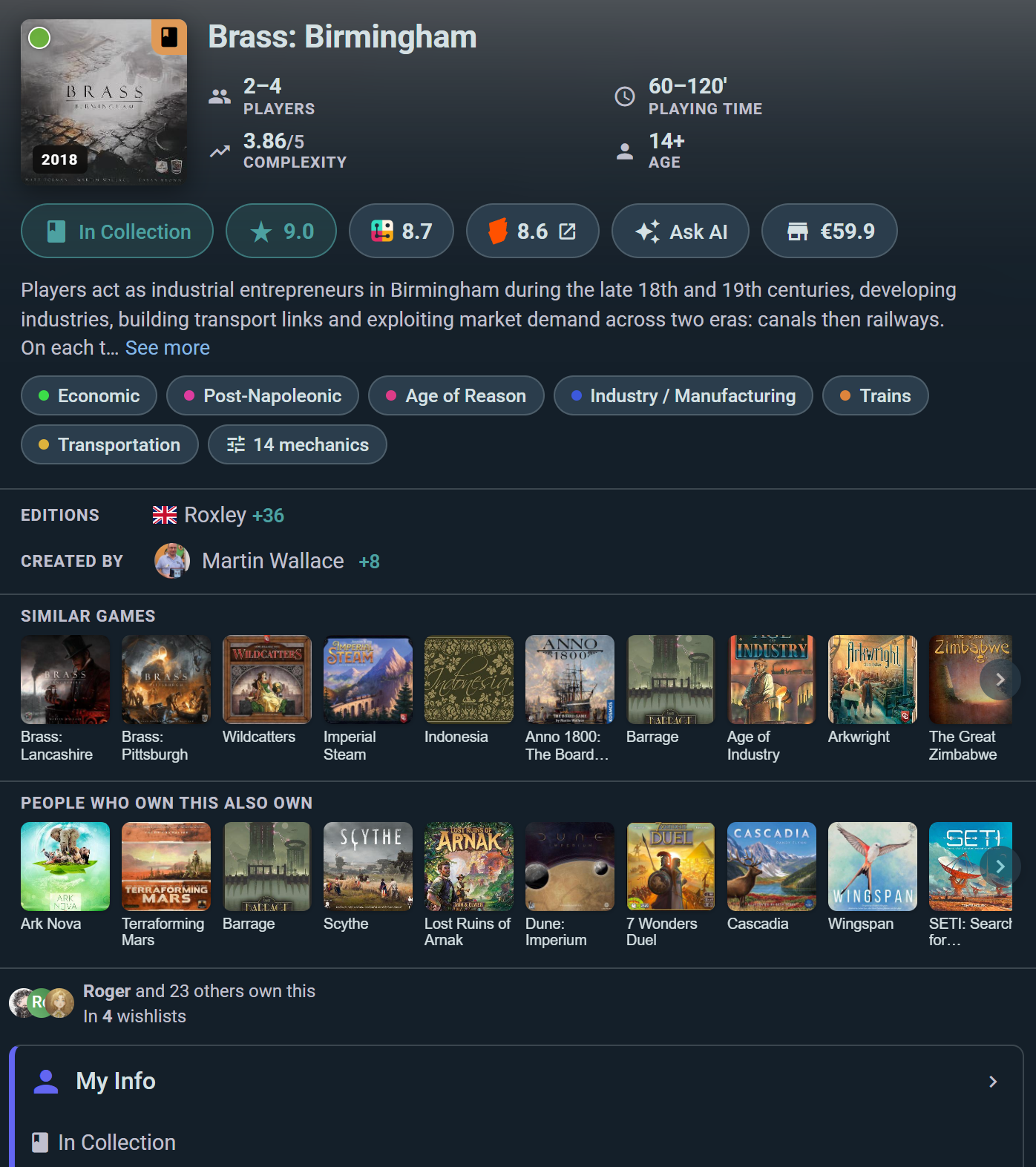
Every game in Ludoya has a dedicated page with rich information. Access it by clicking any game in search results, your collection, or events. If you've interacted with the game, you'll also see a My Info widget summarizing your personal data — click it to open the full My Info page.
Overview Section
- Box Art — Cover image
- Basic Info — Players, play time, minimum age
- Credits — Designer, publisher, publication year
- Description — Rules summary and theme
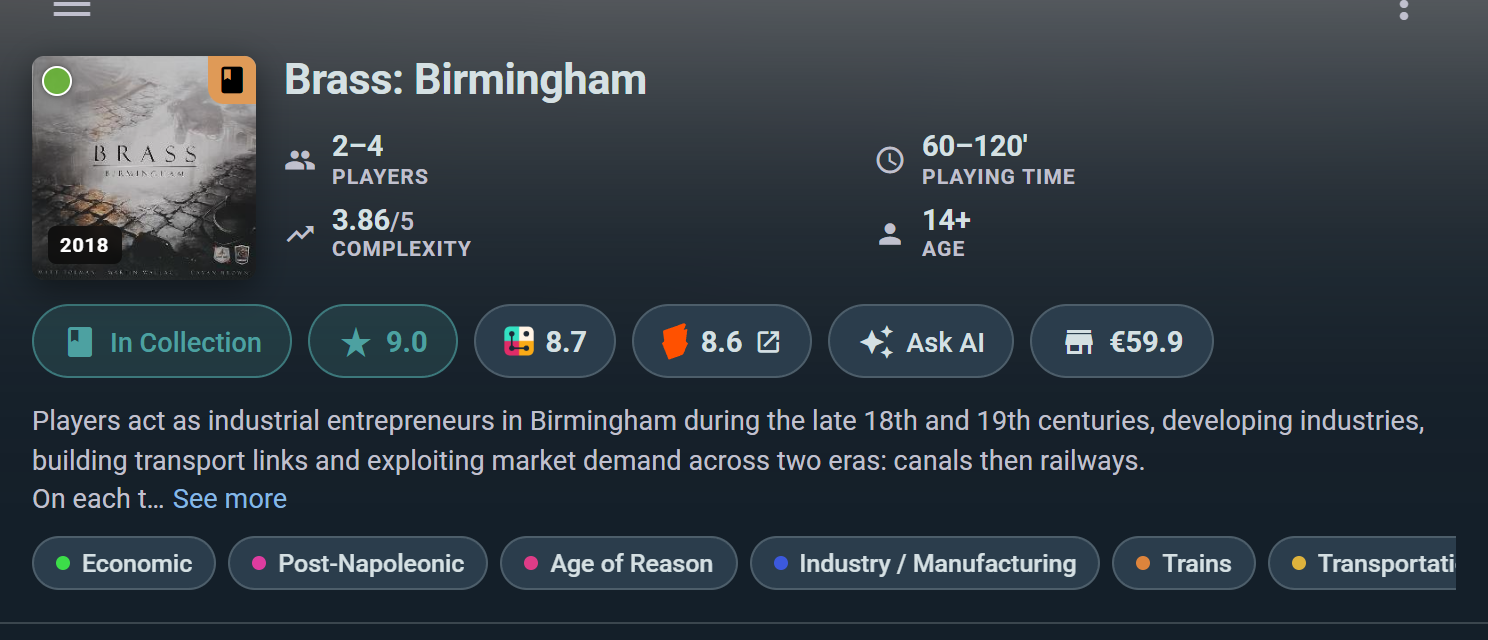
Expansions
- View all available expansions for the base game
- Add expansions to your collection
- Track which expansions you own
Social Posts & Reviews
- Recent posts from the community about this game
- User reviews with ratings and commentary
- Highlighted reviews from friends you follow
Reviews with Sub-Ratings
- Browse all community reviews
- See average scores for each category: Fun, Interaction, Appeal, Uniqueness, Replayability, Accessibility
- Sort reviews by recency, rating, or social proximity (friends' reviews highlighted first)
Social Graph Layer
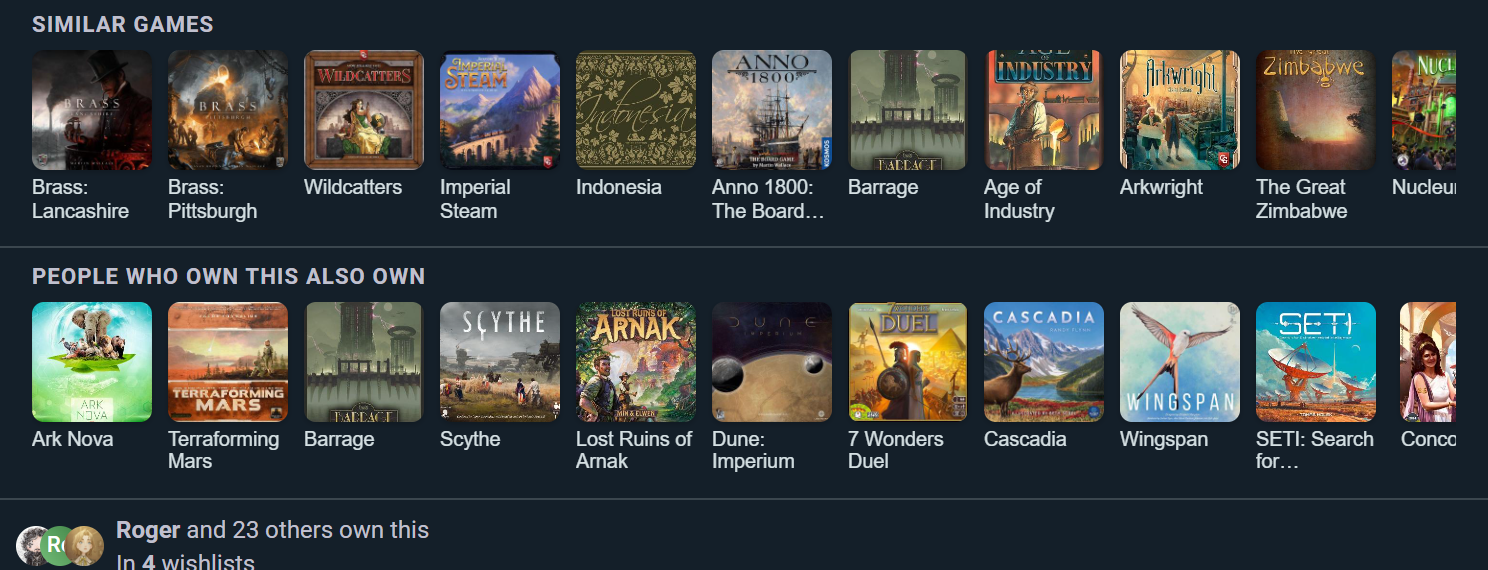
On the game page, you can see:
- Friends who own this game — Who in your network has it
- Friends who wishlisted this game — Who wants it
- Games in common — A way to find new gaming friends
Community Stats
- Play Counts by Player Count — Filtered by All Time or Last 30 Days
- Shows how many plays happened at each player count
- Helps you decide if the game is good for your table size
- Multi-Dimensional Community Ratings
- Separate rating averages for: Fun, Appeal, Replayability, Interaction, Uniqueness, Accessibility
- Weighted by community engagement so more active players' ratings influence the score more
Personal Stats
Your own history with this one game, not the community's:
- The headline row — your plays, total time, average length, and wins
- Players — who you play it with, ranked
- Player counts — the table sizes you actually play it at
- Locations — where you play it
- Game Scores — every score anyone recorded, so you can see your best and how the table usually finishes
- Role Stats — for games with asymmetric roles or factions, how you do as each one
Switch the whole grid between Only Me and My Friends to compare your record with the people you play with. See Statistics for the same tools across your whole history.
Upcoming Events
- Scheduled Games — See if this game is being played at upcoming events
- Register for Events — Quick access to join an event where this game is featured
Marketplace Listings
- Active Sales — See who's selling this game near you
- Condition & Price — Filter by condition tier and price range
- Buy Here — Links to purchase from other players
Store Prices
- Retail Prices — Links to current prices at major online retailers
- Price Tracking — See price history (if available)
- Buy Now — Quick links to purchase new copies
AI Game Assistant Entry
- Get Help — Start a conversation with our AI assistant
- Ask rules questions, strategy tips, or get suggestions for similar games
Request Changes (Player tier)
- Submit a change — if something on the game page is wrong or missing (name, player counts, age rating, play time, cover or other images, designer/artist/publisher credits), choose Request Changes from the game's menu and submit your correction
- Every submission includes your explanation of what needs to change and why, so the moderation team has context
- Submissions go through a review queue before being applied to the catalog, keeping data reliable for the whole community
- Available to Player-tier subscribers and above
Rearranging a Game Page
Everything above is a widget, and the page is yours to arrange. Choose Customize Layout from the game's menu, then drag sections into the order you want or hide the ones you never read — My Info, Plays, Personal Stats, Events, Community Stats, Game Kits and Campaigns.
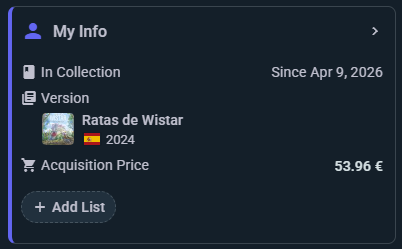
The layout is per-account and applies to every game page, so set it once. Your home dashboard and your profile work the same way, each with its own arrangement.
My Info Page
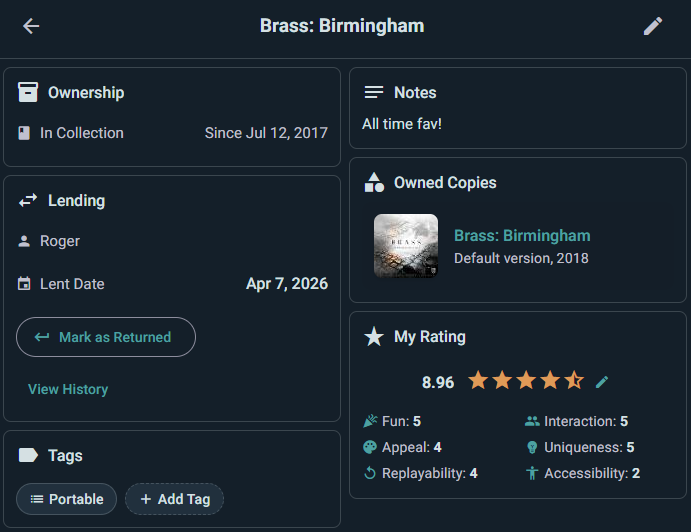
If you've added or interacted with a game, click the My Info widget on the game page to access your personal details:
- Ownership — Type (In Collection, Preordered, Wishlisted, Previously Owned), acquisition date, and personal notes
- Versions & Copies — View and switch between editions you own
- Custom Lists — Manage which lists this game belongs to
- Acquisition & Value — Purchase price, resale value, and cost per play (Purchase Price ÷ Times Played)
- Your Ratings — Overall rating (1–10) plus optional sub-ratings: Fun, Interaction, Appeal, Uniqueness, Replayability, Accessibility
- Lending (Player tier) — Choose Lend Game on the game's page, pick the Borrower (their Ludoya profile, so it's linked rather than a note to yourself), and set the Lent Date and Expected Return Date. When it comes back, record the return with condition notes if anything changed. Your full lending history stays on the game, and the Currently Lent collection filter shows everything that's still out.
QR Labels for Club Libraries (Business Tier)
Organization accounts on the Business tier can turn their whole library self-service. Open your organization's collection, choose Print QR labels from the ⋮ menu, and Ludoya lays out a QR sticker for every copy on a standard A4 sheet — print it, cut it, and put one on each box.
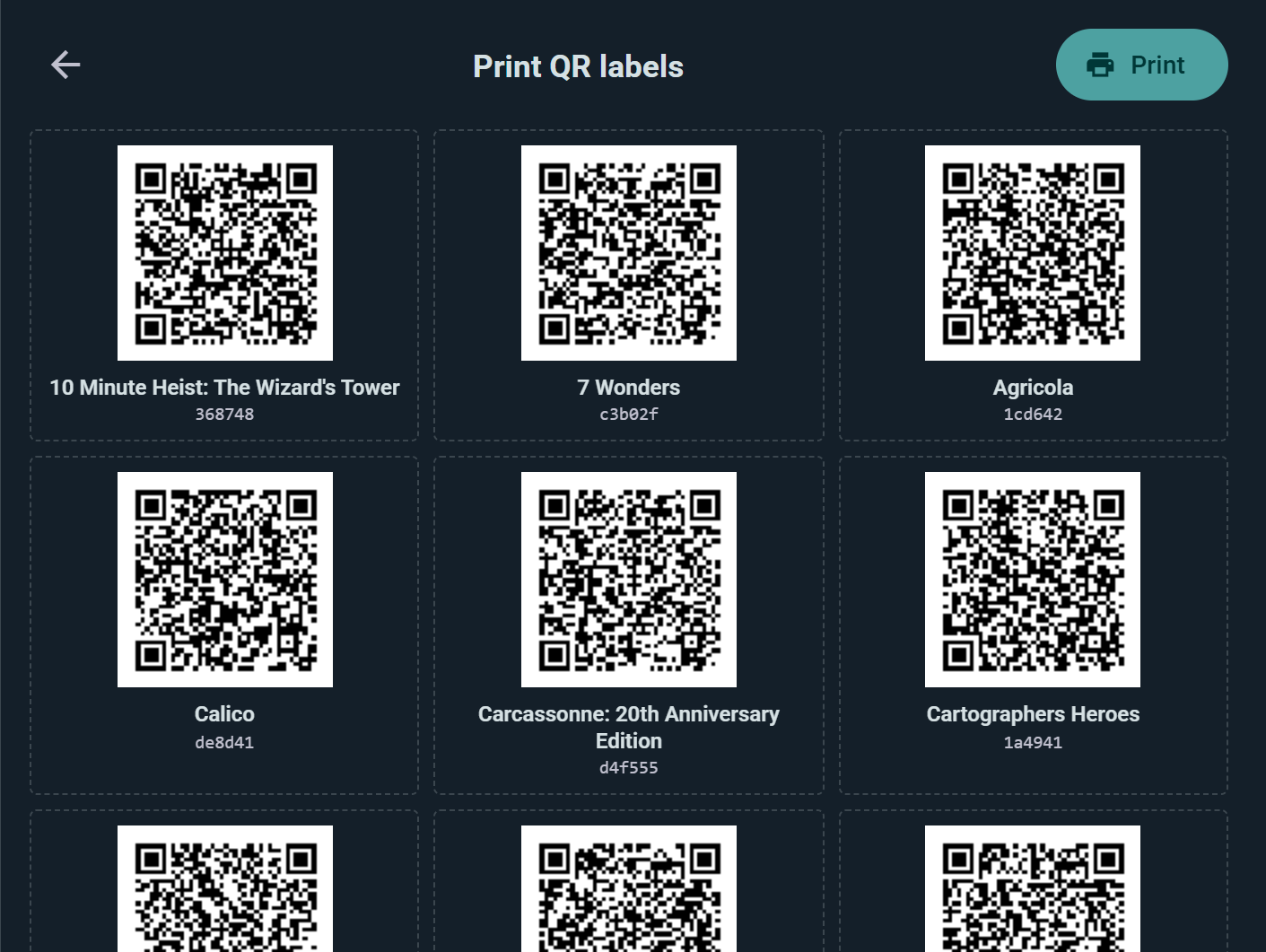
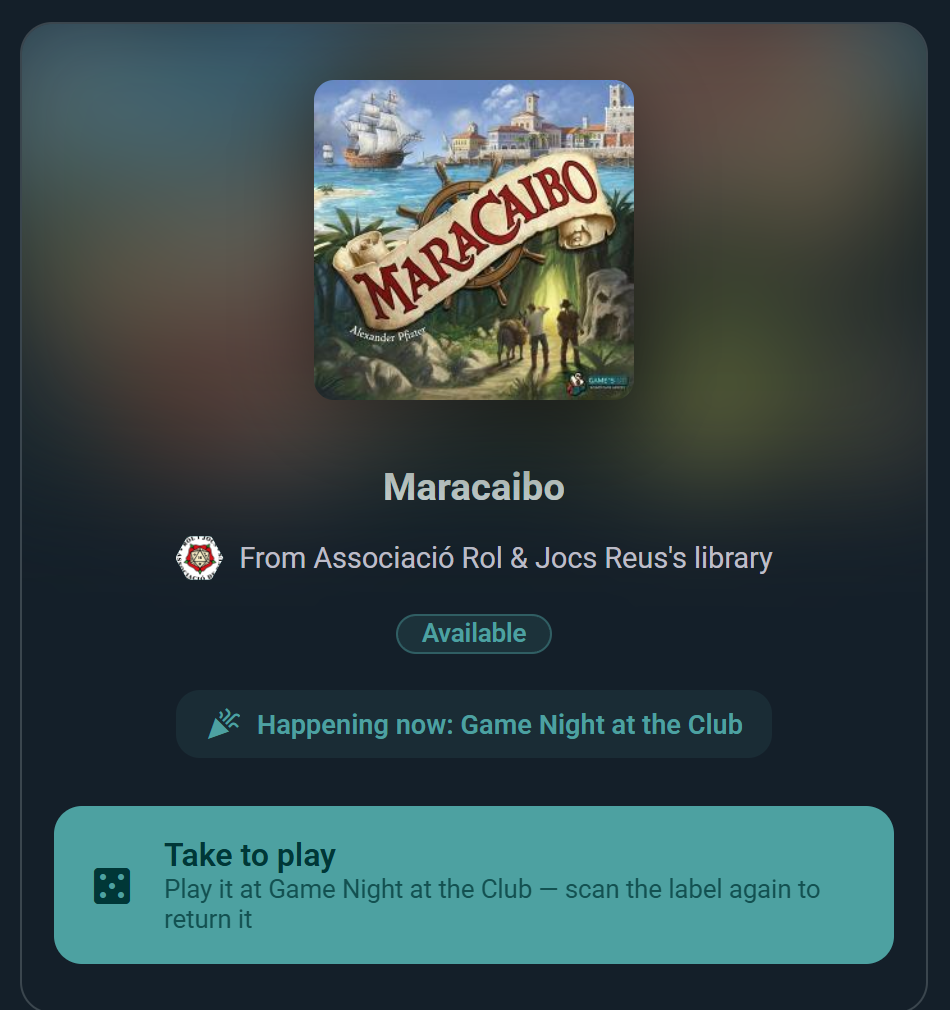
From then on the label does the work. Anyone who scans it with their phone camera sees the game, whose library it belongs to, and whether it's available right now — and gets exactly one button for their situation:
- Members scan to borrow — they confirm, optionally set an expected return date, and the loan is tracked on the copy automatically.
- During your events, a scanned copy that's on the event's game list offers Take to play instead — attendees grab a game for their table and scan the same label again to return it when they're done. Every take is tagged to the event.
- Whoever holds a copy scans it again to return it — no staff involved at any step.
Staff get bulk tools too: a scan session (in the app, from the collection or an event's game list) applies one action to every label you scan in a row — set an Inventory Location shelf by shelf, register a pile of games to tonight's event, or mass-return everything left on the tables at closing time.
Your Wishlist
Your wishlist is one of your collection's ownership views — the same shelf, filtered to the games you want rather than the ones you have. It gets its own address, so you can link straight to it, and it sorts and filters exactly like the rest of your collection.
Add a game from search or from its page, and remove it by tapping the wishlist icon again. Friends can see it on a game's page if your privacy settings allow, which is what makes it useful in December.
Games you want are also watched for you: turn on Wishlist matches and Price drops under Settings → Notifications and Ludoya tells you when one turns up second-hand or gets cheaper at a shop.
Moving a Game Between States
Ludoya only offers the moves that make sense, so you'll see a shorter menu than you might expect:
- In Collection → Previously Owned (you sold or gave it away)
- Preordered → In Collection (it arrived)
- Wishlisted → In Collection, or Preordered (you bought it, or ordered it)
- Previously Owned → anything (you bought it again, or put it back on the list)
If a move you want isn't offered, the game is usually in a state that has to pass through In Collection first.
Your Group's Shelves
A group has a collective collection: every member's games, in one searchable view. It answers "does anyone own this?" without a round of messages, and it's how a club works out whether it needs to buy a copy of something before the next game night.
Ownership Changes & Social Feed Posts
When you add or remove games from your collection, you have the option to post about it in your social feed.
Feed Visibility
Your ownership posts appear in:
- Your profile's activity feed
- Your followers' social feeds
- The game's social posts (aggregating all players' collection changes)
Privacy Control
You can:
- Control who sees the post in Privacy & Visibility settings
- Delete posts later if you change your mind
Syncing Your Collection
Your collection syncs automatically across all devices when you're logged in. Changes made on your phone appear on your desktop instantly.
Related Topics
- Want to find new games? See Search & Discovery
- Ready to play and log sessions? Check Play Logging
- Interested in trading or selling? Explore Marketplace
- Hunting for a wishlist deal? Compare shops on Shops & Prices
- Want to share your collection? Visit Privacy & Visibility
- Learning about reviews? See Reviews