
Every time you play a board game, log it. Your play history becomes a record of your gaming life — what you play, who you play with, how you win, and all the memories along the way.
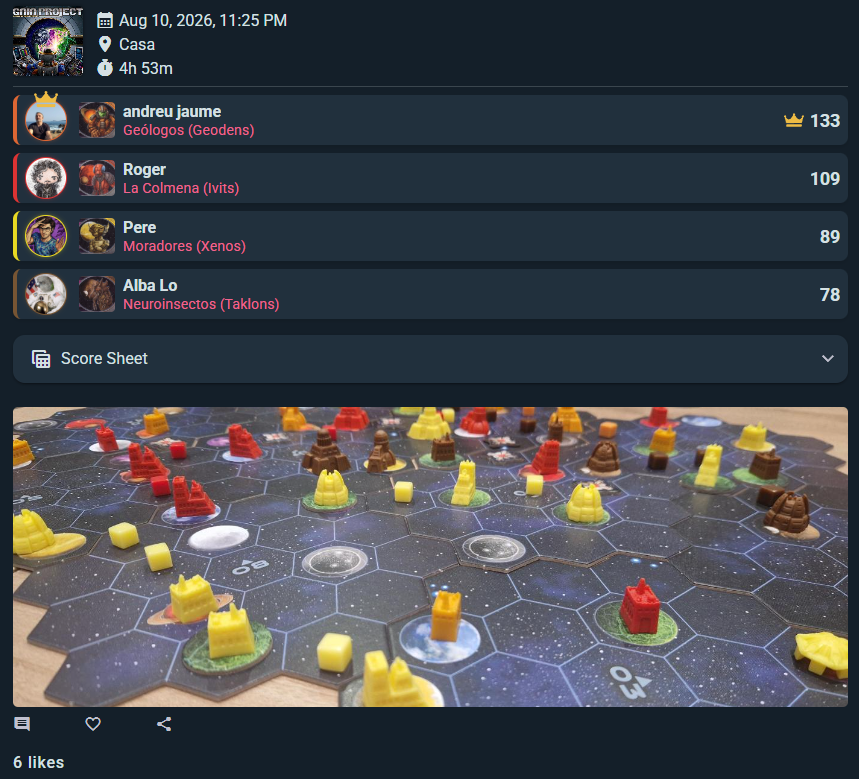
A play and a live session are the same underlying object. The only difference is how it gets filled in: quick logging is a single form you complete after the fact, while a live session populates the same data interactively together with the other players during the game. Both produce an identical play entry in your history and can be viewed, edited, and shared the same way.
Quick Logging
After a game session, capture the essentials:
- Game — Which game did you play?
- Players — Add Ludoya users or guests (guests just need a name)
- Teams (optional) — Group players into teams if you played that way
- Location (optional) — Where did you play?
- Duration (optional) — How long did it take?
- Notes (optional) — Any memorable moments or house rules?
- Attached Post (optional) — Link a photo or comment you posted during the session
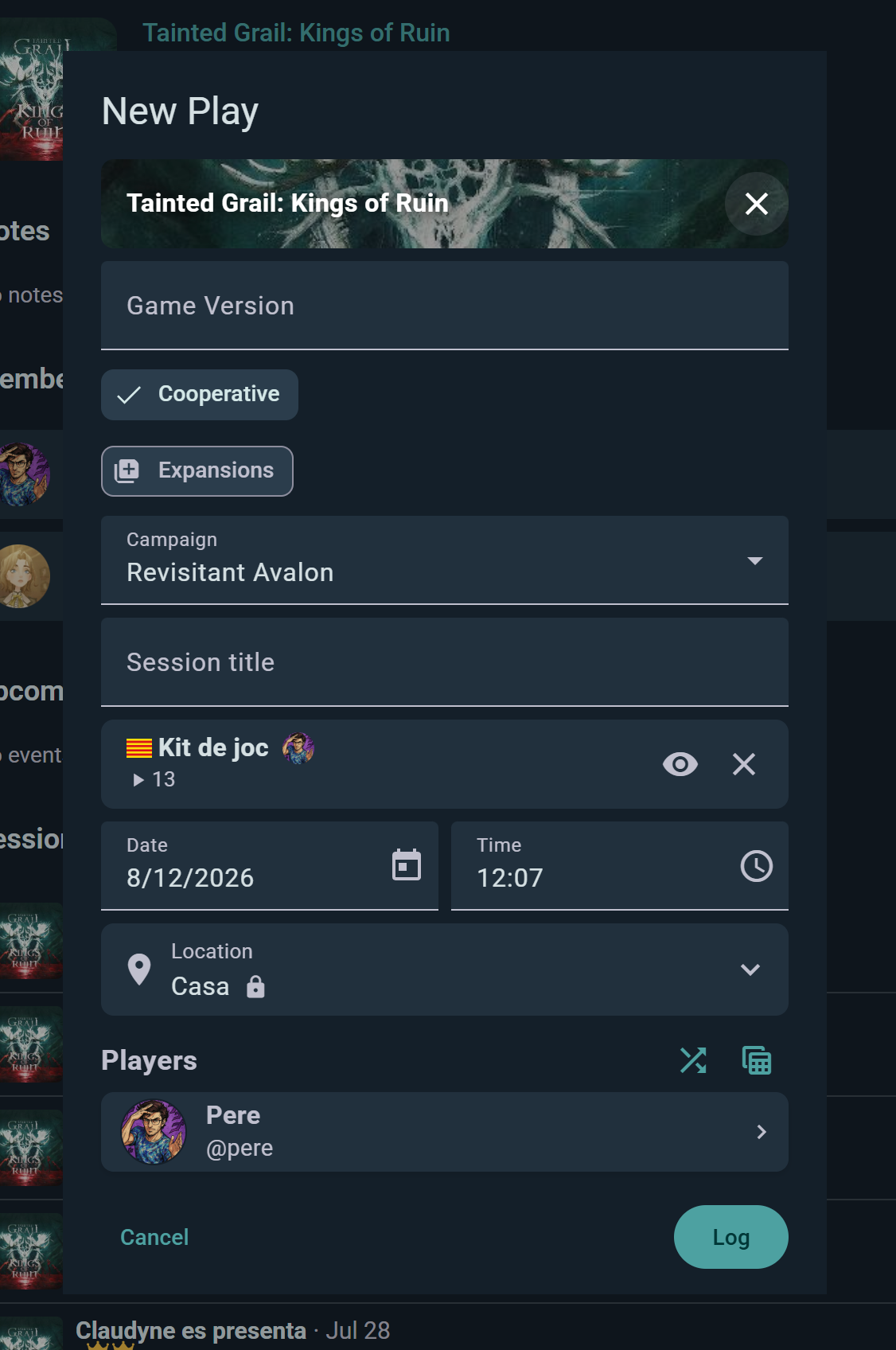
Once you save, the play is in your history forever.
Repeat a Play
Playing the same game with the same group again? Open a finished play and choose Repeat Play — you get Start new play to run it live, or Log new play to record it after the fact, with the players already filled in. Adjust the date, scores and notes, and you're done. It's the single biggest time-saver if you have a regular game night with the same crowd.
Play History Views
Access your play history from your profile or dashboard. Switch between three views:
Grid View
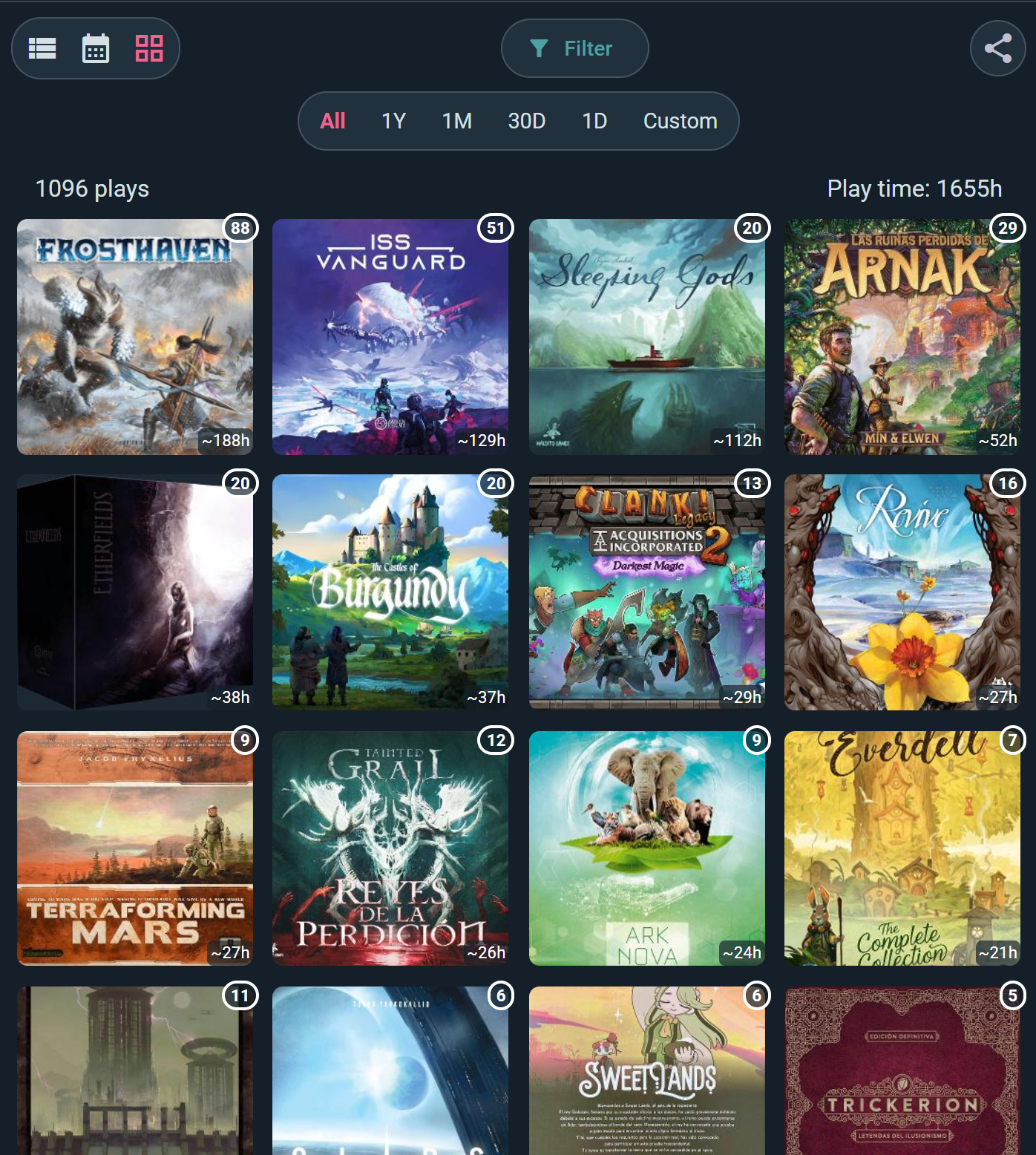
Box art tiles for each game you've played. Great for a visual scan of your library's play patterns. Hover to see the game title and date.
List View
A table with sortable columns — game name, date, players, duration, location, result. Click any column header to sort, making it easy to find "When did I last play Catan?" or "Which games did I play at the cafe?"
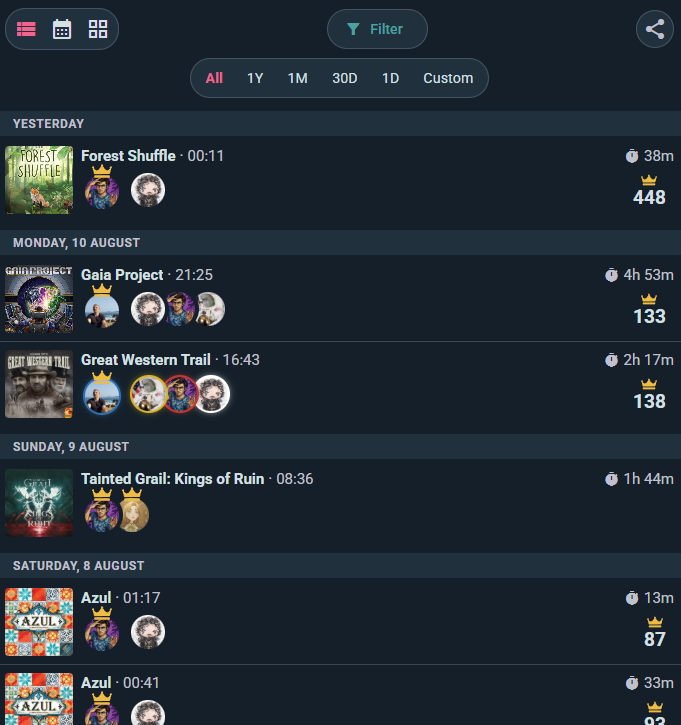
Entries group under the day they happened. Each row carries the box art, the time it started and how long it ran, the players around the table with a crown on the winner, and the winning score where you recorded one. The Filter button and the period chips above (All, 1Y, 1M, 30D, 1D, Custom) narrow the list without leaving the page.
Calendar View
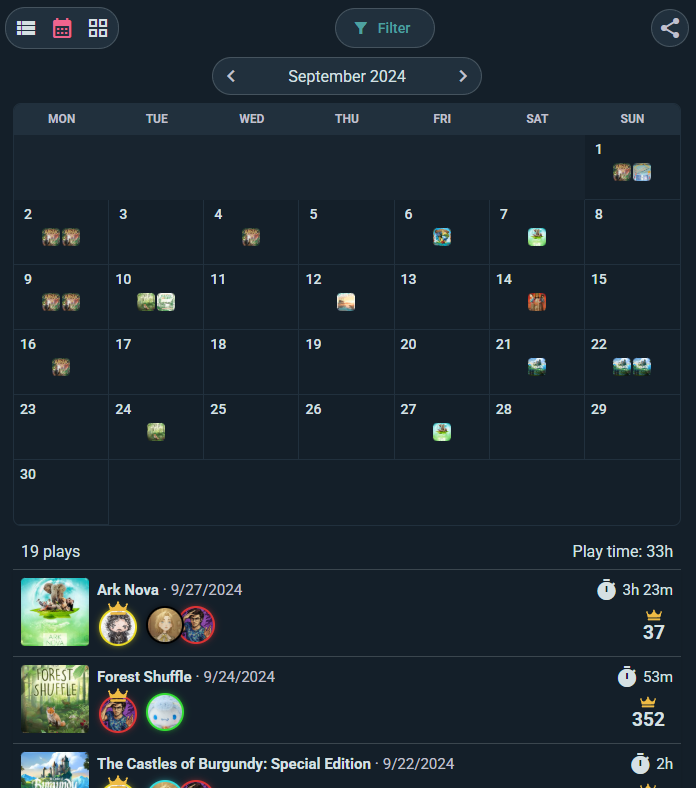
See your gaming life plotted across a calendar. Each day shows games played and total session count. Click a day to see details of all plays that day.
Filters and Search
Narrow down your history:
Time Period Filters
- Presets — a row of chips: All, 1Y, 1M, 30D, 1D
- Custom — pick any start and end date
- Step backward / forward — arrows either side move the window through time, so you can walk month by month and compare like for like
Game Filter
Zero in on a single game — every session of the one you can't stop playing.
Played With
Filter to the plays that include a specific person. A quick way to answer "how do I actually do against them?"
Group Filter
Show only the plays that belong to one of your groups.
Location Filter
Show only plays at a specific location, or all locations.
Player Count Filter
Show only plays at a specific table size — e.g., just your 2-player sessions or just your 5+ player nights.
Play Tags and Confirmations
When you log a play, you tag the people who were at the table — and each of them decides whether that play joins their own history. It works the same in reverse: when a friend logs a game you played together, the tag lands with you.
Tagged plays wait on a Play Tags screen, grouped by whoever tagged you ("Alex tagged you in 3 plays"). For each one you choose:
- Add to my profile — the play joins your history, and counts toward your stats and badges
- No, thanks — the play stays on their record, not yours
Always add plays from someone you trust: turn on auto-accept for a specific person, and everything they tag you in is added automatically from then on. Perfect for the people you play with every week.
Until you decide, your profile shows a banner with the number of plays waiting — so nothing is silently added to your history, and nothing is silently lost.
Monthly & Yearly Play Summaries
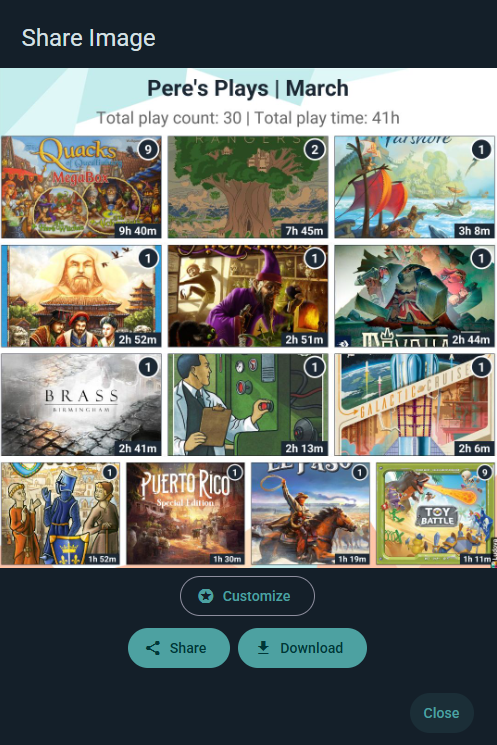
Ludoya automatically generates a shareable visual recap of your gaming (see Statistics):
- Every month — a summary for the month that just ended, ready on the 1st, with a notification to tell you
- Every 1 January — a yearly summary covering the year just finished, alongside the usual monthly one
A period needs a few plays before it gets a summary, so a very quiet month may not produce one.
What the Summary Shows
- A title with your name and the period — e.g., "Pere's Plays | March" for a monthly recap, or the year for a yearly one
- Total play count — how many plays you logged in the period
- Total play time — cumulative hours you spent playing
- A grid of game covers for every game you played in that period
Share & Download
From the summary sheet you can Share it directly to a feed or messaging app, or Download it as an image — great for social media posts or just looking back on a good month of gaming.
Customize the Image
Tap Customize on the share sheet and you can change the title, the background, which numbers show against each game, the format and the size before you post it. See Image sharing for the full set of options — the same ones apply to your collection, your Replay and any single play.
Playing on Behalf of a Group
When you log a play you can attribute it to one of your groups with the Group selector, or leave it as No Group (Personal Play) — the default.
Attributing a play does two things. It gives the play a community byline, so the group's name and avatar appear on it, and it rolls the play into that group's statistics and leaderboard rather than only your own. It's how a club builds a shared record of what actually got played, without every member having to remember to do anything unusual.
Plays created from a group's event pick up that group automatically, so in practice the club's game nights attribute themselves.
When more than one community is behind an event — a co-hosted convention, say — the play shows a Hosted by row with each host's avatar, and it counts for all of them.
Attribution isn't a quiet setting either: changing which Community or Hosts a play belongs to is recorded in its edit history, alongside every other change.
Permissions & Edit History
Default: Everyone Can Edit
By default, all participants on a play have full edit rights — anyone tagged in the session can fix scores, adjust duration, add notes, or correct mistakes. The person who created the play can restrict this when they want tighter control (for example, making it editable only by themselves).
Editing After the Fact
Plays stay editable long after they're saved. If you later spot a wrong score, a missing player, or a forgotten house-rule note, you can go back and fix it — whether the play came from quick logging or a live session.
Edit History & Notifications
Every change to a play is tracked:
- A full edit history is kept, so everyone who can edit the play can see who changed what and when
- All participants are notified when a play is edited, so nothing changes silently
- This keeps scores honest for statistics, player profiles, and group leaderboards while still allowing real fixes