
Groups are community spaces where gaming crews, clubs, societies, and friends can connect, organize events, and share their game collections. Every group has its own feed, member roster, and shared game data—making it easy to plan game nights and discover what everyone owns.
Creating a Group
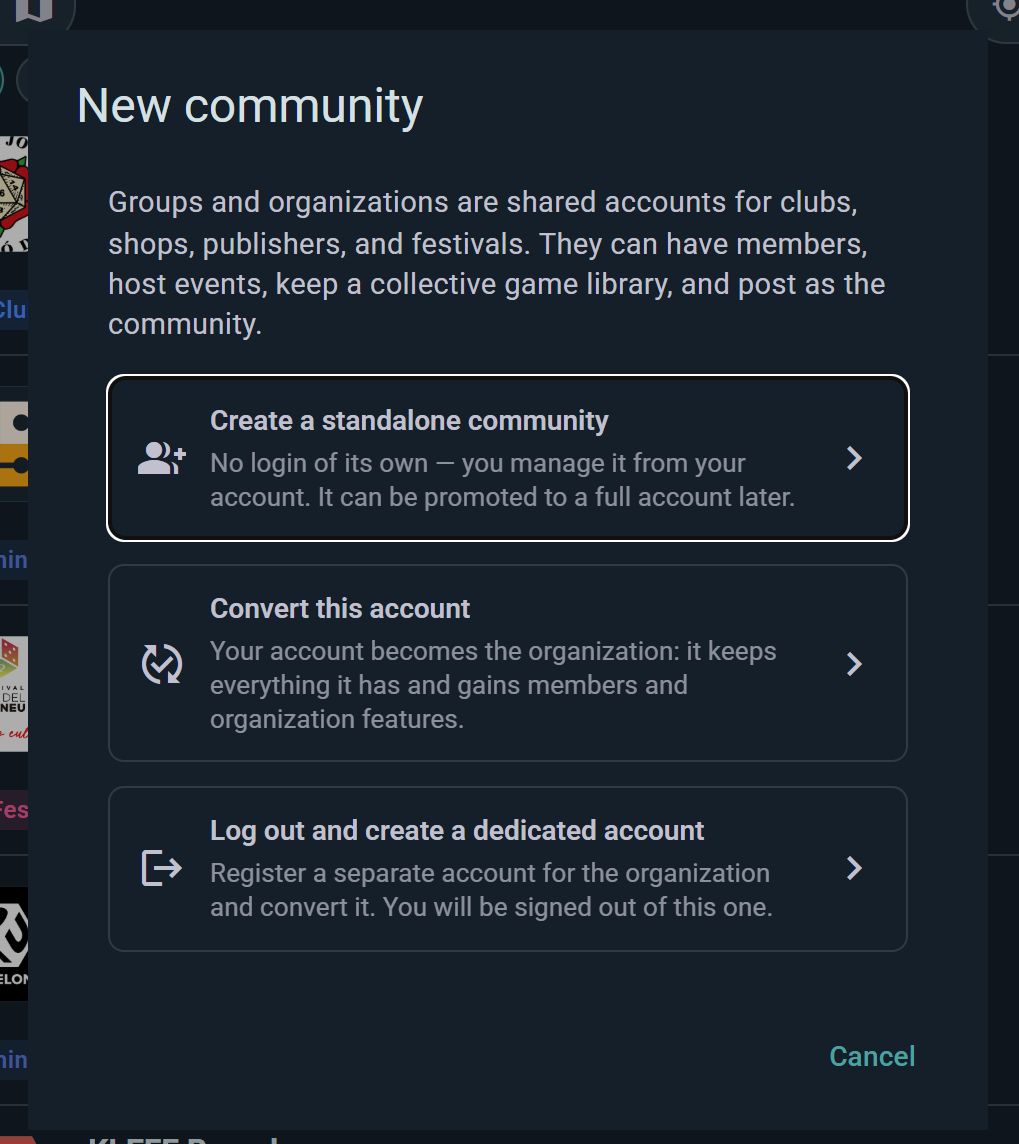
To start one, tap the + button and choose New Group. The dialog that opens is headed New community and offers three routes: create a standalone community you run from your own account, convert this account into an organization, or log out and create a dedicated account for it. The standalone option is the easy default — it has no login of its own, and you can promote it to a full organization later without losing anything.
You'll set up:
- Name: What you're calling your group (e.g., "Board Game Nerds of Brooklyn")
- Description: A brief overview of what the group is about
- Visibility: Choose who can find and take part
- Public: Anyone can view and participate — post, host events, log plays
- Semi-Private: Anyone can find and browse the group, but only members can participate
- Private: Hidden from non-members; only members can view or participate
- Join Policy: How people join
- Open: Anyone can join immediately
- Request: People apply; you approve or decline
- Invite-only: You send invites to specific people
Once created, you're the first Admin of the group with full control. You can promote other members to admin at any time — a group can have as many admins as it needs, and they all share the same level of authority.
Roles & Permissions
Each member has a role that determines what they can do. Admins can customize permissions for each action:
- Admin: Full control. Can edit group settings, manage members, promote or demote roles, configure permissions, and delete the group. A group can have multiple admins, all with equal authority — there's no single "owner" above them.
- Organizer: Can host events, log plays, and moderate content. Good for event coordinators and active contributors.
- Member: Basic permissions — usually can post and log plays. What members can actually do depends on the per-role permissions the admins have configured.
Customizable Permissions
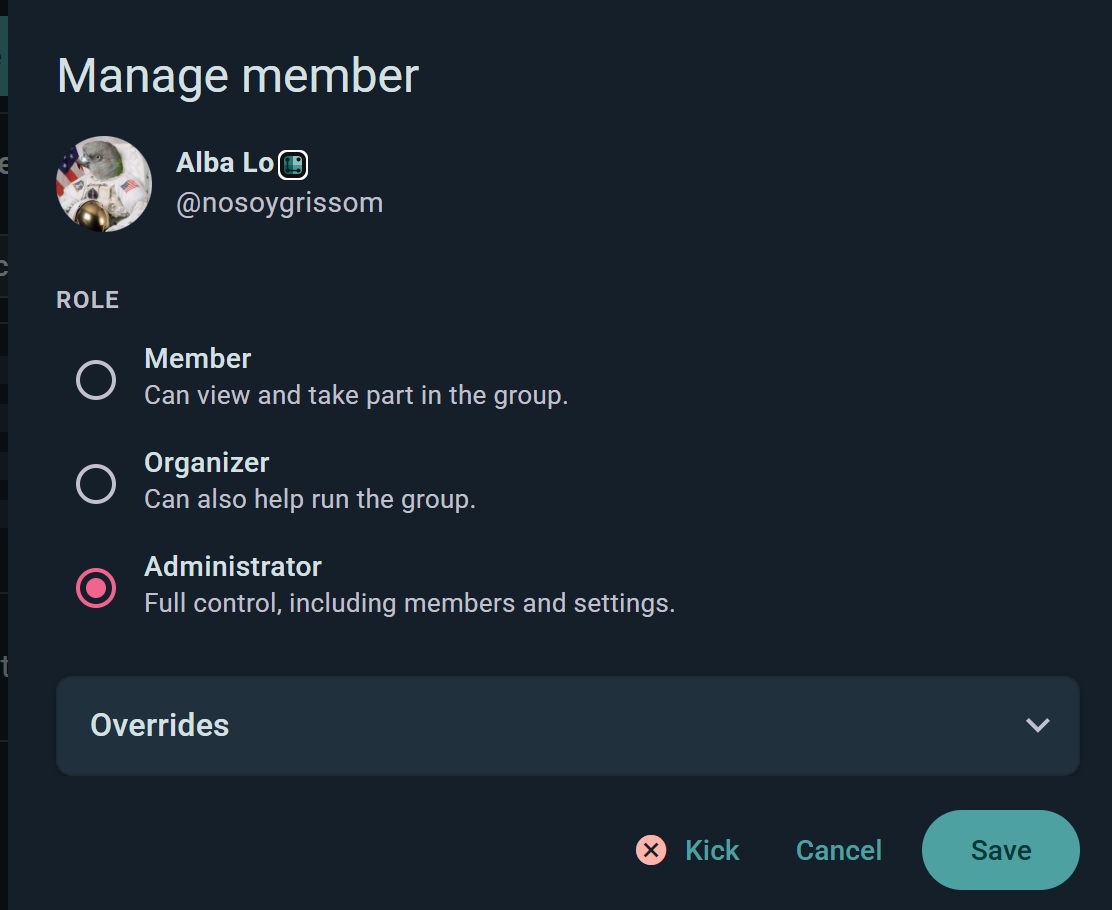
Rather than fixing what each role may do, admins set a minimum audience per action. Each of these can be Anyone, Members, Organizers, or Admins:
- Who can post in the group
- Who can host events
- Who can schedule games
- Who can log plays
- Who can invite users
- Who can see the member list
Per-Member Overrides
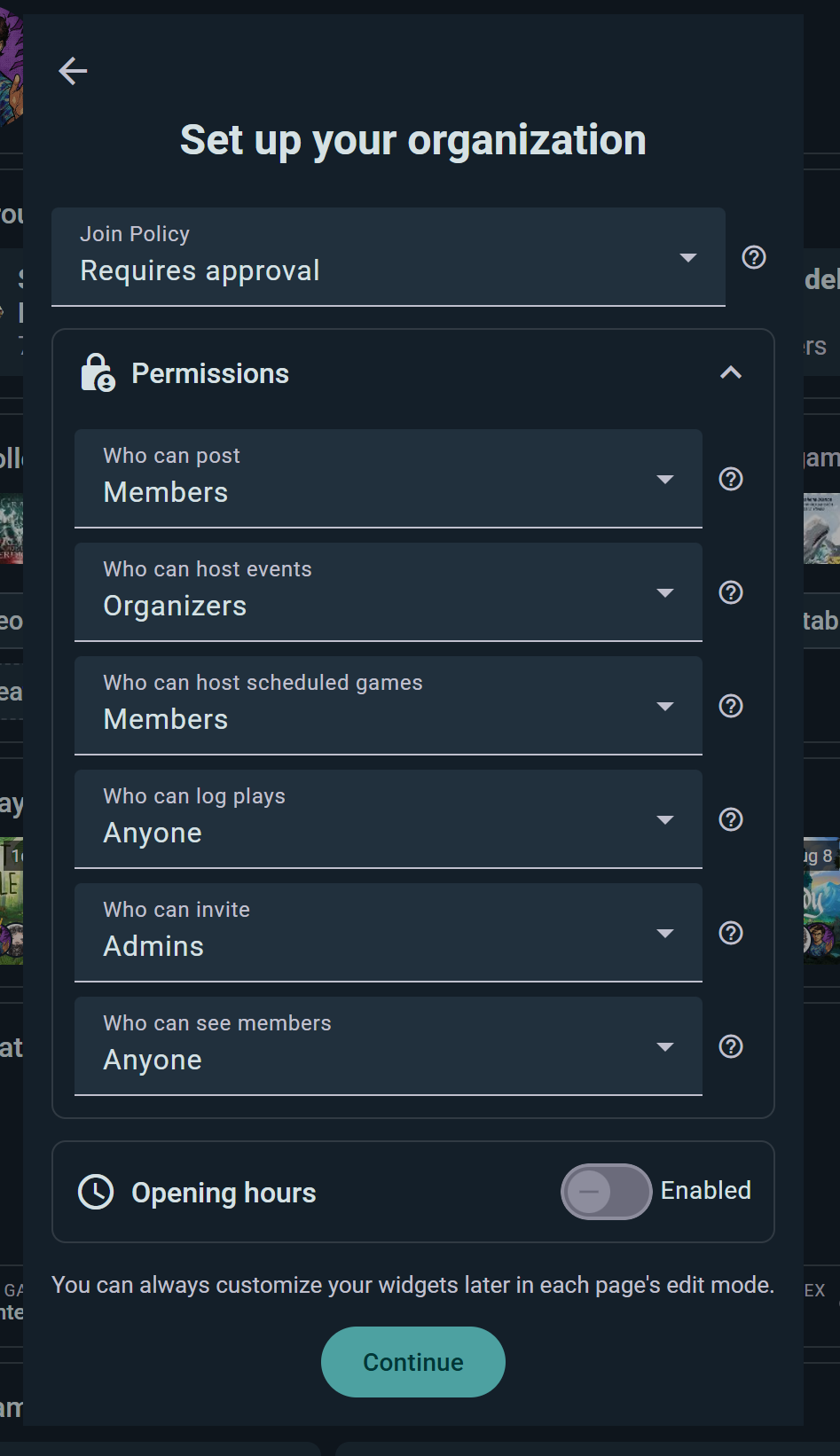
Sometimes one person needs an exception. Open any member from the member list and you can override the group defaults just for them — allow or deny hosting events and scheduling games, regardless of their role. There's also an always tentative switch for members whose attendance is habitually uncertain, so their RSVPs register as provisional.
Managing Members
Joining & Approval
If your group uses Request or Invite-only, you'll see pending requests in your group admin panel. Approve or decline each one. For Invite-only groups, share an invite link or QR code, or search for users by name to invite them directly.
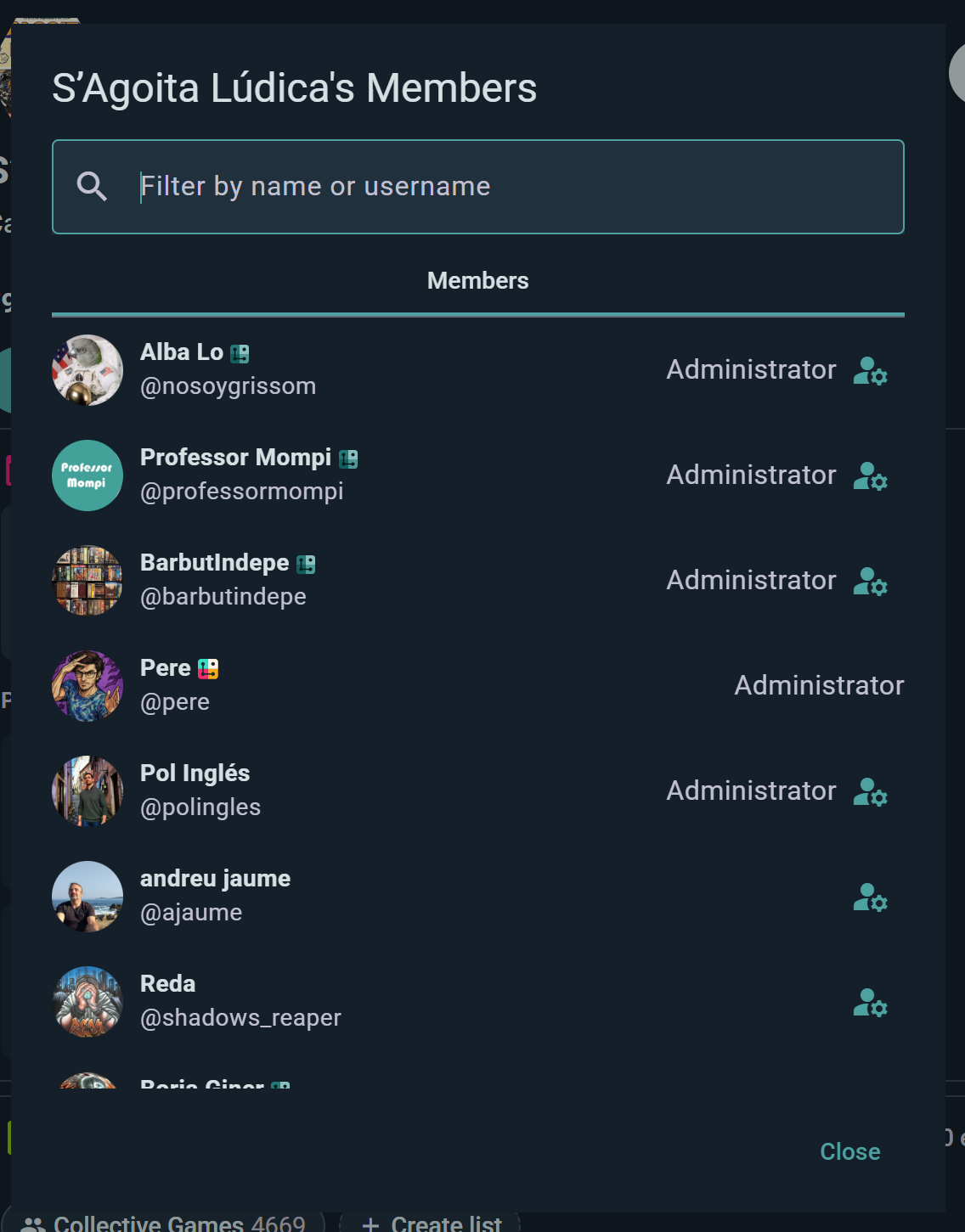
Changing Roles
Tap a member to open Manage member, then pick their Role: Member (can view and take part), Organizer (can also help run the group) or Administrator (full control, including members and settings). Any admin can change any other member's role, including promoting someone to Admin or demoting a fellow admin.
The per-member exceptions described above live in the same dialog, under Overrides.
Removing Members
Tap a member and choose Kick in the Manage member dialog. Ludoya asks you to confirm first, and once you do they lose access to the group immediately.
Invite Links & QR Codes
Generate a shareable link or QR code to invite friends — great for posters, flyers, or the counter at your local shop.
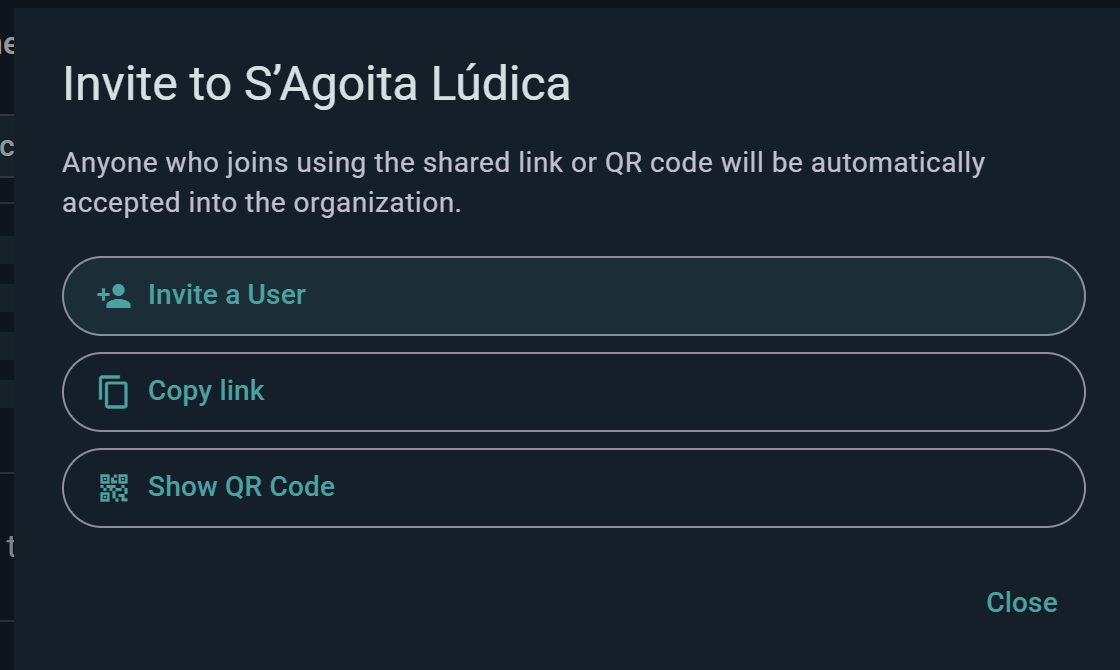
Worth knowing: anyone who joins through the link or QR code is accepted automatically, even when your group normally makes people request to join. The link is the invitation, so only share it where you're happy for anyone to walk in.
Group Features
Official Events
Host events directly under your group. Everyone in the group sees them in the group's event feed. Events can be tied to a venue or location, and members can RSVP to plan attendance.
See Events for details on scheduling and managing events.
Group Collection
View all games owned by group members in one place—perfect for planning what to play next or discovering hidden gems you didn't know someone had.
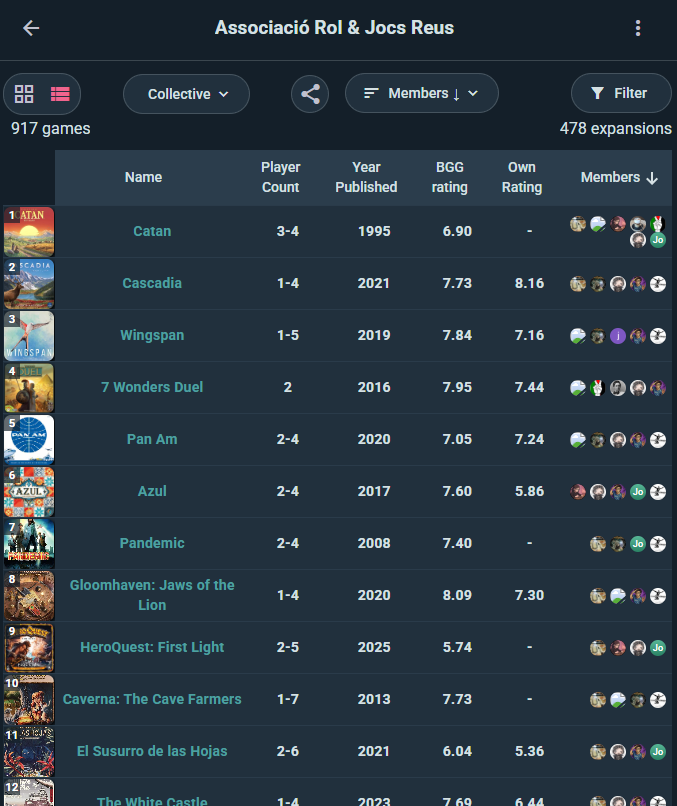
The Group Collection shows:
- Every game someone in the group owns
- Who owns it (so you can borrow or coordinate plays)
- Owned vs. played counts
Use this to answer questions like "Does anyone have Catan?" or "What new games could we play?"
Game Summaries
See aggregate play data within the group—most-played games, average scores, play frequency. Great for understanding the group's gaming preferences.
Pinned Posts
Admins can pin one post to the top of the group profile — an announcement, the house rules, or the next big event. Pinning a different post replaces it, so the pin always points at the one thing that matters most right now.
Group Feed
A focused activity stream showing only posts, plays, and events from your group. Separate from the global and regional feeds, so conversations stay organized.
Discovering Groups
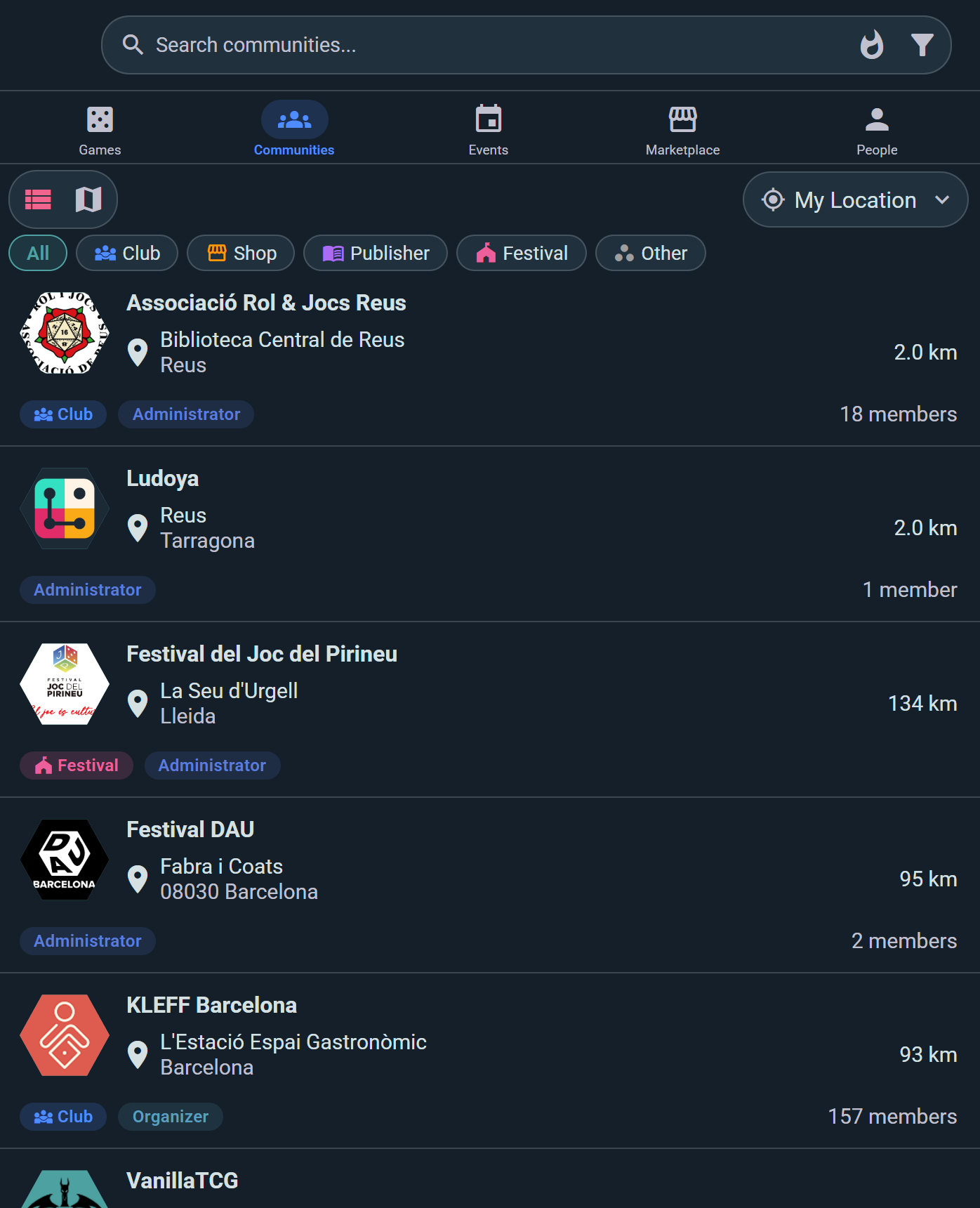
Head to Explore → Communities and search by name, or just browse what's around you. Sort the results by:
- Relevance — the default blend of closeness and activity
- Distance — nearest first
- Members — biggest communities first
- Alphabetical — plain A to Z
You can also filter by group type (club, shop, publisher, festival), by whether you're a member, by minimum size, and by what's open now — or switch to the map and search a specific neighborhood.
Group Profile
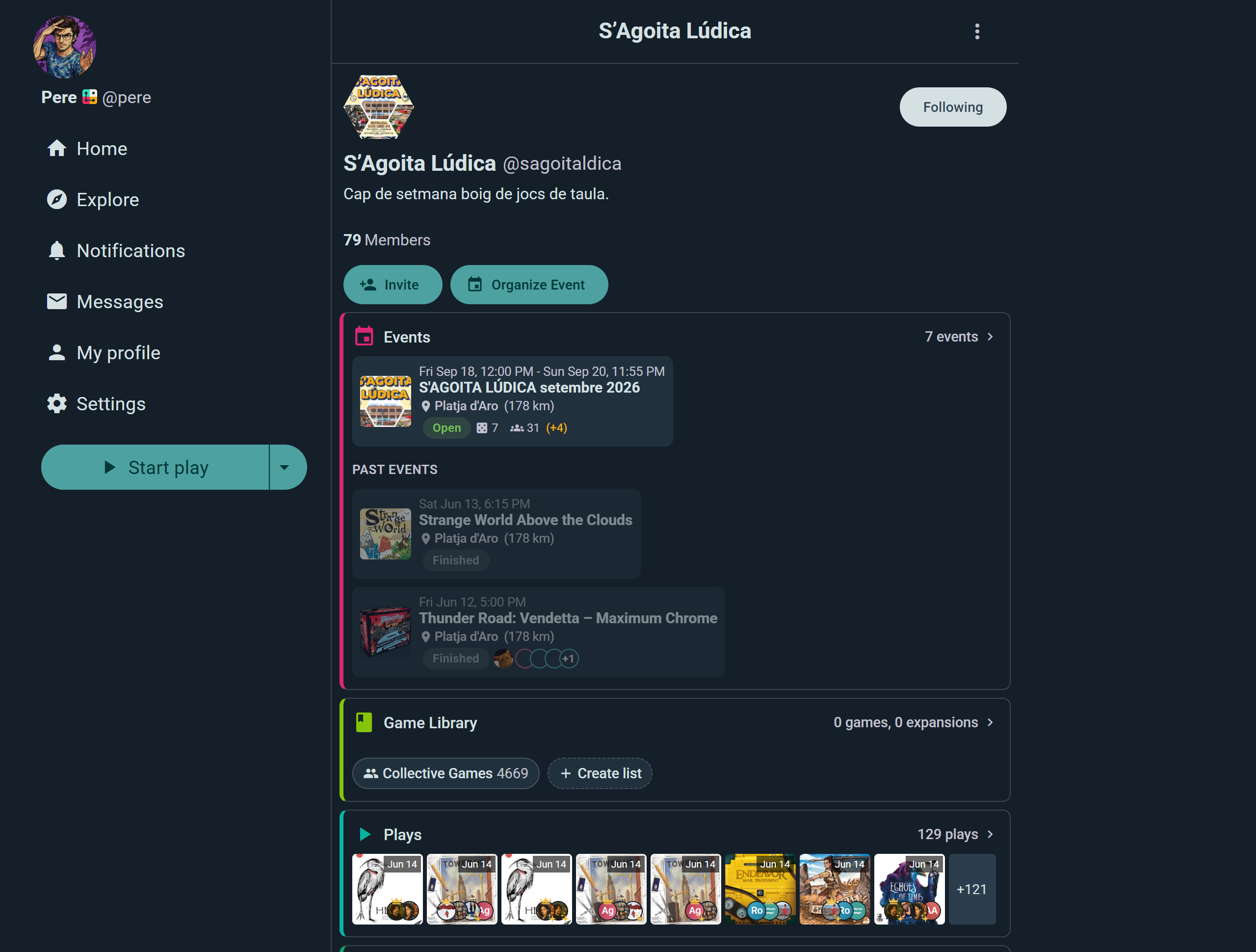
Each group has a public profile showing:
- Description and member count
- Upcoming events
- Recent posts and plays
- Collection highlights
- Join button (or Request/Invite status)
Embeddable Widgets
As an Admin, you can generate HTML snippets to embed on your group's external website (see Integrations):
- Events widget: Shows upcoming events
- Games widget: Displays group's collection
- Plays widget: Recent play activity
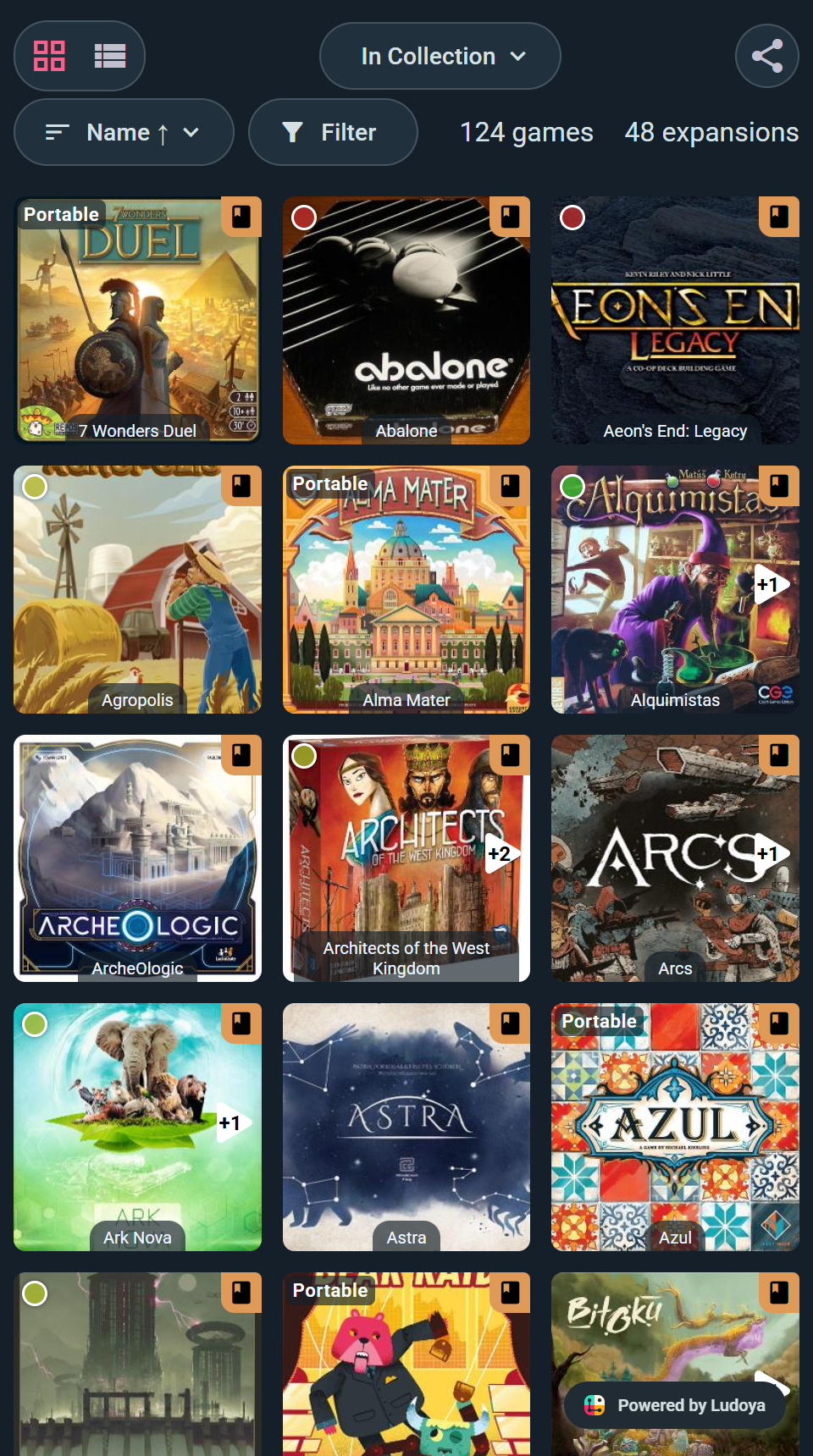
Share your group's activity beyond Ludoya—great for club websites.
Promoting to an Organization
A group is already an account — it has a username, a profile, and a collection of its own. Give it an email and password whenever you want and it becomes a full organization: staff can sign in as it directly, and it can hold a premium plan for tournaments, ticketing and floor plans. Nothing is lost in the change, and you can leave it as long as you like.
See Organizations to learn about the conversion process and what you gain.
See also:
- Organizations — dedicated accounts for clubs and stores
- Events — hosting and joining game sessions
- Social & Feeds — activity streams and discovery
- Collection — tracking games you own
- Statistics — play data and trends