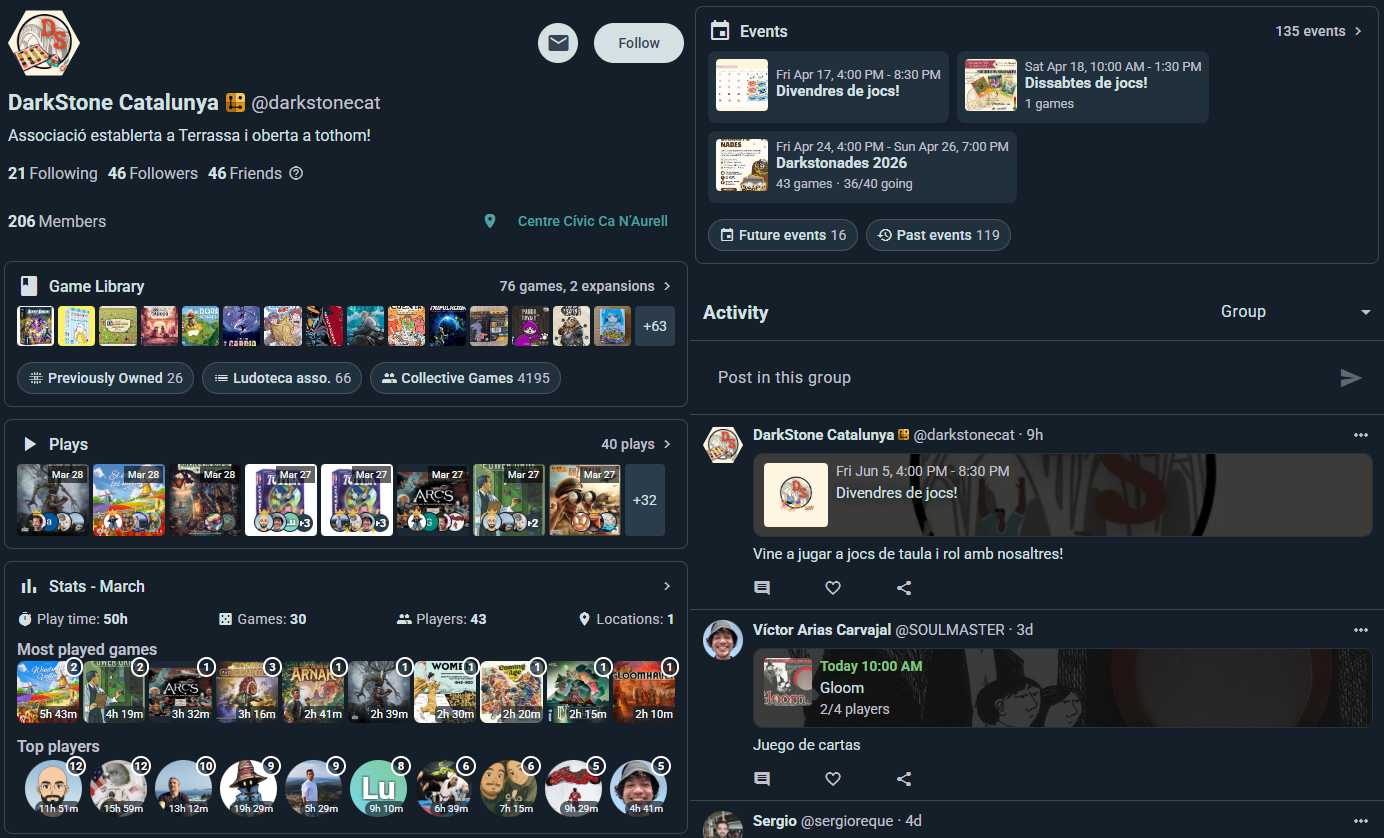
On Ludoya, an organization is simply an account that represents a community rather than a person — a club, a game café, a publisher, a festival. It works like any other account: it has a username and a profile page at ludoya.com/your-name, it owns a game collection, it posts, and it hosts events. What makes it an organization is that it has members.
There's no separate species of thing to learn. A group you create to organize your friends is the same kind of account, just without a login of its own — you run it from your profile. Give it an email and password when you're ready and it stands on its own, so staff can sign in as the venue without going through anyone's personal account. Members, roles, events, collection and history all carry over untouched, and it takes a couple of clicks.
Turning your own account into an organization is equally quick, though think before you do it on an account you play from — see below.
Why Give It Its Own Login
Two things change once the account has credentials:
- Staff can sign in as the venue. Nobody has to lend out a personal login, and someone leaving doesn't take the account with them.
- It can hold a premium plan. The Club and Business tiers — tournaments, ticketing, floor plans, the public API — are bought by the account that hosts the events.
Everything else — members, roles, a collective collection, events, posting as the community — you already have without them.
Creating an Organization
Option 1: From a User Account
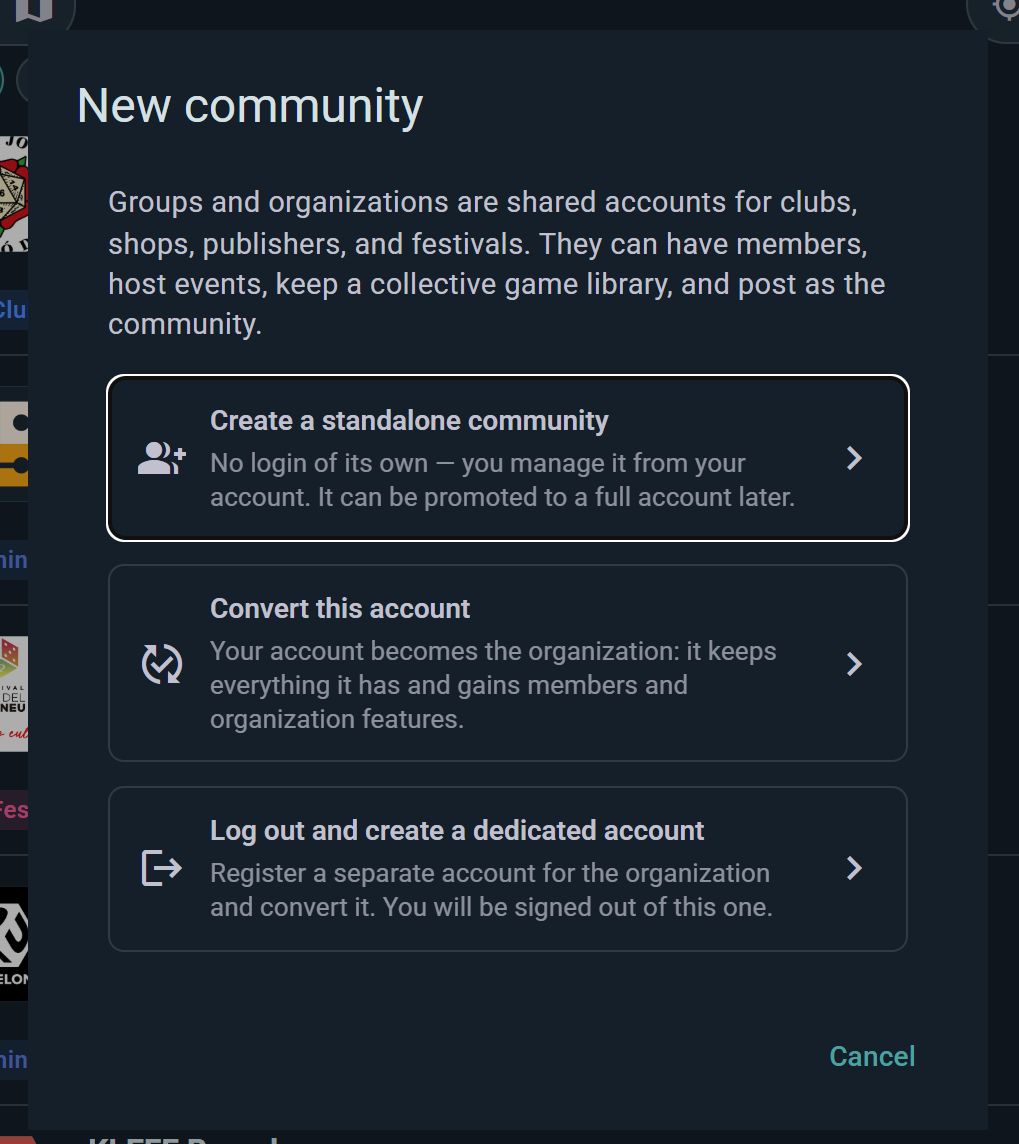
You can turn a user account into an organization either by registering a brand-new account and flipping it into an organization during onboarding, or by converting an existing personal account you already have.
Register a New User and Set It Up as an Organization
The recommended path when you don't already have a suitable account: register a fresh user specifically for the organization and use the onboarding shortcut to configure it as one from day one.
- Sign up as a new user with the email and password you want for the organization
- At the "What kind of account?" step, pick the type that fits — Club, Shop, Publisher, Festival or Other. It sits alongside Player as a first-class choice, not a detour
- The next step becomes Set up your organization, where you set who can do what and whether you publish opening hours
- Finish onboarding
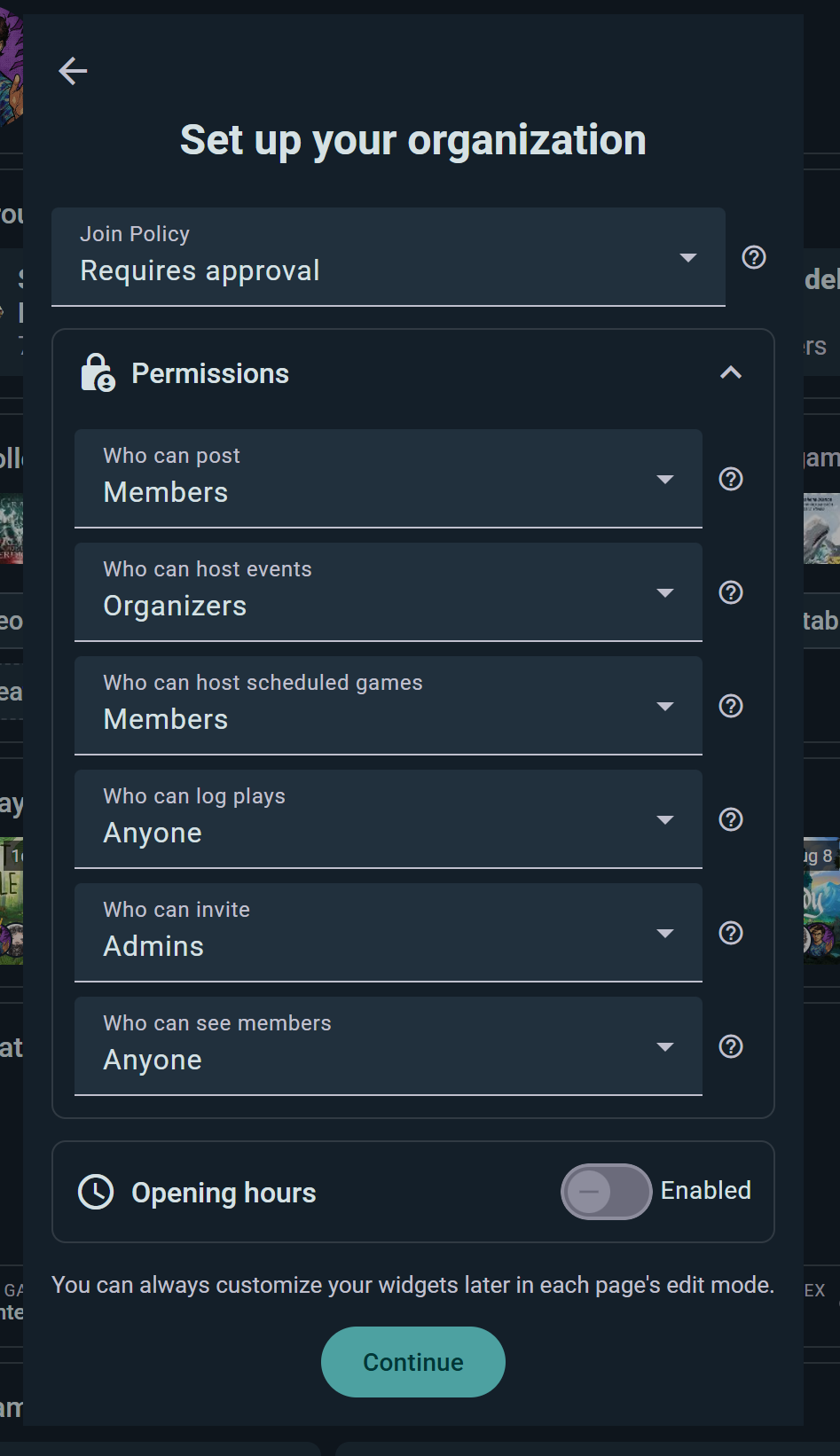
The name, description and avatar are the ones you gave the account in the earlier onboarding steps — this step is about how the organization behaves, not what it's called. Permissions sets the minimum audience for each action (posting, hosting events, scheduling games, logging plays, inviting, seeing the member list), and Opening hours publishes your hours on the profile and powers the Open at filter in Explore. Every one of these is editable later.
The type you pick also decides which widgets your pages start with, so a shop leads with its inventory and events while a festival leads with events alone. You can rearrange any of it later.
The brand-new account is configured as an organization from the start, with no personal-use phase in between.
Convert Your Existing Personal Account
This flips your current account from a personal account to an organization account in place. Your login credentials (email and password) stay exactly as they are, along with all the plays, stats, friends, and collection already tied to the account. The organization's public identity — name, bio, avatar — is set fresh in the group creation form that appears during conversion, so you're not stuck carrying your personal profile details over as the org's branding.
- Go to Settings → Account Information, or Profile → Edit Profile — the option is in both
- Tap Convert into Organization
- Fill in the form (name, bio, avatar) — this becomes the organization's public face
- Confirm the conversion
You keep your account and everything in it; it simply gains organization features — members, events, and posting as the organization. Members you add can help manage it. And it's reversible: you can turn the organization back into a normal profile later from its settings.
⚠️ Think twice on an account you actually play from. Converting doesn't wipe anything — but it doesn't separate anything either. Every play, stat, review and game you've accumulated as a person stays on this account and becomes part of the organization's public history, and your profile now reads as the venue rather than as you. If you want your own gaming life kept apart from the club's, register a fresh account for the organization (above) or promote a group instead (Option 2). Converting really only suits an account that was created for the organization in the first place.
Option 2: Promote a Group
If you admin a group and want to give it a login of its own — so staff can sign in as the venue, and the account can hold a premium plan:
- Go to your group
- Tap the menu (⋮) → Create Organization Account
- Enter an Organization Email and set a Password, then tap Next
- Enter the code sent to that email address and Confirm
The group keeps everything — members, roles, events, collection, history — and gains its own credentials. You stay signed in as yourself; the new login is there for whenever you want to act as the organization.
Organization Capabilities
Core Features
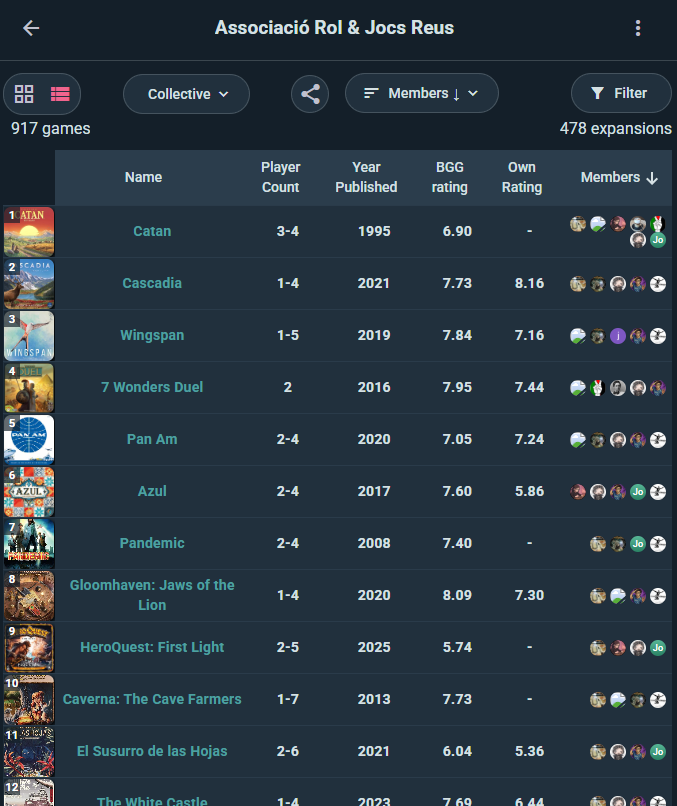
- Independent Game Collection: Maintain your own collection, separate from any member's personal collection. Perfect for stores showing inventory or publishers showcasing their games. Groups don't have a collection of their own — this is organization-only.
- Aggregated Member Collections: Alongside the organization's own collection, see a combined view of games owned by members — useful for planning events or understanding what the players have.
- Member Roles & Invites: Manage Admins, Organizers, and Members. Invite via search, link, or QR code.
- Event Hosting: Host events under your organization name. Members RSVP and attend.
- Activity Feed: Your organization's own feed of posts, plays, and events.
- Group Statistics: Play counts, most-played games, member activity trends.
- Embeddable Widgets: HTML snippets for your website showing events, games, or recent plays.
BGG Synchronization
Link your Board Game Geek account to auto-sync your collection. Games you add to BGG appear in your Ludoya collection automatically. Great for stores and publishers keeping inventory in sync.
Premium Features
Organizations can hold a premium subscription to unlock advanced hosting and coordination tools.
Club Tier
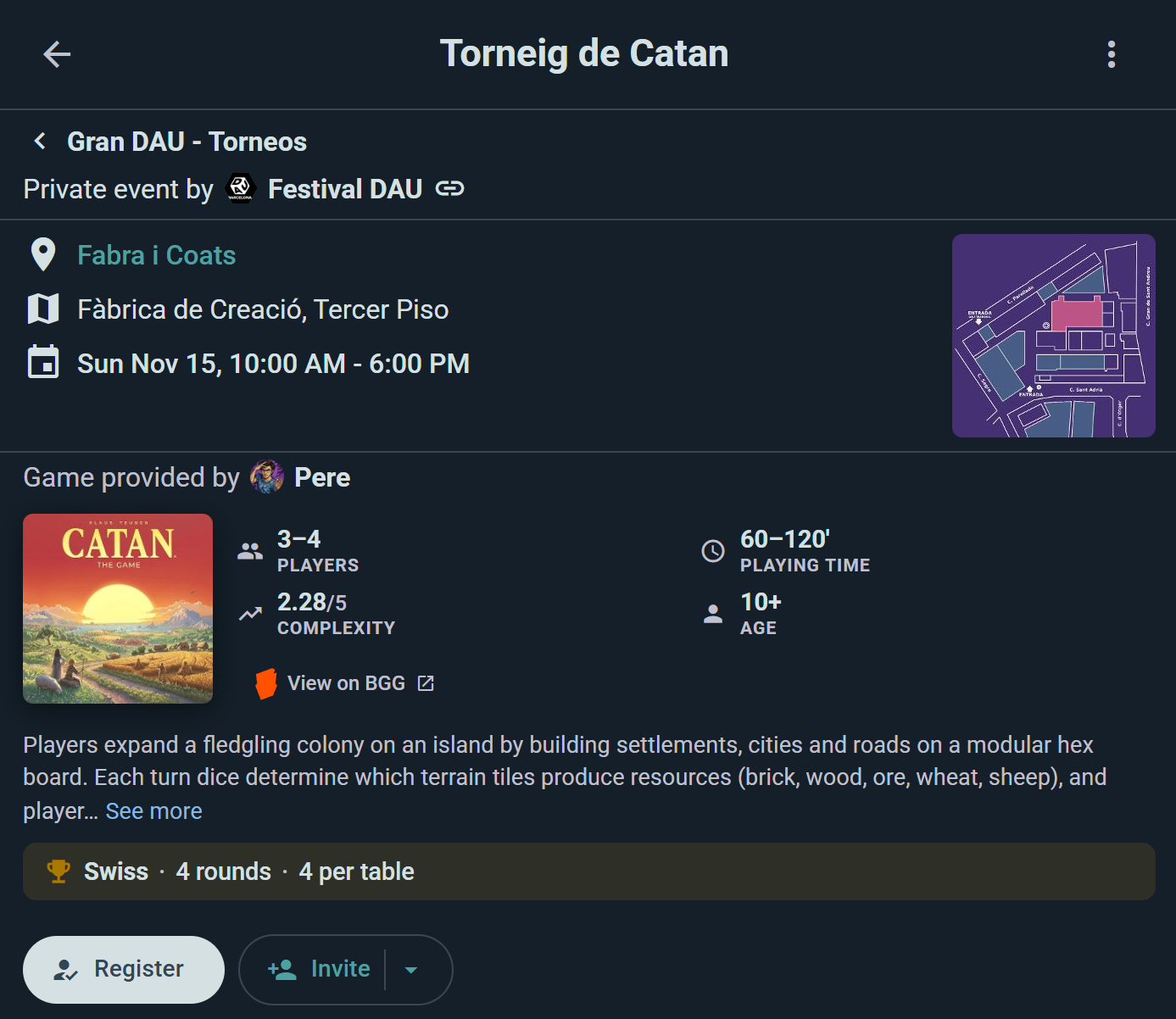
- Tournaments: Create a tournament-type event and run it as Swiss, mixer, or single/double-elimination — Ludoya generates the pairings and bracket and keeps live standings with tiebreakers.
- Raffles: Give away games and prizes to your attendees with a live, animated draw everyone can watch.
- Sub-events: Nest fully-featured events inside a parent event for multi-track gatherings.
- Co-hosted events: Invite other groups to co-host, let them run sub-events, and accept host applications.
- Availability heatmap: See when your attendees will actually be present, and schedule the big games at the peak.
- Telegram Integration: Connect the organization to a Telegram chat for automated event announcements.
Business Tier
Everything in Club, plus:
- Ludoya Tickets (rolling out gradually): Sell paid admission with on-platform checkout, per-ticket QR check-in, and sales tracking, paid out through your own Stripe account.
- Interactive Venue Floor Plans: Upload a floor plan image for any of your locations and visually place your spots (tables, rooms, play areas) on it — attendees explore a pannable, zoomable map of your space. Named spots themselves are free for all organization accounts; this adds the visual map layer. When you run an event, sub-events and scheduled games each claim a spot, so attendees always know which table or room to head to.
- QR Entry Verification: Attendees show a QR code from the event page; scanning it at the door confirms they're on the list and checks them in, building your attendance record as people arrive. Scanning needs the mobile app, and the event must belong to a group.
- Custom Attendance Forms: Add custom fields to event registration (e.g., "Preferred experience level?" or "Dietary restrictions?").
- Attendee data export: Download the full attendee list, with every form answer, as CSV.
- Auto open/close: Schedule registration to open and close on its own.
- Public API: Generate an API key and pull your organization's events, members, collection, and stats into any external website or app — and add Sign in with Ludoya to your own site.
Recurring events, campaigns, and the other Player-tier perks belong to personal plans rather than organization ones.
See Premium for subscription details and pricing.
Managing Your Organization
Edit Settings
Open your organization's profile and use its ⋮ menu:
- Edit Profile — name, description, avatar, visibility, join policy, and the per-action permissions for each role
- Customize Profile — which widgets appear on the organization's page, and in what order
- Telegram Settings — connect a chat, and choose what gets announced (see Integrations)
- Public API — API keys and Sign in with Ludoya, on the Business plan (see Public API)
- Members — the roster, roles and pending requests
The organization's email and password live with the account rather than the profile, under Settings → Account Information — the same place as for a personal account, because an organization is an account.
Manage Members
- Approve Join Requests: If using "Request" policy
- Invite Members: Search by name or send a link/QR code
- Change Roles: Promote to Admin/Organizer or demote to Member
- Remove Members: If needed
- View Member Stats: See their activity and attendance
Manage Premium
View your current subscription, billing, and renewal date. Upgrade, downgrade, or cancel at any time.
Delete Organization
If you no longer need the organization, you can delete it. This reverts your account back to a normal personal account. Warning: This cannot be undone—check that you've exported any important data first.
Joining an Organization
The join process is the same as joining a group:
- Open organizations: Click Join and you're in immediately
- Request-only: Click Request to Join and wait for approval
- Invite-only: Use an invite link or QR code to request or join directly
When you join, a welcome dialog greets you with a short rundown of what you can now do in this community. You become a Member by default (Admins can change your role).
Organization Profiles
Your organization has a public-facing profile showing:
- Logo / avatar
- Name and description
- Upcoming events
- Recent posts and activity
- Member count
- Collection highlights (if public)
- Join button or request-to-join option
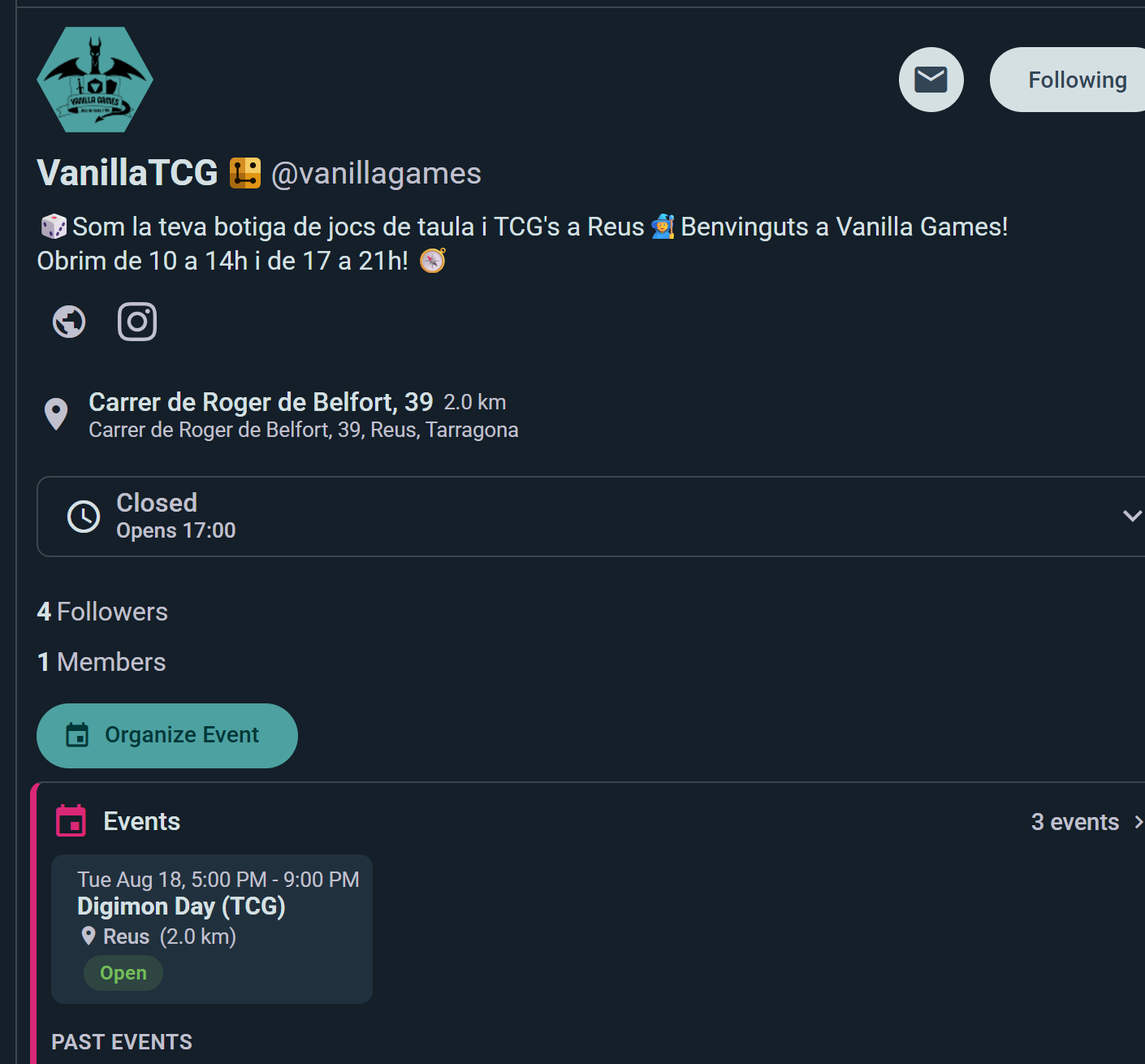
Great for attracting new members and showing what your organization is about.
See also:
- Groups — community spaces for gaming crews
- Events — hosting and joining events
- Premium — subscription features and pricing
- Integrations — connecting with BGG and Telegram