
Game Kits are gameplay companions created by the community. They walk you through setup, track round steps, organize scoring, and manage special roles — all tailored to a specific board game. Using a Kit during play keeps everyone on the same page and makes complex games much easier to run.
What's in a Kit
Every Kit contains some or all of these components:
Setup Steps
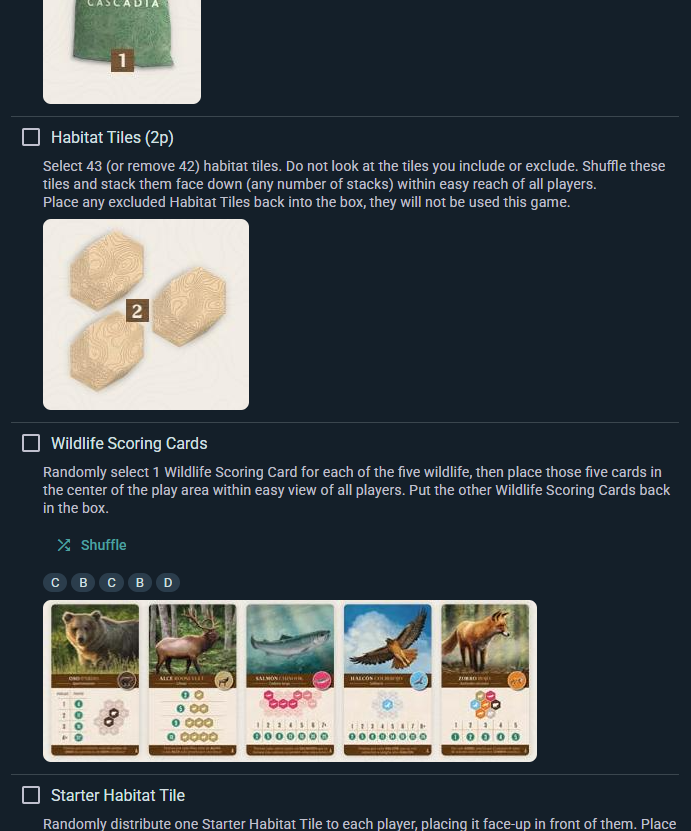
An ordered checklist to prepare your game. Steps are grouped into sections (e.g., "Components," "Player Setup," "Game Board"), with descriptions and optional images for each. You work through them in order when you create a live session.
Round Steps
A recurring checklist for what happens between turns or rounds — things like "Resolve player actions," "Check for end-game condition," or "Collect resources." You reference this throughout play.
Score Sheet
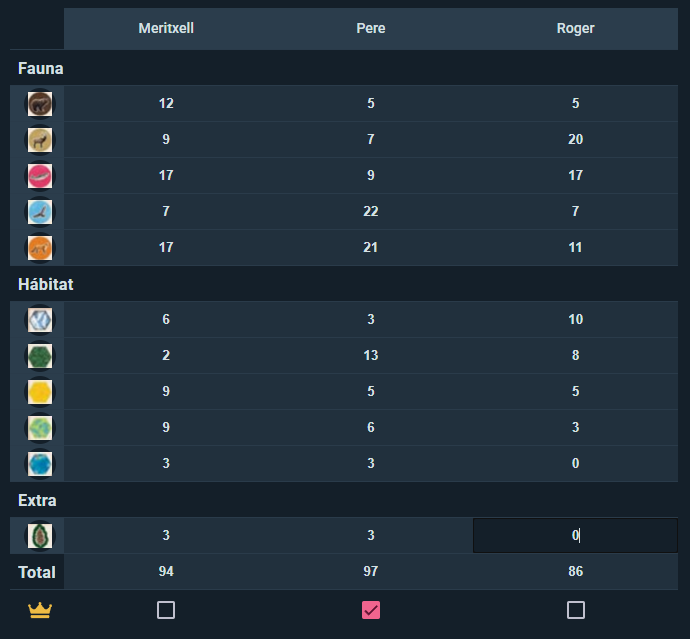
The scoring template. It has rows for each scoring category (e.g., "Gold," "VP from Settlements," "Leader Bonus") grouped into logical sections. You fill in per-player values, and the app auto-totals. Some Kits support per-round scoring for games with incremental points.
Roles and Colors
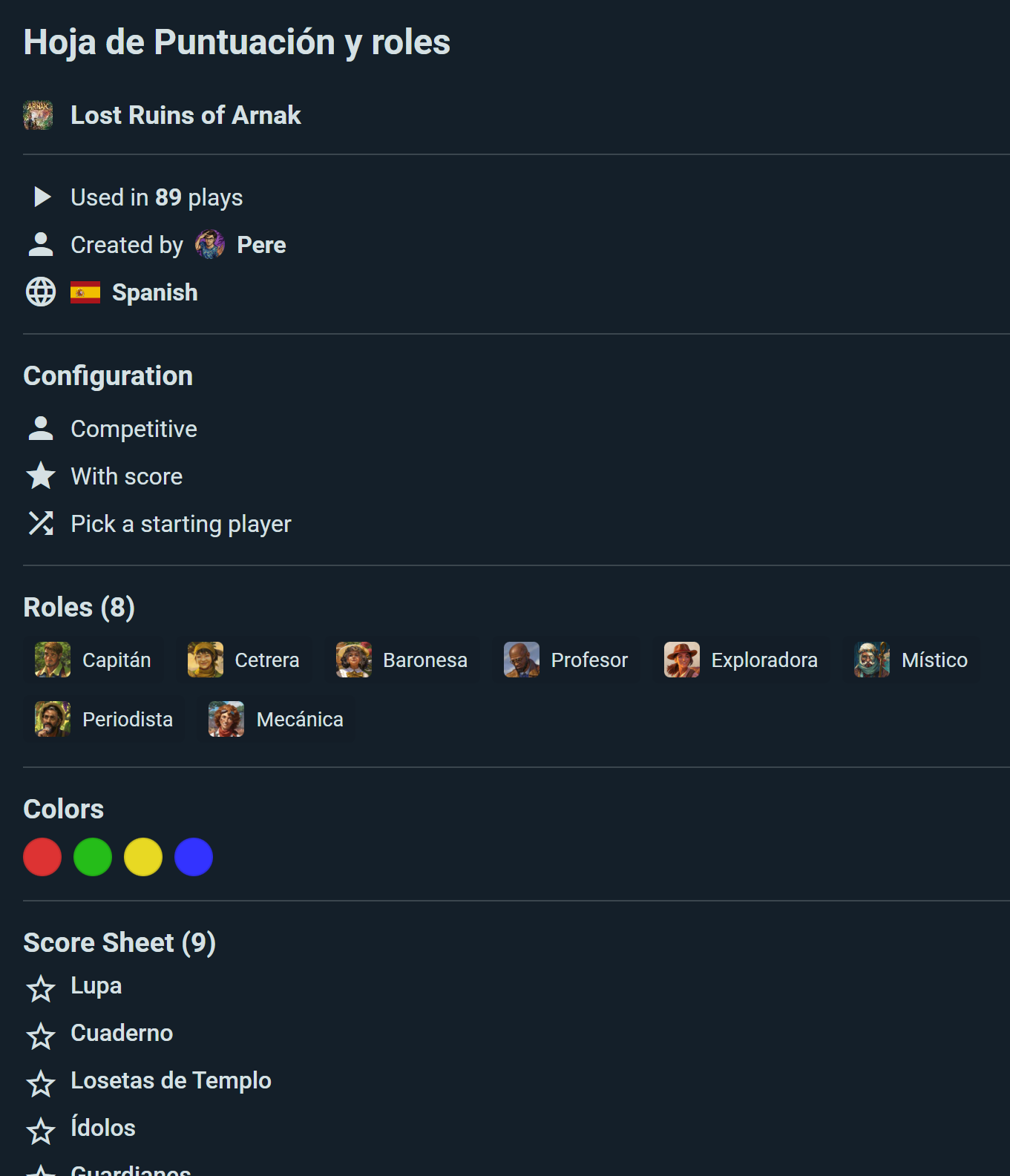
Character types, factions, or player colors with optional images. Useful for games where players choose roles at the start.
Randomizers
Attach a randomizer to any setup step to make those fiddly setup draws instant — dealing out factions, picking a map layout, choosing which modules are in play. You list the options (or reuse the kit's roles), decide how many get drawn, and whether repeats are allowed.
Two touches worth knowing: the number drawn can change with player count, and options can carry states — so a tile can come up "side B" or "rotated 90°" as well as simply being chosen.
Expansion and Module Support
Board games evolve. Kits handle this by tagging content to specific expansions or modules:
- Setup steps, round steps, and score rows can all be tagged to expansions
- When you start a session, you select which expansions are active
- Only relevant content shows — expansions you didn't select are hidden
- Replacement content swaps base-game items when an expansion is active. For example, a new scoring category might replace a base-game one
This keeps the Kit clean and focused on what you're actually playing.
Player Count Awareness
Setup and round steps can be tagged with the player counts they apply to, anywhere from 1 to 10. Ludoya then shows only the steps that matter for the number of players you've actually got — so the two-player setup variant appears when you're playing two, and stays out of the way when you're playing four.
Randomizers can vary by player count too: the same randomizer can draw three cards at four players and five at six.
Using a Kit During Play
Select When Logging a Play
When you start a live session, choose which Kit (if any) to use. If you've set a default Kit for that game on this device, it's picked for you.
Work Through Setup Steps
The app guides you step-by-step. Check off each item as you complete it. Skip steps if they don't apply to your session.
Use Round Checklist Between Turns
Refer to the round steps anytime you need a reminder of what happens next in the turn structure.
Fill in Score Sheet
Enter scores directly into the Kit's score sheet. The app totals everything for you.
Real-Time Sync
If multiple players are using the app during the session, everyone sees updates instantly. Setup progresses, scores update, and no one falls out of sync.
Finding Kits
On the Game Page
Open any game and find the Game Kits section. Kits are listed with your language first, then by popularity, and each one previews what you're getting: how many people use it, and how many roles, setup steps, round steps and score rows it contains. Private kits carry a lock.
On a Creator's Profile
Visit someone's profile to browse every Kit they've made.
Picking One Automatically
Set a kit as your default for a game and it's chosen for you every time you play it. That default is remembered on the device you set it on, so set it again on your tablet if you play there too.
Without a default, Ludoya only auto-selects when there's a clear winner — a kit in your own language that's both the most used and the best rated. If nothing stands out, it leaves the choice to you rather than guessing.
Creating a Kit
Anyone can create a Kit for free. The process is simple:
Multi-Step Editor
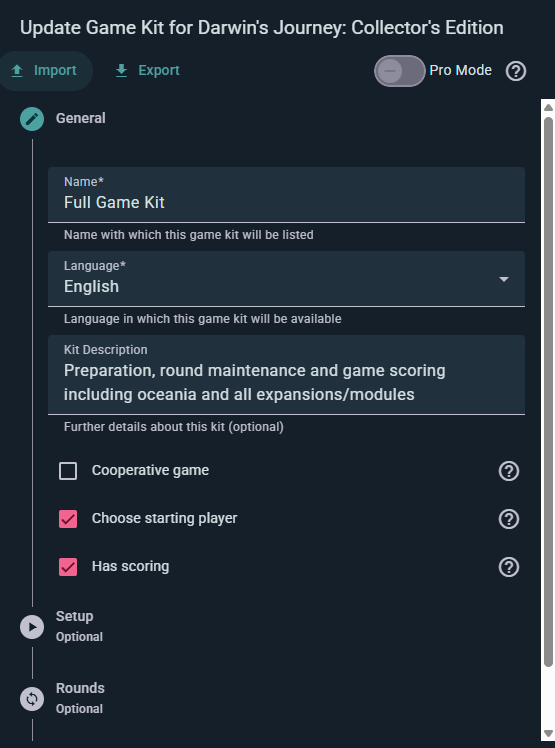
- General — Name and language (required)
- Campaign (optional) — Define world or character fields for multi-session campaigns
- Setup — Add checklist items grouped into sections
- Rounds — Define recurring turn-structure steps
- Scoring — Build the score sheet with categories and rows
Pro Mode
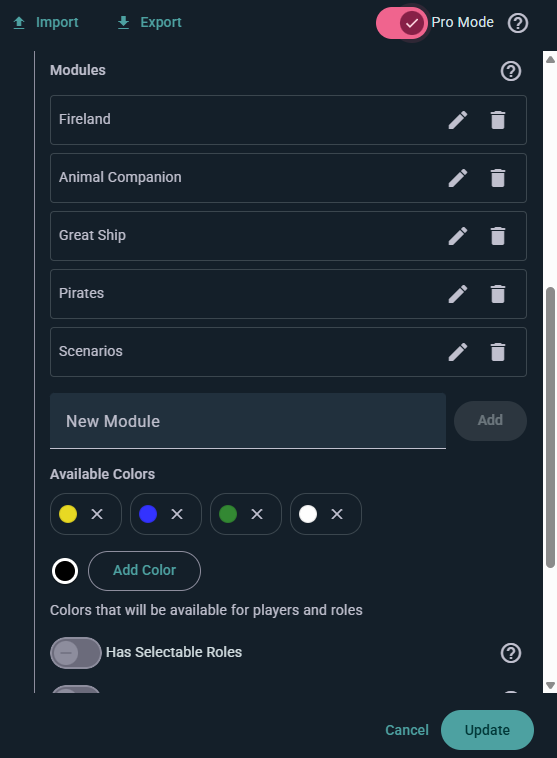
Toggle Pro Mode to reveal:
- Modules — variants and mini-expansions you can tag content to
- Roles and colors — factions, characters, player colours
- Campaign support — the multi-session fields described below
- Drag-to-reorder for steps and score rows
- Total calculation — when a score sheet has several categories, choose whether the total is the sum of all rows, the highest category, or the lowest
You don't need Pro Mode to make a useful Kit — plain kits work great for most games.
Only Name and Language Are Required
Everything else is optional, but there's more available than you might expect: mark the game cooperative, have the kit choose a starting player, turn scoring off entirely for games that don't have any, set a round count, score per round, give players starting points, or flag that lower is winner for golf-style scoring. Individual score rows can be marked as a win condition, or tied to a module, an expansion, or another row they replace.
Keeping a Kit to Yourself
Tick Don't share this kit and it stays private — it won't appear in the game's kit list or the community feed, and only you can see and use it. Perfect for house rules, or for a kit you're still building.
Copying a Kit
Found a Kit you like but want to change something? Choose Copy Game Kit. You get your own editable duplicate, and the original is untouched — the polite way to build on someone else's work.
Campaign Fields
For games that span multiple sessions (legacy games, RPGs, campaigns), Game Kits can define special fields:
Global Fields
Describe the world state — things like "Current Day," "Kingdom Stability," "Threat Level." All players see these.
Character Fields
Per-player state — like "HP," "Experience Points," "Inventory," "Character Class." Each player has their own values.
Supported Field Types
- Text — Open-ended notes or descriptions
- Number — Quantities, scores, health
- Toggle — Yes/No states (e.g., "Has Magic Stone")
- Selection — Dropdown choices (e.g., Class = Fighter/Mage/Rogue)
- Image — Upload a photo or portrait
- Role — Link to a character or faction defined in the Kit
- Color — Assign a color
Import and Export
Exchange Kits as JSON files — export yours to share or back up, import someone else's to use as your own.
This one is web only. The mobile apps have no file picker for it, so if someone sends you a .json Kit you'll need a browser to bring it in. Sharing Kits between Ludoya users doesn't need any of this: open the Kit's page and tap Copy, which works everywhere.
Social Features
Like a Kit to show you use and love it, and comment with tips or questions — open a kit to find both. Community feedback is how creators know what to improve.
Want your own version? Copy any kit and edit it freely, or export it to move it elsewhere.