
Campaigns are for games that span multiple sessions — legacy games that change over time, RPGs with evolving characters, or any game where continuity matters. A campaign keeps everything together in one place: who's playing, what's happened, what's coming next, and how the world and characters are changing.
What Campaigns Are
A campaign is a container for a long-running game experience. Instead of logging isolated plays, you:
- Track all sessions in one timeline
- Maintain persistent world and character state
- Manage who's involved and when they're playing next
- Store shared lore and personal character backstories
- Schedule upcoming sessions and events
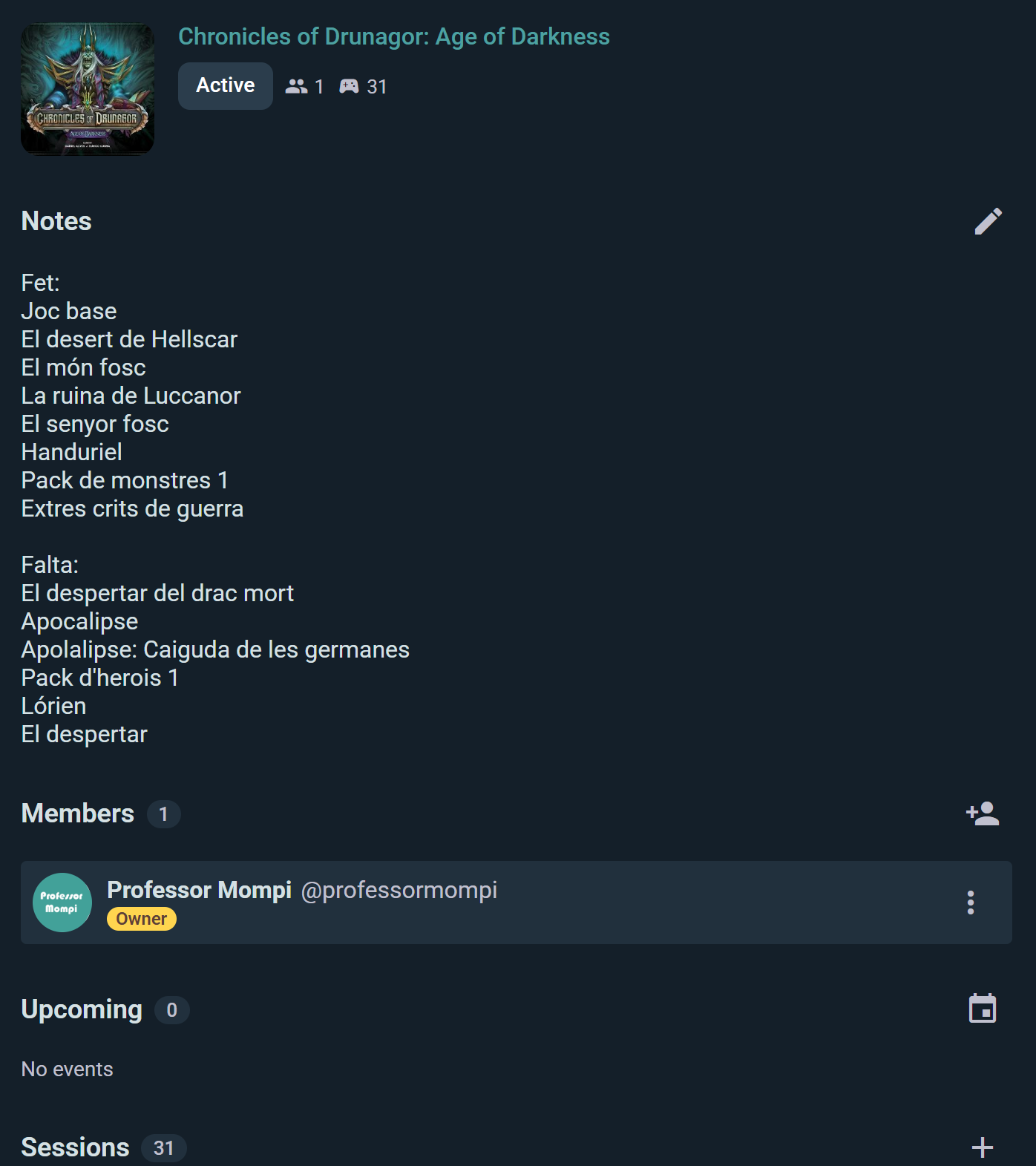
It's like a campaign notebook, but digital and shareable.
Creating a Campaign
Start simple:
Open the campaign creation form
Tap the + button — the context actions button — and pick Create Campaign.
Pick a Game
Select from the catalog or search for your game.
Name Your Campaign
Something like "Our Gloomhaven Saga" or "The Lost Kingdom."
Optional Details
- Description — A few lines about the campaign's premise or goal
- Cover Image — Visual for your campaign card
Bind a Game Kit (Optional)
If the game has a Game Kit, link it to your campaign. The Kit's template defines structured fields for world state and character data — like "Day," "Party Level," "Current Location," etc. Without a Kit, the campaign just has a world notes field and a per-player notes field — free text you can use however you like.
Scope to a Group (Optional)
If you're running this campaign for a gaming group or club, scope it to that group. Group members see it on the group's page.
Campaign Lifecycle
Campaigns have three states:
Active
Your campaign is ongoing. Full editing — change the world, update characters, log sessions, reschedule events, add or remove players. Everything is mutable.
Completed
Campaign is done. Data is preserved and readable, but edits are restricted. You can still view character notes, review the timeline, and reminisce. Prevents accidental changes to a finished story.
Archived
Campaign is hidden from your main lists, but not deleted. You can reactivate it to Active if you want to revisit or continue the story.
Progression Rule: Active → Completed or Archived. Completed → Archived. Archived → Active. You can go back anytime.
Members and Roles
Who Can Join
You decide how people get in, with Who can join:
- Anyone can join — a Join button on the campaign page, no approval needed
- Request to join — players ask (with an optional message) and you approve or reject from the Pending requests list
- Invite only — nobody joins on their own; you add members yourself
There's a separate Who can join sessions setting for the individual game sessions, so you can keep the campaign roster tight while letting others sit in on a night, or the reverse.
Owners can also add members directly by searching for Ludoya users. A group account can be a member too. Members can leave whenever they like.
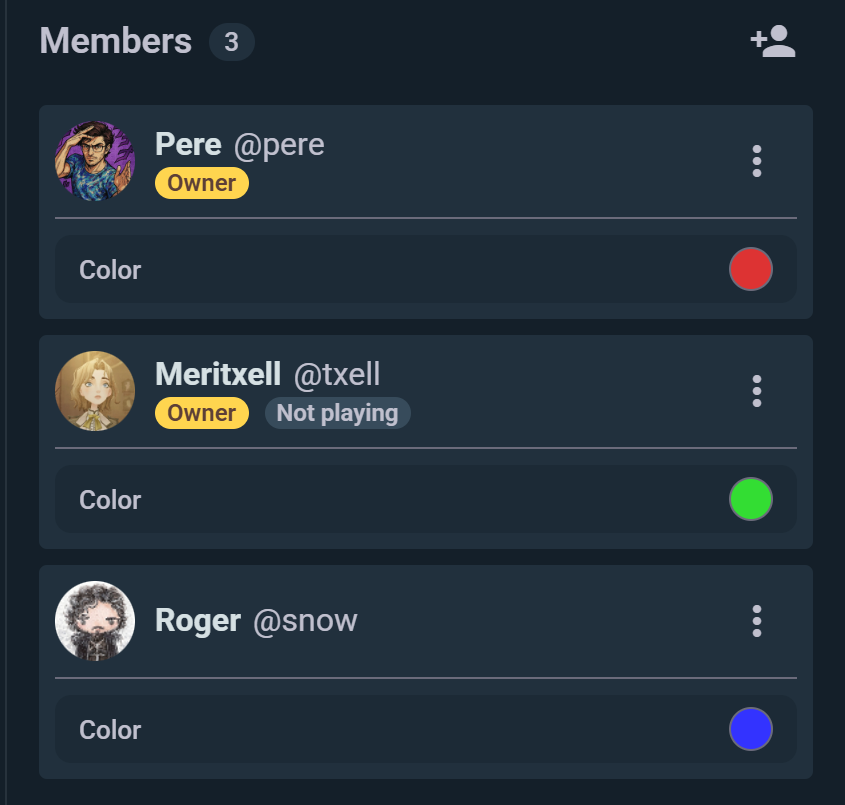
Promote to Owner
Tap a member and choose Promote to owner to give them full editing rights. A campaign can have as many owners as it needs, all equal — this is how you run one with a co-GM.
Demote to Member
Demote to member takes those rights away again. There are only two levels here: owner and member.
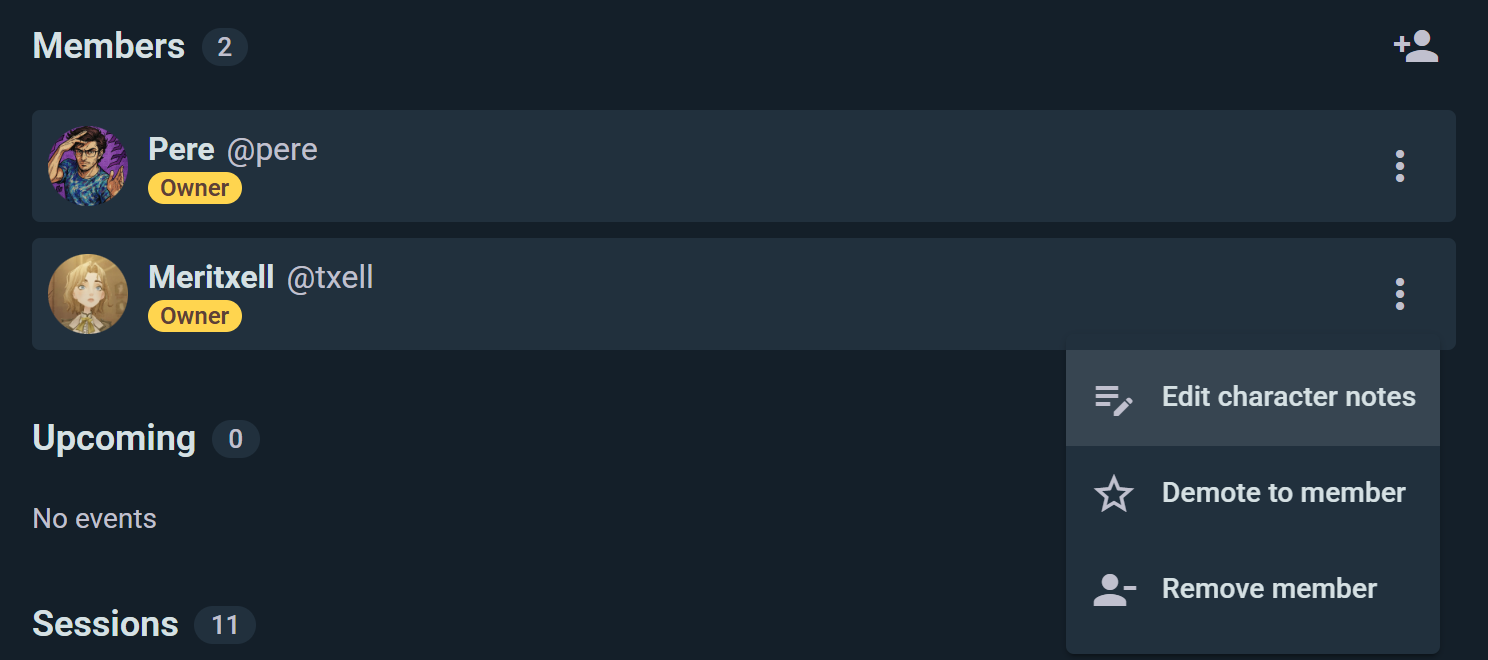
Member Permissions
Any member can:
- Edit their own character data
- Edit the campaign's World State and shared Notes — this is a shared record, not the GM's private one
- Log play sessions and schedule events
- Comment on the campaign
Owners only: removing members, promoting and demoting, and deleting the campaign.
Running, Not Playing
Game masters who don't take a seat can mark themselves not playing — their card shows a "Not playing" badge and they're left out of session rosters, while still running everything.
Sessions and Events
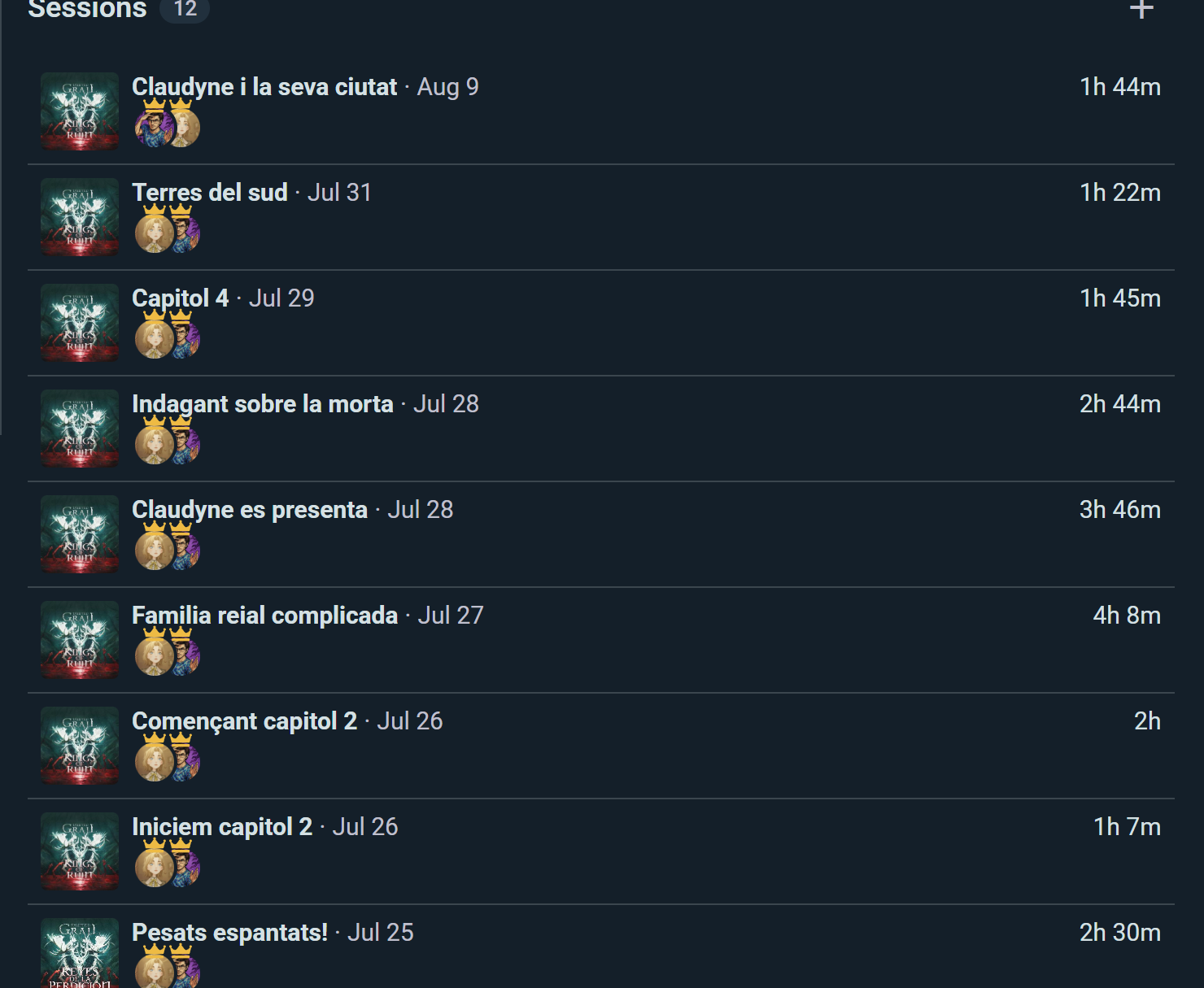
Every campaign page lists its sessions in two sections, one after the other:
Upcoming
Planned future sessions show up at the top. Schedule your next session by creating an event tied to the campaign — pick a date, and it appears here so everyone knows when to show up. Upcoming sessions also sync with personal calendars like any other event.
Sessions
Below the upcoming list, you'll find every session you've logged against the campaign, from most recent to oldest. Already logged some plays before starting the campaign? Use Link plays from the campaign menu to pull them in. Each entry links back to the underlying play with its full details: game, players, scores, photos, and any notes captured during the session. Use a Game Kit's structured session format for richer tracking, or just log a plain play — either way it anchors to the campaign's history.
World and Character Notes
Every campaign has two notes fields that carry the state of your story between sessions.
World Notes
A shared field for the persistent condition of the game world — everyone in the campaign reads it, and any owner can edit it (the GM usually does). Use it for things like:
- Session recaps — what happened last time
- Lore entries — important world details
- House rules — custom mechanics
- Major timeline events
With a Game Kit bound, the Kit's template adds structured world fields on top of the notes, like "Current Day," "Kingdom Stability," or "Active Threat" — so you can track quantitative world state at a glance instead of digging through free text.
Character Notes
Each participant has their own character notes field. Use it for:
- Backstory and motivations
- Inventory and gear
- Personal goals
You write your own notes, and campaign owners can edit anyone's. Everyone in the campaign can read them — they appear on your member card for the whole table to see, so treat them as shared lore rather than a private diary. Keep genuine secrets between you and your GM somewhere else.
With a Game Kit bound, the Kit adds structured character fields like "HP," "Experience Points," "Class," or "Equipment Loadout" — great for crunchier RPGs where you want discrete stats alongside the prose.
Field Types (with Game Kit Template)
When you bind a Game Kit to your campaign, you inherit its field definitions:
- Text — Notes, descriptions, open-ended entries
- Number — Quantities, experience points, resources, health
- Toggle — Binary yes/no state (e.g., "Has Secret Artifact")
- Selection — Dropdown choices (e.g., Class = Fighter/Mage/Rogue)
- Image — Character portraits, location maps, or item illustrations
- Role — Link to roles defined in the Kit (e.g., "Character Class" = predefined classes)
- Color — Assign a color to a faction or team
Visibility
Campaign preview cards appear in two places:
User Profiles
New campaigns start private — only invited members see them. Open one up by changing its visibility, and it appears on your profile for others to find. You can share any campaign as a link, image, or QR code, and campaigns you make visible collect likes and comments like anything else on Ludoya.
Group Pages
If a campaign is scoped to a group, it appears on the group's page so members can see active and completed campaigns.