
Reviews help the Ludoya community discover great games and understand what makes them special. Whether you're writing a review or reading one, this guide covers everything you need to know.
Writing a Review
Share your experience with a game by writing a review. Reviews appear in social feeds, on game pages, and in your profile.
Starting a Review
Open any game's page and find the Ratings card. Tap Rate this game — or, in the reviews list, tap the empty stars next to your avatar. A Review {game} dialog opens.
Category Sub-Ratings
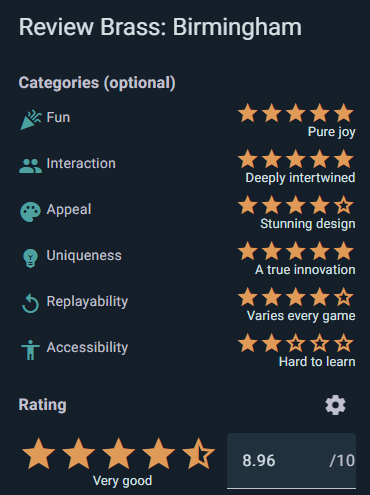
The dialog leads with six optional categories, each scored 1–5 with a worded hint at every step (Fun runs from "Tedious" up to "Pure joy"):
- Fun — How enjoyable and entertaining is the game?
- Interaction — How much do players engage with each other? (High interaction = lots of player interaction; low = mostly individual play)
- Appeal — How good are the graphics, art, and overall visual presentation? (High appeal = beautiful components and artwork)
- Uniqueness — How original is the game's design and mechanics?
- Replayability — Does it stay fresh and engaging after multiple plays?
- Accessibility — How easy is it to learn, teach, and play?
You don't need to rate all categories — only include the ones you want to comment on.
Overall Rating
Below the categories sits the overall rating, the one required field. It runs 1 to 10 and accepts decimals, so 7.5 is perfectly valid — the stars click in whole steps, but you can type a finer number.
Let Ludoya Do the Maths
Ludoya already does this for you. Fill in the six categories and your overall score is computed from them, weighted by how much each dimension matters — no need to pick a number yourself. Tap the gear in the review dialog for Review Settings to see the weights, change them, or switch the whole thing off and score by hand.
The defaults lean on Fun (35%), then Appeal (19%), Uniqueness (15%), Interaction (14%), Replayability (9%) and Accessibility (8%) — but every weight is a slider, and they always renormalise to 100%. Turn Accessibility up if teaching matters in your group; push Replayability if you buy games for the long haul. Reset to Default puts it back. Your weights are remembered for future reviews, so once you've tuned them, rating a game is just six taps.
Review Body
Write free-form text sharing your thoughts. Keep these tips in mind:
Tips for Writing Useful Reviews
- Mention player count — How many people were you playing with? A game might play differently with 2 players vs. 6.
- Share experience level — Are you a hardcore gamer or casual player? New players and veterans have different perspectives.
- Be specific — Instead of "I like it," explain why: "The tension in the negotiation phase keeps every player engaged."
- Highlight trade-offs — "The theme is amazing, but setup takes 15 minutes" or "It's easy to teach but luck-heavy at high player counts."
- Compare to similar games — "If you liked Splendor, you'll appreciate the engine-building here, but Azul has tighter rules."
- Mention what worked or didn't — Was it the components? The balance? The pacing?
- Avoid spoilers — Don't reveal plot twists if it's a story-heavy game
Saving Your Review
Tap Save. Your review appears on the game page and in your social feed, and you can edit or delete it whenever you like — when you update one, it resurfaces in feeds marked as updated so people notice the change.
A note on likes and comments: a review becomes a post other people can like and reply to once it has both written text and at least one category rating. A bare score with no words stays a rating — it still counts toward the game's average, it just isn't something to discuss.
Reading Reviews
Finding Reviews for a Game
- Go to the game's page
- Scroll to the Reviews section
- You'll see an average rating and all community reviews
Review Display
Each review shows:
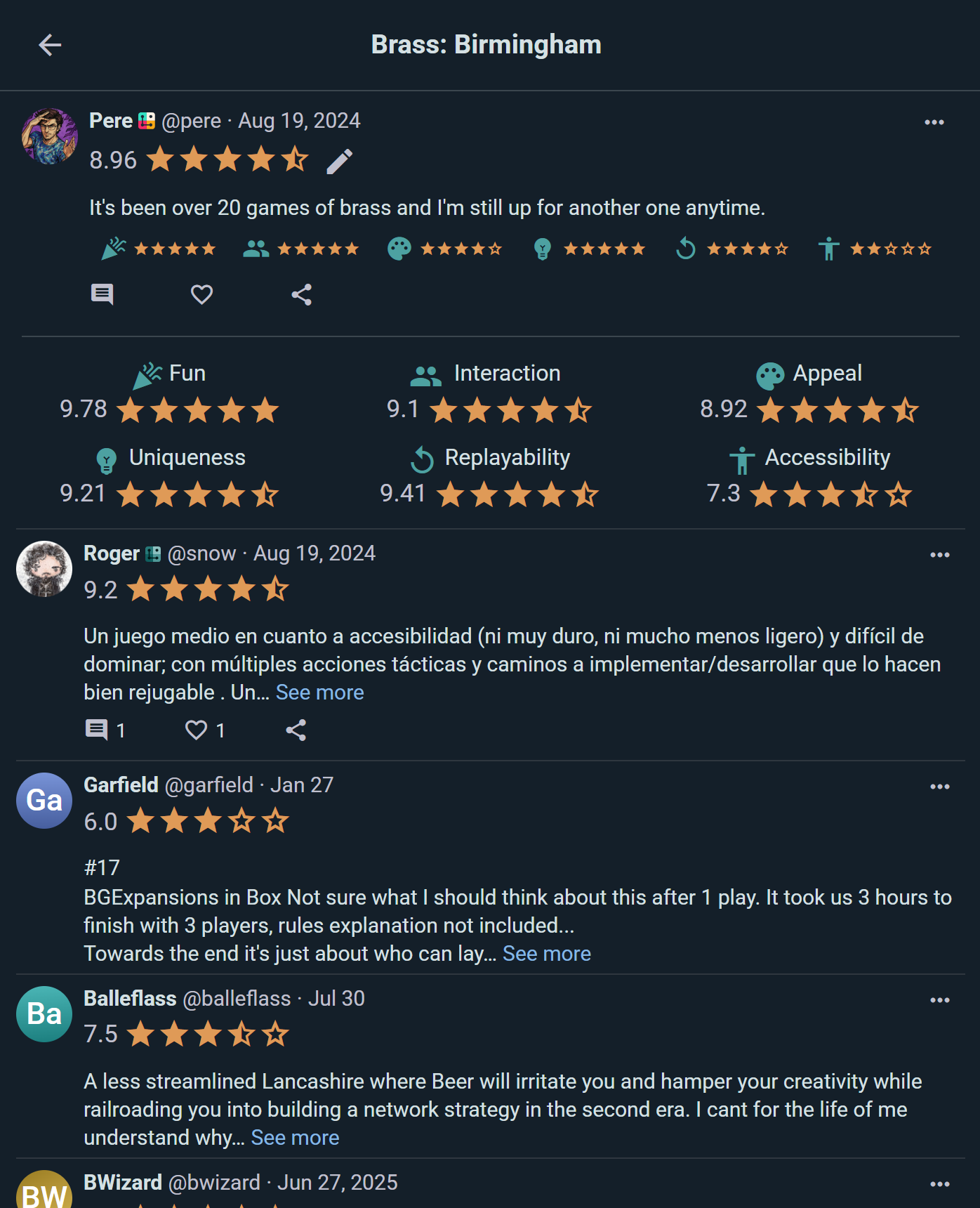
- Reviewer's profile — Avatar, username, and a link to their profile
- Overall rating — Their 1–10 score (displayed prominently)
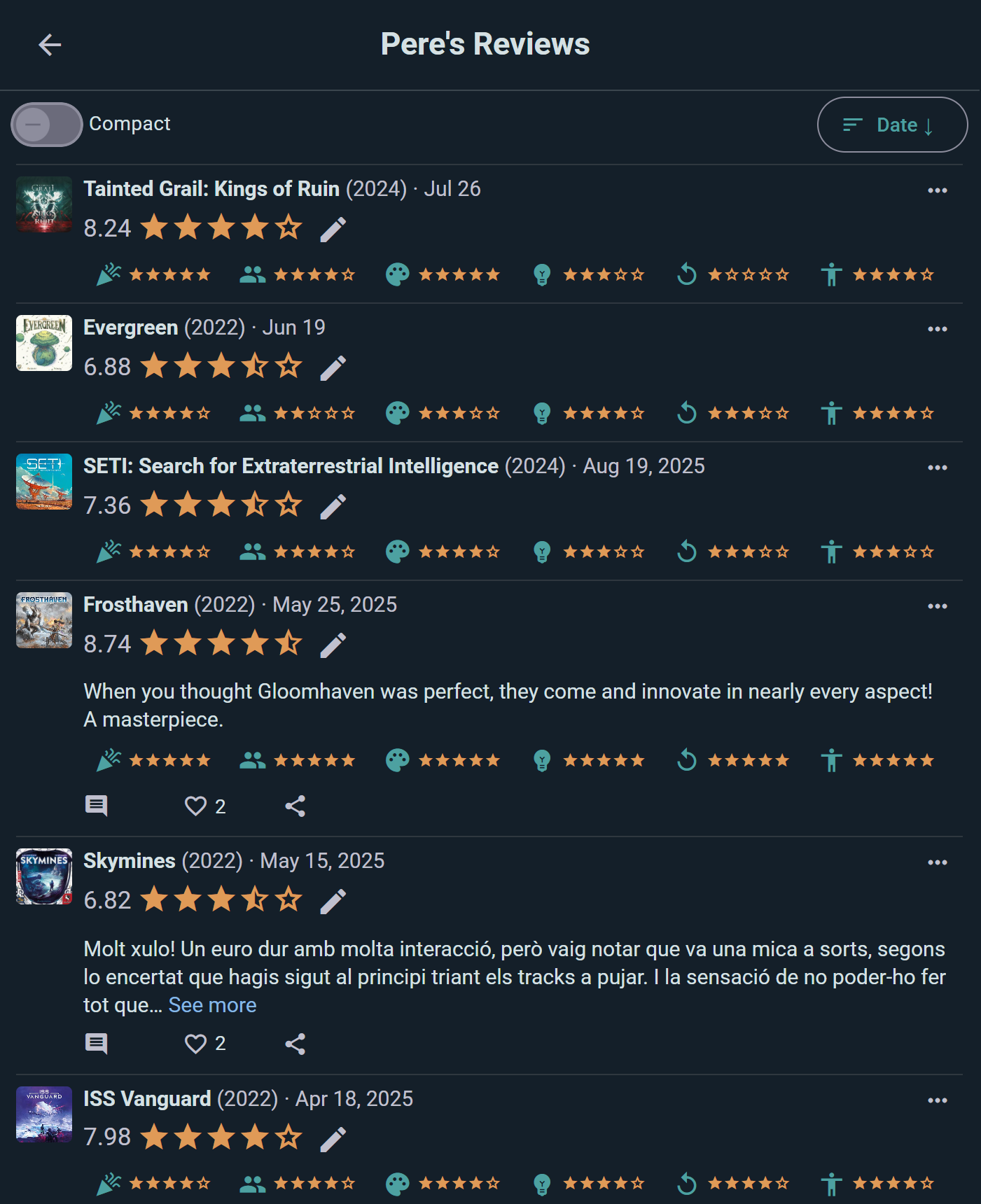
- Sub-ratings — The six optional category scores (if the reviewer included them)
- Review text — Their written thoughts
- Engagement — Number of likes and replies from other players
Reviews are ordered by relevance, so the most useful ones surface first rather than simply the newest. On your own profile's review list you can re-sort by date, rating, or any single category — handy for finding, say, every game you scored highly on Replayability.
Community Averages
The game page shows the community's average overall score, plus an average for each of the six categories.

Two things worth knowing:
- Category averages are shown on a 1–10 scale, even though you enter them out of 5 — so a category you rated 4 contributes to an average that displays as roughly 8. It keeps every number on the page reading the same way.
- Fuller reviews count for more. The weighting is based purely on how complete a review is: each category you fill in adds weight, and writing text adds more still (longer text a little more again). It's about the review, never the reviewer — nobody's opinion counts extra for being popular or active.
Keeping It Civil
Every review has a ⋮ menu with Report and Block for reviews that cross a line. See Privacy & Visibility.
Reviews in Social Feeds
Publishing & Updates
When you publish a new review or update an existing one:
- It automatically appears in your followers' feeds
- Friends can see your overall rating and a preview of your text
- They can click through to read the full review
- They can like or reply to your review directly in their feed
Discovery Through Reviews
Browse your social feed to discover new perspectives on games:
- See what games your friends are reviewing
- Find new games mentioned in reviews from people you follow
- Engage with reviews by liking and commenting
Replying to Reviews
- Click a review to expand it fully
- You can like the review or write a reply
- Replies appear threaded under the original review
- Build conversations around games you're interested in
Reviews on the Game Page
The game page aggregates all user reviews alongside community stats:
What's in the Ratings Card
- Average rating — the overall community score
- Category averages — Fun, Interaction, Appeal, Uniqueness, Replayability and Accessibility, each on a 1–10 scale
- Your own rating — shown in place of the "Rate this game" prompt once you've rated it
- The reviews themselves — ordered by relevance
Why Reviews Matter
- Help you decide if a game fits your group
- Give insight into how a game plays at different player counts
- Show what experienced and new players think
- Highlight both strengths and potential weaknesses
Tips for Great Reviews
- Be honest — Share your genuine experience, not what you think people want to hear
- Be constructive — Explain your reasoning so others understand your perspective
- Be concise — A few well-chosen sentences beat a wall of text
- Avoid spoilers — Don't reveal plot twists in story-driven games
- Add a line of text — a score alone is useful, but a review with words and categories becomes something people can like and reply to
- Respect differences — Different players enjoy different things; your experience isn't the only valid one
- Update reviews — If your opinion changes after more plays, update your review so it stays accurate