
Everything you can look for on Ludoya lives in one place: Explore. Games, people, communities, events, listings — one screen, one search bar, five tabs.
The Explore Screen
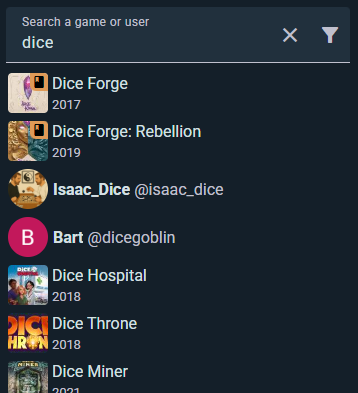
Pick a tab, and the search bar and filters reshape themselves around it:
- Games — the board game catalog
- People — find players by name or username
- Communities — gaming groups, clubs, shops, and venues
- Events — upcoming events near you
- Marketplace — second-hand listings
Each tab searches its own kind of thing, so a game search never buries you in unrelated profiles. Ludoya remembers which tab you were last on and opens there next time.
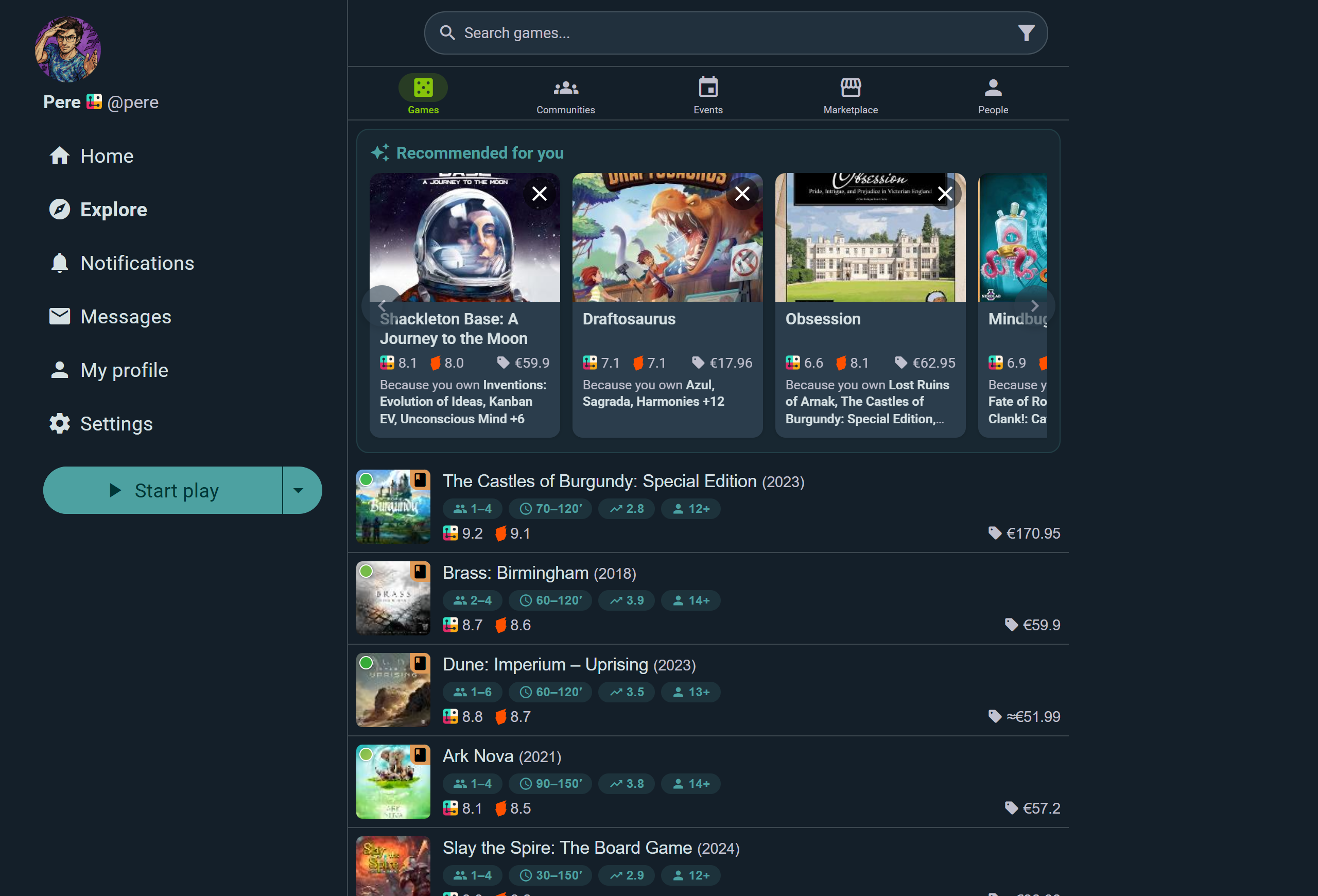
The Games tab opens with Recommended for you — picks drawn from what's already in your collection, each one saying which of your games prompted it. Below that, every result carries player count, play time, complexity, age, both ratings and the current best price at a glance.
Recent Searches
Your recent searches appear in a dropdown under the search bar, kept per tab — your game searches don't clutter the People tab. They're stored on your device only and never sent to our servers.
Location-Aware Tabs
Communities, Events, and Marketplace all understand where. Set your city, adjust the distance, and results follow. Communities and Events can also be viewed as a map with clustered markers and a Search in this area button so you can drag the map to a neighborhood and search exactly there.
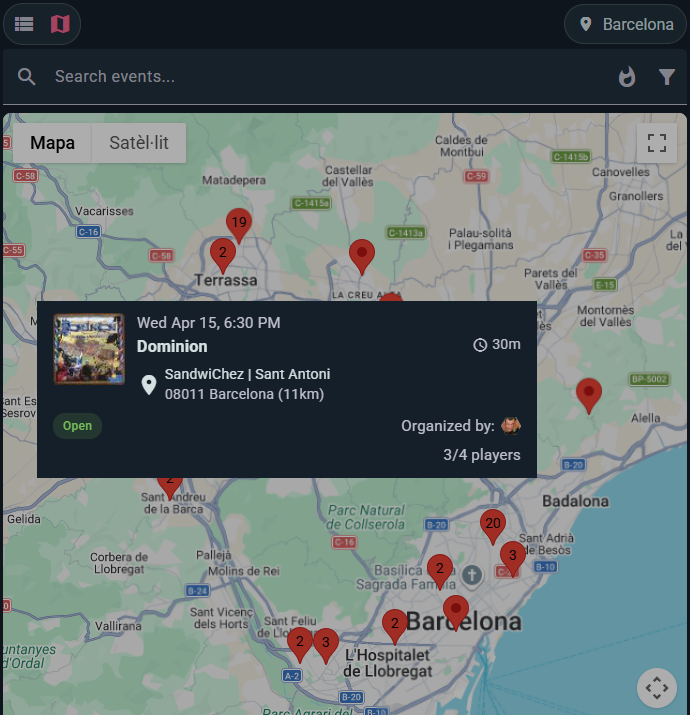
Markers carry the event's own artwork, and a number when several sit close together — so a busy city reads as a handful of clusters rather than a pile of overlapping pins. Tap the city name at the top to move the search anywhere.
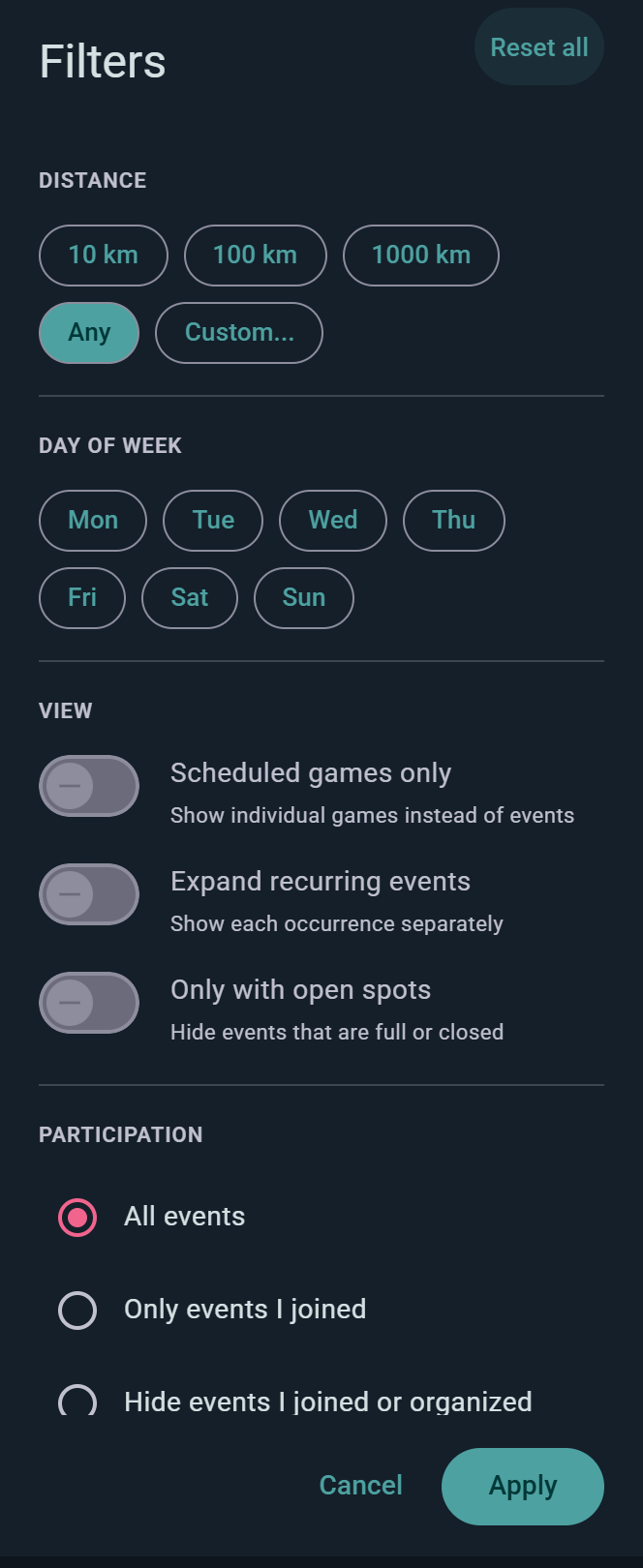
Tap Filter on any tab for the rest of it. On Events that means a distance preset (or a custom radius), Scheduled games only to list individual tables instead of whole events, Expand recurring events to see each occurrence separately, Only with open spots to hide anything full or closed, and a participation choice between everything, only what you've joined, or hiding what you've joined or organized. Reset all clears the lot.
Shareable Links
Explore keeps your search text and game tag filters in the page URL, so a link you copy reproduces that search for whoever you send it to.
Game Search & Filters
Games are searchable and filterable across the platform. Use these tools to narrow your search:
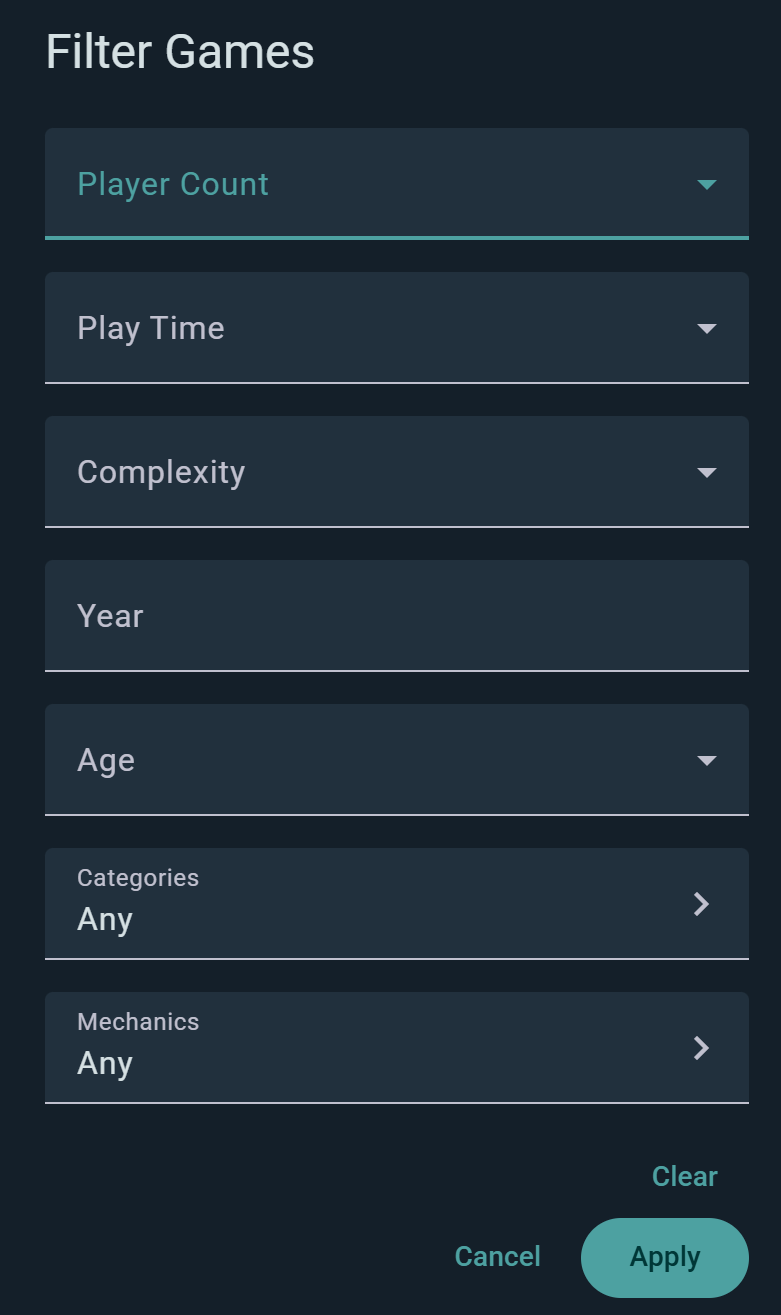
Player Count
Find games that match your table size:
- Solo — 1 player games
- 2 through 8+ — Specific player counts
- Results show games that officially support your selected count
Play Time
Pick a bracket rather than fiddling with minutes: ~15', ~30', ~1h, ~2h, or 3h+.
Complexity
Choose games that match your group's experience level:
- Light — Easy to learn, quick to teach
- Medium Light — Moderate rules, learning curve of 15-30 minutes
- Medium — Standard complexity, well-balanced
- Medium Heavy — Deep strategies, 30+ minute teach
- Heavy — Complex rules, lengthy playthroughs
Year
Enter a publication year to find games from a specific vintage.
Age
Filter by minimum recommended age — 3+, 6+, 8+, 10+, 12+, or 14+. Handy when you're shopping for a family table.
Categories & Mechanics
The real discovery tools. Open the Categories or Mechanics picker and select as many as you like — worker placement, deck building, co-op, legacy, party, whatever you're in the mood for. Your selections appear as removable chips above the results, and they ride along in the page URL, so a link to "co-op deck builders" is something you can actually send to a friend.
Ownership at a Glance
Results show which games are already in your collection, so you can spot what you own while browsing.
Can't Find Your Game?
If a game isn't in the catalog yet, the "Can't find your game?" option in the add-a-game and play-logging flows lets you submit it. Submissions go through moderation review to keep the catalog reliable, and you're notified when yours is reviewed. Adding and correcting catalog entries is a Player plan feature.
Version Selection
When you add a game to your collection or create a play log entry:
- Search for the game
- If multiple editions/versions exist, you'll see them listed
- Select the version that matches your copy (base game, special edition, etc.)
- Confirm and proceed
Collection Filtering
Your collection has its own powerful filtering system, separate from the main search.
Ownership Type Filters
Filter your games by how you own them:
- In Collection — Games you currently own
- Preordered — Games you've ordered but haven't received
- Wishlisted — Games you want to own
- Previously Owned — Games you've sold or traded away
- Everything — All of the above combined
Custom Lists
You can create custom lists to organize your collection by theme, occasion, or any category you like:
- "Best Party Games" — Games for group celebrations
- "Solo Games" — Games you play alone
- "Gateway Games" — Good for teaching newcomers
- Create your own lists in collection settings
Played/Unplayed
Discover games you haven't experienced yet:
- Played — Games you've logged a play session for
- Unplayed — Games in your collection you haven't tried
- All — Show both
Supported Player Count Tiers
Filter by how well games play at specific player counts:
- Supported — Game supports this count per the rules
- Recommended — Community feedback shows this count works well
- Best — This is the sweet spot player count for the game
Name Search Within Collection
Use the text search to find games by name within your filtered results. This narrows down results even further.
Group Expansions
Turn Group Expansions on to tuck each expansion under its base game, or off to list every box on its own. Handy when you want to see standalone titles rather than a shelf padded out with expansions.
Currently Lent
Flip on Currently Lent to see only the games you've lent out and are waiting to get back.
Sorting Your Collection
Your collection sorts more than twenty ways — by how much you play something, what it cost you per play, where the box actually lives, who lent it to you, or how badly you want it on the table. Every sort runs in both directions, so "least played" is just the reverse of "most played".
The full list, grouped by what you're trying to find out, is on Collection.
Play Log Filtering
Logs of past game sessions can be filtered to find specific plays:
Time Period
Pick a window with the chips above the list — All, 1Y, 1M, 30D, 1D — or Custom for your own start and end dates. Arrows either side step the window backwards and forwards, so you can walk month by month through your history. See Play Logging for the rest of the filters.
Game
- Filter to show only plays of a specific game
- Useful for tracking how often you've played a particular title
Co-Player
- Show plays with a specific friend or group member
- Great for remembering your game history with someone
Location
- Filter by where you played (home, game café, friend's place, etc.)
- Helps you remember your favorite venues
Group
- Show plays that were part of a specific group's event
- See which games your gaming group plays most
Player Count
- Filter by how many people were playing
- Useful for finding games that work well at specific table sizes
Marketplace Filtering & Sorting
The marketplace has its own search and filtering system for buying and selling games.
Listing Type
- Sell — People offering games for sale
- Trade — People offering to trade games
- Both — Show all listings
Condition Tiers
Games are listed in five condition states:
- New Sealed — Unopened, mint condition
- Like New — Opened but unplayed, no wear
- Good — Played but well-maintained, minimal wear
- Fair — Visible wear, played multiple times
- Poor — Heavy wear, still playable but shows use
Filter by condition to find deals or ensure you get pristine copies.
Price Range
- Set minimum and maximum price to match your budget
Ships to Me
- Hide listings from sellers who won't ship to your country
Distance in Kilometers
- Show only listings from sellers near you
- Reduce shipping costs or arrange local pickup
- Adjust distance to expand or narrow results
Marketplace Sorting
Sort marketplace listings by what matters to your purchase:
Discovery Order
- Newest — Latest listings first
Price
- Price: Low to High — Cheapest deals first
- Price: High to Low — Premium copies first
Location
- Distance — Closest sellers first
- Saves on shipping or enables in-person exchanges
Alphabetical
- A to Z — Game title sorting
Tips for Effective Searching
- Pick the right tab first — each one searches its own kind of thing, so the People tab beats hunting for a name among game results
- Use multiple filters — Combine filters to narrow results precisely
- Check filter chips — Active tag filters show as chips above the results; tap one to remove it
- Search the map — On Communities and Events, drag the map to a neighborhood and hit Search in this area
- Let Ludoya suggest — The Games tab has a Recommended for you shelf; tell it "I own it", "I want to play it", or "Not for me" and the suggestions sharpen
- Experiment — Try different complexity or player count filters to discover games outside your usual picks